
Data Sources
A Data Source is a named query, kept in the document, whose answer is always a table: rows from a web API, a SQLite database file or any database reached through ODBC. You build it in an editor that shows the table as you type, and the document shows it wherever a table can go: spilled into a workbook's cells, or as a smart table in an Impulse document or on an Expo slide. Refresh it and the table follows the source, keeping the formatting you gave each column.
A Data Source is data, not code: it does not wait for Enable, but it reaches nothing until you allow what it reaches (see Trust).
Making one
| Application | Make | Edit |
|---|---|---|
| Formula | Data ▸ New Data Source… | Data ▸ Edit Data Source… with a cell of its table selected |
| Impulse | Insert ▸ Data Source… places it as a smart table at the caret | References ▸ Edit Data Source…, or the table's right-click menu |
| Expo | Insert ▸ Data Source… places it as a smart table on the slide | The table's right-click menu |
In Formula a Data Source is a formula, =DATASOURCE("Sales"), which spills its table from the cell like any dynamic array.
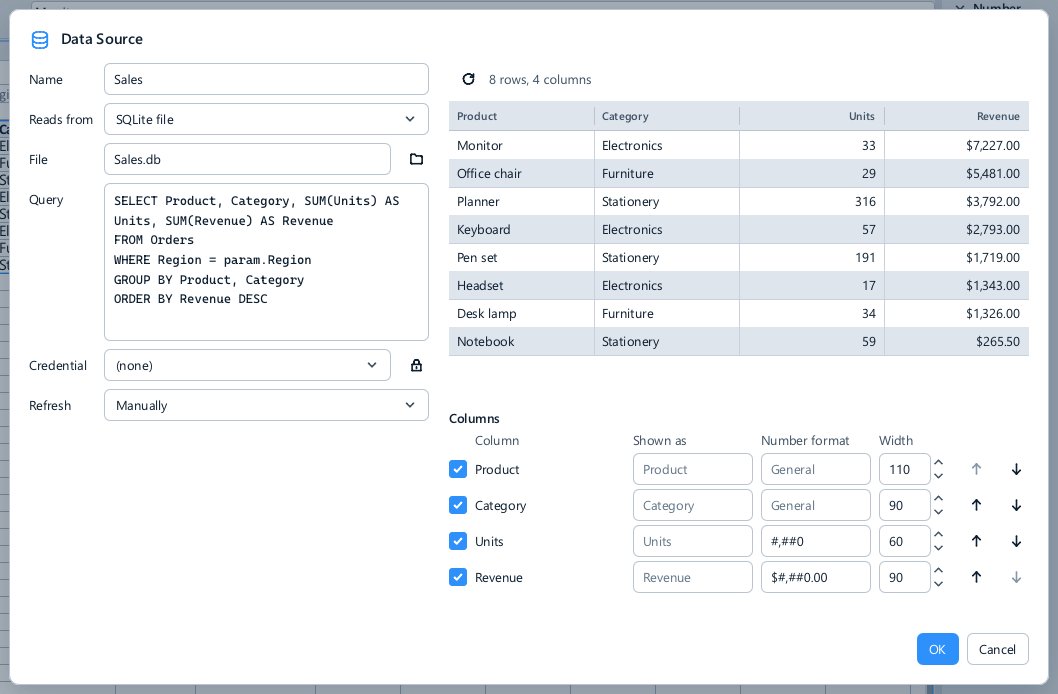
The editor
- Name: what the document calls it, as in
=DATASOURCE("Sales"). - Reads from: Web API, SQLite file or ODBC.
- Web API: a URL that answers JSON, its query parameters one a line (
region = {param.Region}), its headers one a line (Authorization: Bearer {credential.secret}), and Rows, the JSON path to the array of rows, such as$.data.items(the whole answer when empty). Only GET is made. - SQLite file: the database file, a path beside the document (
Sales.db) or a full one; it is opened read-only. - ODBC: a connection string, such as
DSN=Sales.
- Web API: a URL that answers JSON, its query parameters one a line (
- Query, for a database: one
SELECT(orWITH … SELECT); nothing that writes is accepted.param.Regionin the SQL reads the document's Region parameter and is sent as a value, never pasted into the statement, so a parameter cannot change what the query does. - Credential: a user name and secret kept on your computer, never in the document, which the connection string, URL or headers read as
{credential.user}and{credential.secret}. The lock button beside it keeps a new one, in the Windows Credential Manager underMethodoxOffice:<name>. The document holds only the credential's name, so each person who opens it uses their own. - Refresh: Manually, When the document opens, or Every few minutes (every 15 unless you change it). A source always refreshes when a parameter it reads changes.
The table on the right is the source's answer, read again a moment after each change, so the table you are building is the one you see; when the source needs access the document has not been given, an Allow button stands beside it. Under it, Columns lists what the source answered: untick a column to leave it out, rename it under Shown as, set the number format and width it starts with, and move it up or down. OK keeps the Data Source in the document as one undoable change. A Data Source answers at most 100,000 rows.
Refreshing
- Formula: Data ▸ Refresh Data (
Ctrl+Shift+F5) refreshes every Data Source and data-source Function in the workbook. - Impulse and Expo: a Data Source is a smart object, refreshed with the others by Refresh All (
Ctrl+Shift+F9) or from its right-click menu. - On their own, as each source's Refresh says, and whenever a parameter it reads changes.
Between refreshes, and in a document opened offline, the table shows what the last refresh fetched, which is saved with the document. The Smart Objects tab lists every Data Source under Data sources, with how its last refresh went; its strip and its right-click menu edit one.
Trust and access
Reading a Data Source reaches outside the document, so the document must be allowed it:
- a web API needs GET for its website, such as Needs GET api.open-meteo.com;
- a database needs Connect for its file or connection, such as Needs Connect Sales.db.
The bar over the document, or the editor's preview, asks with an Allow button. Each grant is remembered for the document in your trust store, against what decides where the source connects and what it asks, so editing a source's connection or query elsewhere asks again, while an edit you make in the editor keeps the document's grants. How a source's table looks is not part of it.
Formatting a table by column name
A Data Source, or any smart table, is rewritten by every refresh, and its columns may come back in another order, or with one more or one fewer. So you format it as you would any table, and the formatting belongs to the column's name, not its position: after every refresh each column gets back its look, its width and its number format, by its header.
- Formula: a spilled table keeps each column's cell formatting, width and the conditional formats inside it.
- Impulse: a smart table keeps each column's cell and text formatting and its width. Column Number Format… on the table's right-click menu sets how a column's numbers are written.
- Expo: a column's look is its header cell and its first body cell, given to every row. Select the table, or a cell of it, and format it with the text formatting bar; Column Number Format… is on the right-click menu.
A Data Source, or a script through host.table(rows, formats) in Lua, may suggest a number format, width and alignment for a new column. Your own formatting always wins over a suggestion. A column that disappears and comes back in the same session comes back as it was, and a new column of numbers stands right.
Try it
Examples\Formula\Data Sources.xlsx holds two Data Sources spilled by =DATASOURCE(): Sales, a SQLite database Sales.db beside the workbook, read for the Region parameter, and Forecast, Open-Meteo's week at the Latitude and Longitude parameters. Allow each when asked, then change a parameter in the Parameters deck: the table fetches again and every column keeps its formatting.