
The Window and Your Documents
Impulse, Formula, Expo, Nu and Math are built on one window, so what you learn in one holds in the others. Each application supplies its document, its menus and the formats it reads; everything on this page is the same in all five.
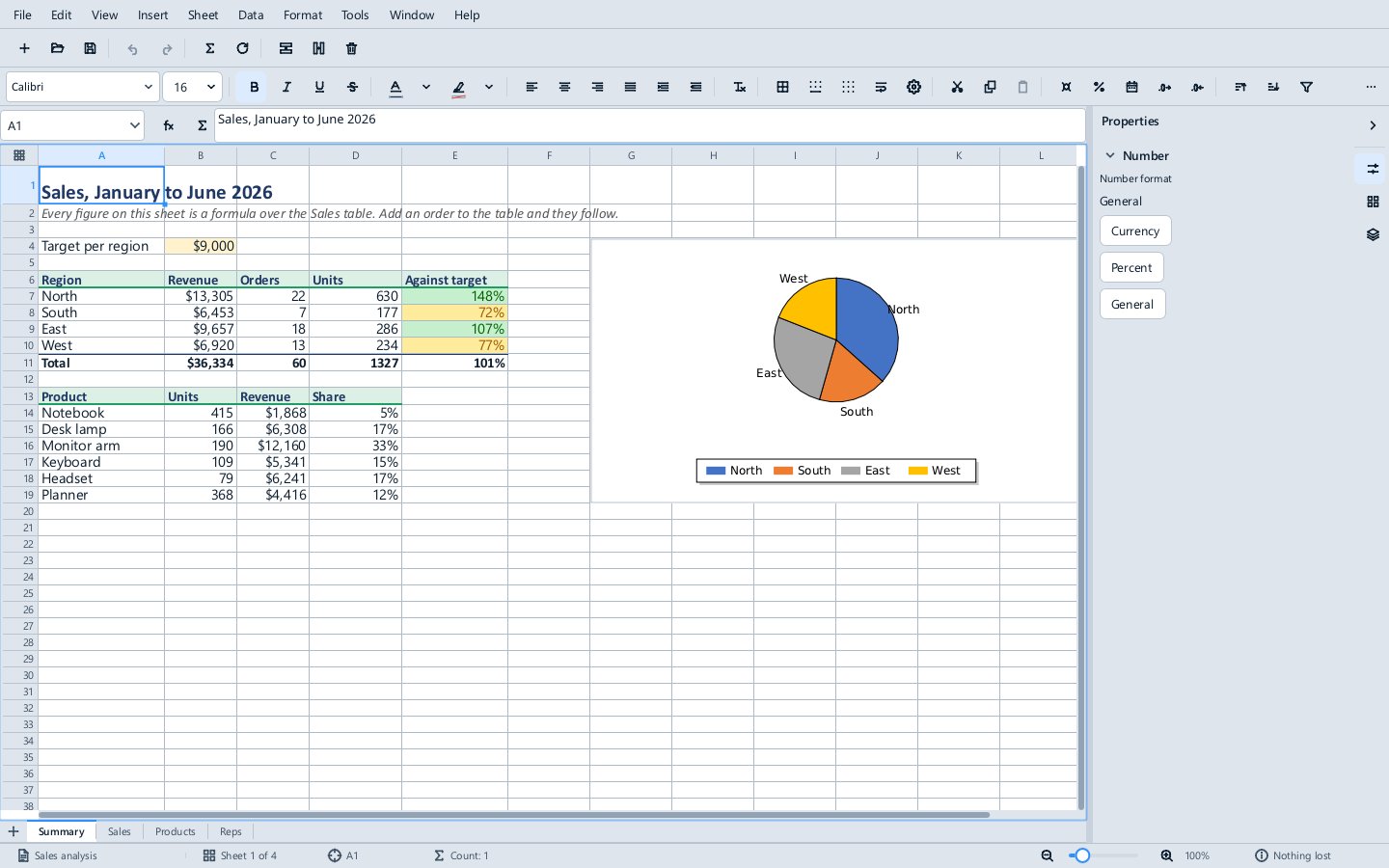
The parts of the window
- The menu bar holds every command the application has. A menu item shows its key on the right; the keyboard shortcuts pages list them all.
- The toolbars under it: the first has the document commands (new, open, save, undo, redo and the application's most used commands), the second the formatting of what is selected. Hover over a button to see its name. Buttons that do not fit are under the
…at the right end. - The Navigator, on the left (View ▸ Navigator), lists what the document is made of: headings in Impulse, sheets, names, tables, charts and pivots in Formula, slides in Expo, pages in Nu, the structure of the formula in Math. Click an entry to go there.
- The sidebar, on the right (View ▸ Sidebar), shows properties of the selection and the document, in decks you switch between with the icons down its right edge. The arrow at its top folds it away.
- The tool pane opens under the document for tools that need room, such as the Scripts pane, Formula's SQL Workbench and Impulse's Sources pane. Its
×closes it. - The status bar names the document and shows where you are (page, cell, slide), the zoom slider, and how the last open or save went.
- The Window menu, before Help, lists the documents open in the application; choose one to switch to it. Next Document (
Ctrl+F6) and Previous Document (Ctrl+Shift+F6) step through them, as doCtrl+TabandCtrl+Shift+Tabwhile the document has the keyboard.
The colours come in light and dark, in layers a visible step apart: the desk behind a document, the panes and toolbars, and the fields, lists and pages you work in, which are white in the light theme. The theme follows --dark and --high-contrast on the command line.
Opening documents
- File ▸ Open (
Ctrl+O) lists every format the application reads under All supported formats; see Supported file formats. - File ▸ Recent documents lists what you opened or saved lately, in any of the applications; it is the same list the Start Centre shows.
- File ▸ New (
Ctrl+N) starts an empty document. - From the Start Centre, any document opens in the application its type belongs to.
- Drop files from Explorer onto any window, or the Start Centre, to open them, several at once. A file another application reads opens in that application.
- Double-clicking a document in Explorer opens it once Methodox Office is the default application for its type (see Installing).
When a document opens, the status bar says Nothing lost if every part of it was understood, or how many problems there were, such as a feature the application draws approximately or leaves out. Click that field for the list. A part of a file the application does not understand is usually kept and written back unchanged when you save; the file formats page says what is kept and what is not.
Saving
- File ▸ Save (
Ctrl+S) writes the document back in the format it came in. - File ▸ Save As (
Ctrl+Shift+S) writes it under another name or in another format; the dialog lists only the formats the application can write. - File ▸ Close (
Ctrl+W) asks whether to save changes first.
Saving to a format that cannot hold everything in the document, such as a workbook saved as CSV, lists what was left out in the same problems list, so nothing disappears silently.
Recovery
Each application keeps a recovery copy of a document with unsaved changes, every 10 minutes or every 25 edits by default. If an application stops without saving, the next start offers to recover what it kept. Edit ▸ Options ▸ Recovery sets how often.
Printing and exporting
- File ▸ Print (
Ctrl+P) prints, with the printer and the pages to print; Print Preview shows the pages first and Print Directly prints at once to the default printer. - File ▸ Export as PDF writes a PDF of the whole document, a range of pages or the selection, with image compression and PDF/A as options.
- File ▸ Export as Image (Expo, Nu and Math) writes the slide, page or formula as PNG or JPEG.
- File ▸ Properties shows and edits the title, subject, author and other properties stored in the file.
Options
Edit ▸ Options holds what applies to the whole suite rather than one document: the language new windows use, the custom lists Formula sorts and fills by, and how often recovery copies are made.
Zoom
The zoom slider at the right of the status bar, with its − and +, sets the zoom, and so does View ▸ Zoom. In Impulse's page, Formula's grid and Expo's and Nu's canvas, Ctrl with the mouse wheel zooms too.