Tables, Names, Pivot Tables and SQL
Formula keeps data in tables and named ranges as Excel does, summarises it with pivot tables, and can also query it with SQL. Everything on this page is saved in the .xlsx in a form Excel reads, except SQL, which Excel keeps but does not run.
Tables
Select a block of data with a header row and choose Insert ▸ Table. A table has a name (Table1, renamed in the Name Manager or the Navigator), a style, and columns referred to by name in formulas: =SUM(Sales[Revenue]), =[@Units]*[@Price] in a row of the table.
A table grows by itself. Type in the row under it or the column beside it and the table takes the row or column in, formulas in calculated columns fill down, a totals row stays at the bottom, and charts, structured references, conditional formats and validation follow. The growth is one undo step; Insert ▸ Undo Table AutoExpansion undoes only the growth, and Insert ▸ Expand Tables Automatically turns it off.
To change a table's size by hand, drag the small handle at its bottom-right corner, or choose Insert ▸ Resize Table and pick the new range on the sheet. Totals, calculated columns, references and charts follow, in one undo step.
The Insert menu also switches the table's Header Row, Totals Row, Banded Rows, Banded Columns and the emphasis of its first and last columns, and Convert Table to Range turns it back into plain cells. Format ▸ Table Style chooses its look.
Names
A name stands for a cell, a range or a value: =SUM(Q1Sales) reads better than =SUM(B2:B4).
- To make one, select the cells, type the name into the Name Box and press
Enter; or use Insert ▸ Named Ranges (the Name Manager). - The Name Manager lists every name and table with what it refers to, and creates, renames, redefines and deletes them. It stays open while you work and applies each change at once as one undo step; the button beside Refers to folds it to a bar so you can select the new range on the sheet; and renaming a name rewrites the formulas and other names that use it, instead of leaving them as
#NAME?. - Redefining from the selection: select the new cells, open the Name Box's list and choose Redefine as ▸ the name; or right-click the name in the Navigator.
- Go To (
F5orCtrl+G) goes to a name, a table, an address or any cell reference.
The Navigator
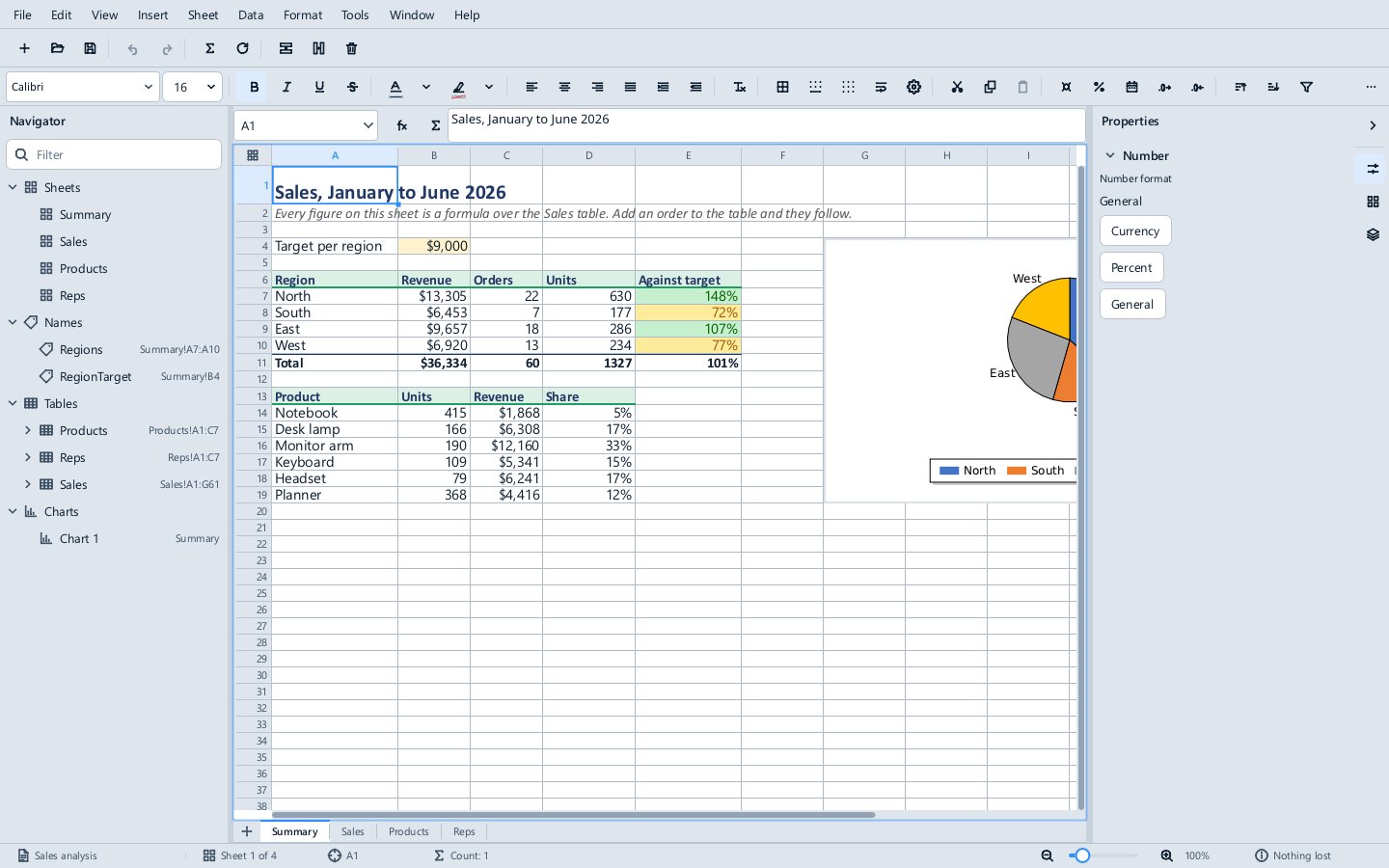
View ▸ Navigator lists the workbook's sheets, names (with what they refer to), tables (with their columns), charts, pivot tables and saved SQL queries. Click an entry to go to it; right-click it to rename, redefine or delete it, or to Query with SQL. The filter box at the top narrows the list.
Pivot tables
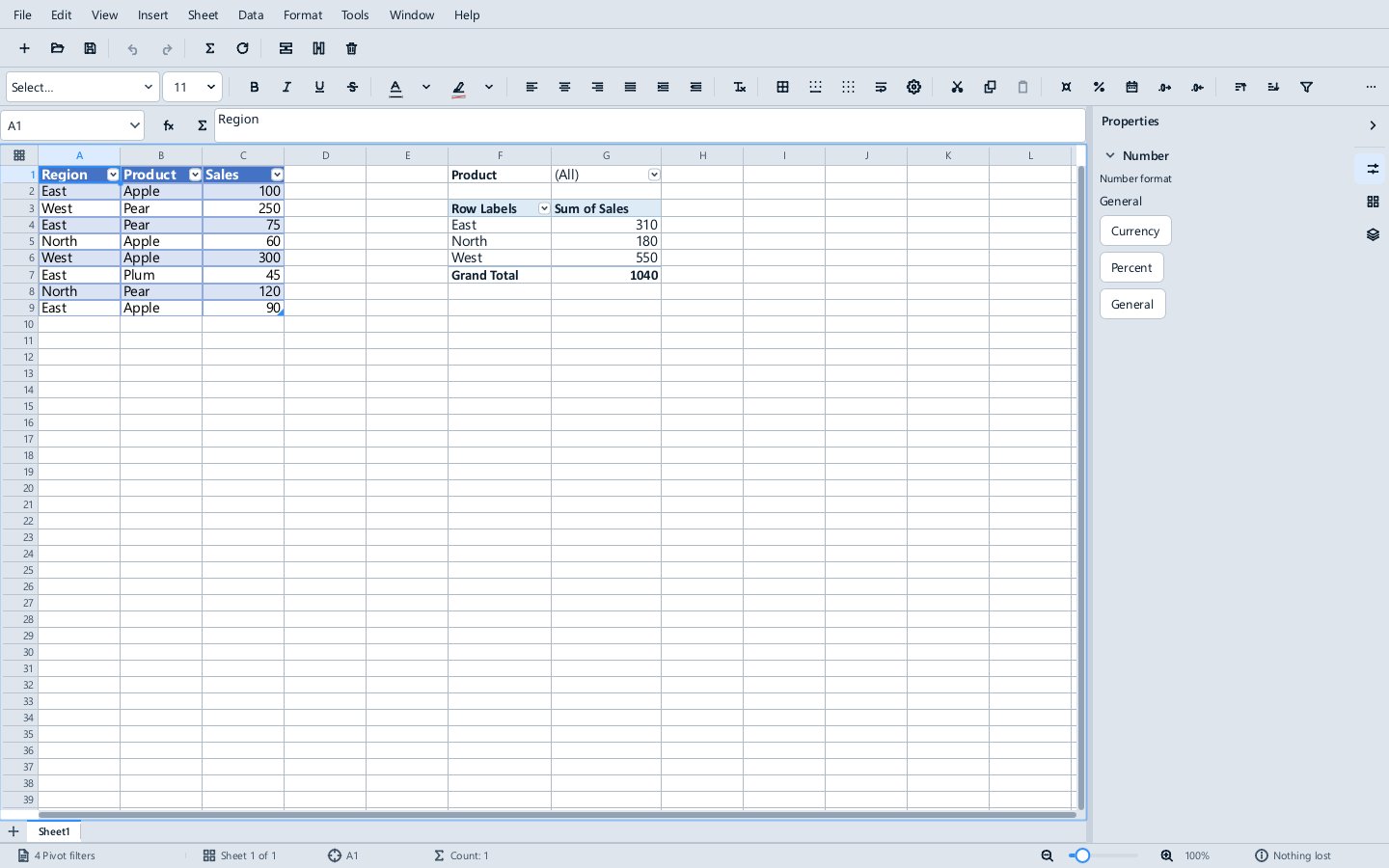
A pivot table summarises a table by the fields you put in its rows, columns, values and filters, and stays live: Refresh (Alt+F5) or Refresh All (Ctrl+Alt+F5) recalculates it from its source.
- Click inside the data and choose Insert ▸ PivotTable. Choose whether it goes on a new worksheet or at a cell of an existing one. The source range and the location each have a button that lets you select them on the sheet.
- The PivotTable Fields deck opens in the sidebar. Drag fields into Filters, Columns, Rows and Values, or tick them.
- Data ▸ PivotTable ▸ Value Field Settings chooses the summary (sum, count, average and so on) and its number format.
The Data ▸ PivotTable menu also sorts, filters, removes fields, chooses the layout (compact, outline or tabular), switches grand totals and subtotals, changes the data source and deletes the pivot table. The pivot table carries dropdown buttons on its report filters, its row and column labels and its field headers, each opening a list with sorting, a search box and a checkbox for each item.
=GETPIVOTDATA() reads a value from a pivot table. Pivot tables made in Excel open as live pivot tables that refresh to the same cells Excel shows, and pivot tables made in Formula open and refresh in Excel.
Not there yet: PivotCharts, grouping dates and numbers, calculated fields and slicers.
The SQL Workbench
Data ▸ SQL Workbench (Ctrl+Shift+Q) queries the workbook with SQL. Every table, named range and sheet is a table you can select from, listed on the left with its row count; sheets are listed with _sheet after their name where a table has the same name. Type a statement and press Ctrl+Enter or F5, or build one with the Query builder button, which writes the SQL it shows. Cancel stops a long statement, and right-clicking a table in the list inserts its name or selects all its rows.
select Region, count(*) as Orders, sum(Units) as Units, sum(Revenue) as Revenue
from Sales
group by Region
order by Revenue desc
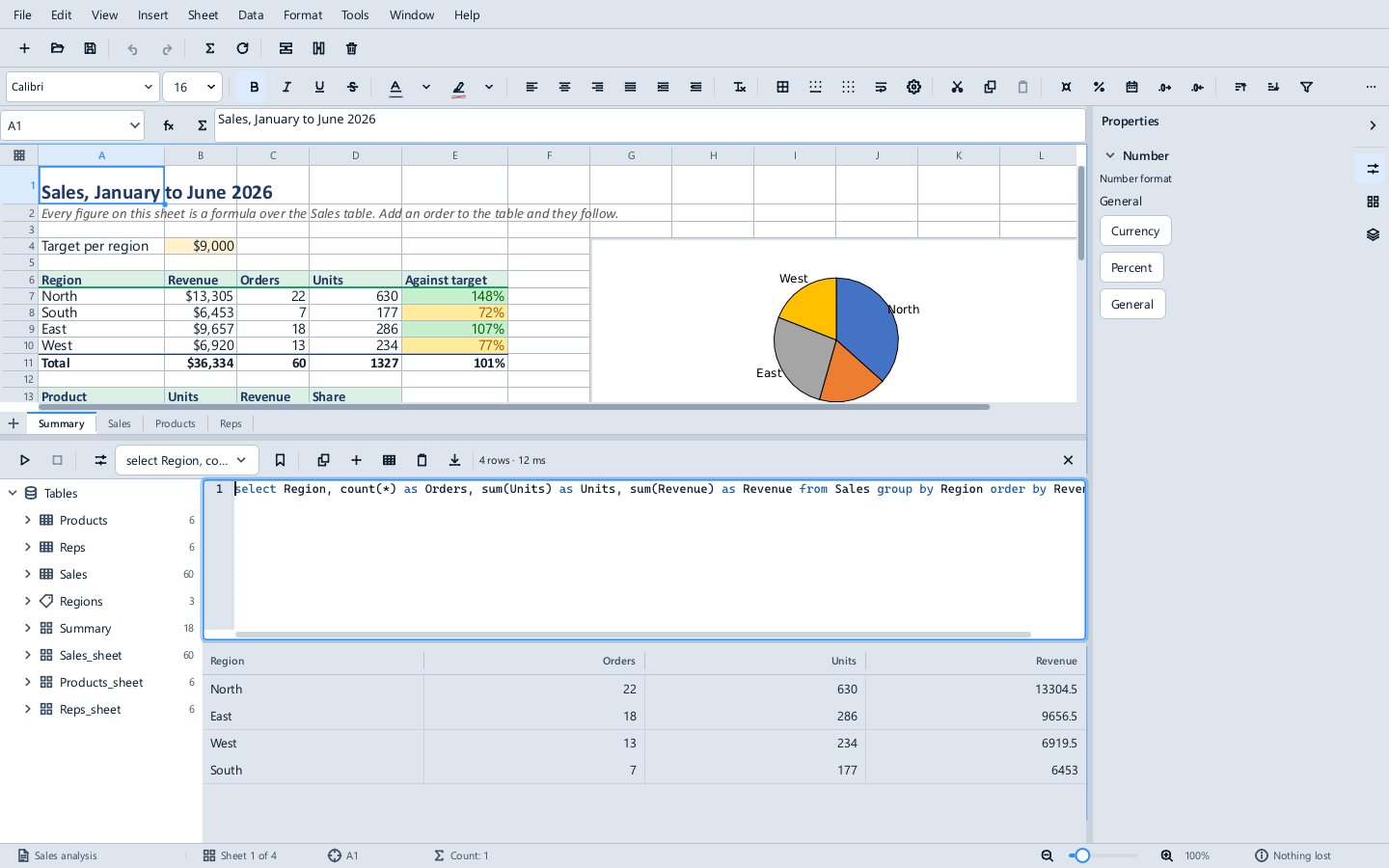
The workbench only reads: SQL never changes a cell by itself. The buttons over the statement send the answer somewhere, each as one undo step: Copy, Save as new sheet, Save as new sheet with a table, Insert at the selection and Export CSV. Save as view keeps the statement in the workbook as a named query, which the Navigator lists and which the workbench and SQL.VIEW can open by name. The History list holds the statements run in this window. The SQL is SQLite's.
Scripts and programs reach the same layer without the window; see Automation.
SQL.VIEW
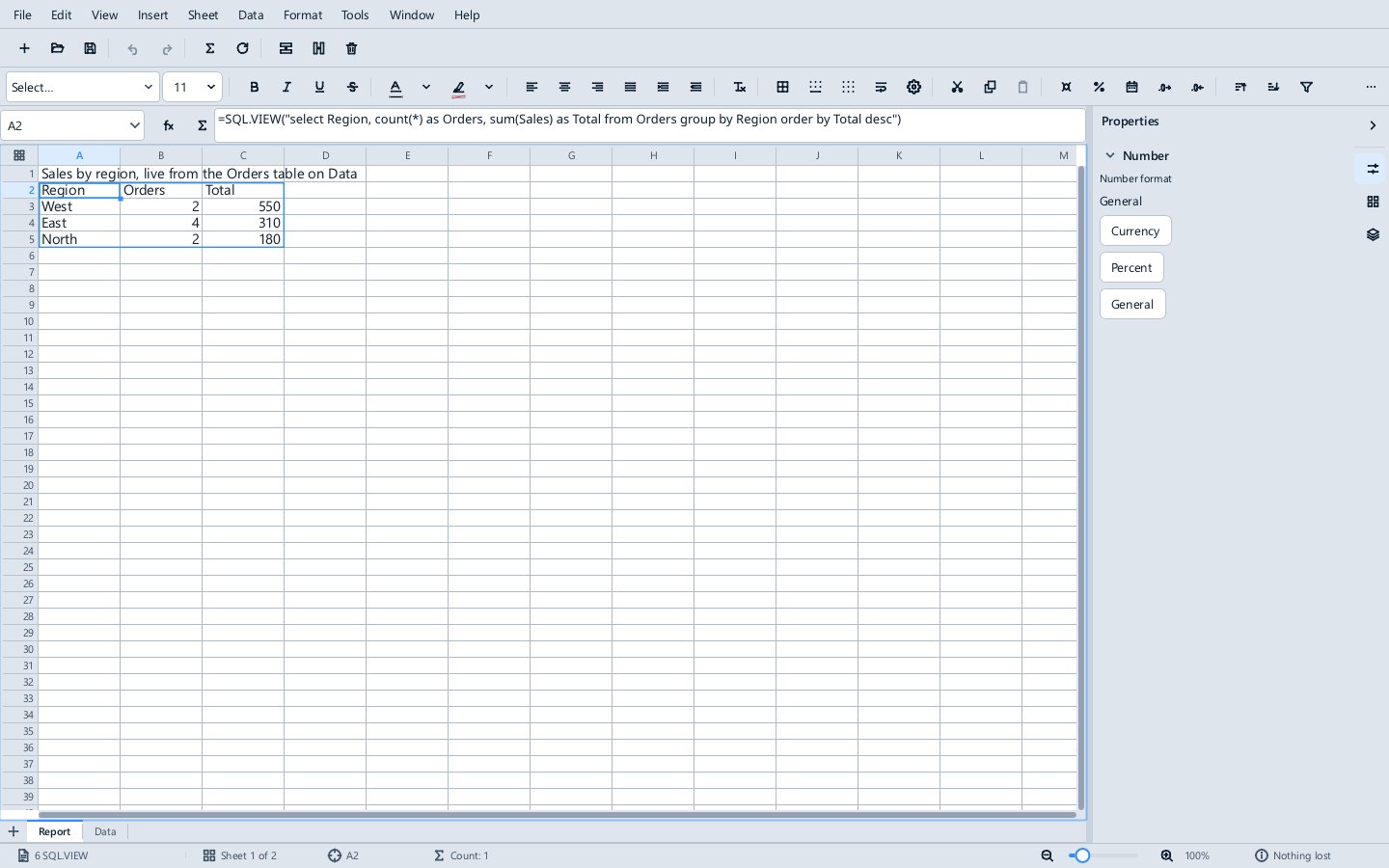
The workbench copies an answer once. SQL.VIEW keeps one up to date: a formula whose answer is the result of a query, spilled into the cells below and to the right, and recalculated whenever a cell the query reads changes, like any other formula.
=SQL.VIEW("select Region, count(*) as Orders, sum(Sales) as Total from Orders group by Region order by Total desc")
The first row of the spill is the column names; =SQL.VIEW(sql, FALSE) leaves them out. The text can also be the name of a query saved from the workbench. An SQL error shows #VALUE!, and a query with no rows #CALC!. Excel keeps the formula and shows its last values, but cannot recalculate it.