
Exporting a Program
A document you have written in Divooka Compute is a program: it can run without the editor, from a command line, a script, a scheduled task or a server. Publish builds it into a program of its own, which runs where Divooka Compute is not installed; stew, which ships in Divooka Compute's folder as stew.exe, runs the document itself.
Publishing a program
Publish, at the right of the toolbar, builds the document in front into a folder holding a program of its own - an executable named after it, and everything it runs on. It is offered for a document saved to a file. Its card:
| Field | What it is |
|---|---|
| Name | The program's name: its executable's and its assembly's. It starts as the document's. |
| Version | Stamped on the program, as numbers and dots: 1.0.0. |
| Author, Copyright, Description | Stamped on the program too; the author and the description start as the document's. |
| Folder | Where the program is written. |
| Icon | The picture the program's icon is made from - PNG, JPEG, BMP, GIF, TGA, WebP or ICO - or empty for none. A picture that is not square is centred rather than stretched. |
| Platform | Shown when the document's Targets name Windows or Linux: which of them the program is built for, this system first. |
| Prefer Native AOT | Compiles the program to native code where it allows it - a small folder that starts at once. Where it does not, the program is built self-contained and the card says why. Native code is built only for the system you publish on. |
| Self-contained | Carries the .NET runtime, so the program runs where .NET is not installed. Off, the program is far smaller and needs .NET 10 where it runs. |
Press Publish: the dock's Publish tab shows each stage and ends with what was made - Published Calculator: Native AOT, 16 files, 7.2 MB - and its folder button opens the program's folder. The card remembers what you chose for each document, on this computer.
What the program becomes is the document's to say, on its own graph - Document in the outline - in Properties:
- Application kind: a Program runs in a command window, and reads and prints there; a Desktop Application - a calculator, a game, a story - opens windows of its own and no command window. The examples that open windows of their own - the GUI and Glaze examples, the visual novels, the ray tracer - are Desktop Applications.
- Targets: the systems the document is written for - Windows, Linux, Android, Arduino Uno - one switch each, or none for a document that does not say. Publish offers Windows and Linux under Platform. Built for the other system, the program is self-contained as its switch reads, Native AOT is off for it, and the card names any native library its packages use there that this distribution does not carry.
Both are saved in the document, and each change is one step Ctrl+Z takes back.
A program a framework runs - a GUI, a Glaze game, a Novella story, a state machine - builds as native code like any other.
Running a document with stew
Open the dock's Terminal tab with Ctrl+Shift+`: it starts in the workspace folder holding the document on screen, and stew answers there by name. From any other command line, use the full path to stew.exe in Divooka Compute's folder, or add that folder to your PATH.
stew Hello.dvk
stew opens the document as the editor does and runs it as the editor's Run does, printing what the document prints as it runs - here, 7. It runs compiled unless told otherwise; --mode interpreted runs it node by node instead:
stew --mode interpreted Hello.dvk
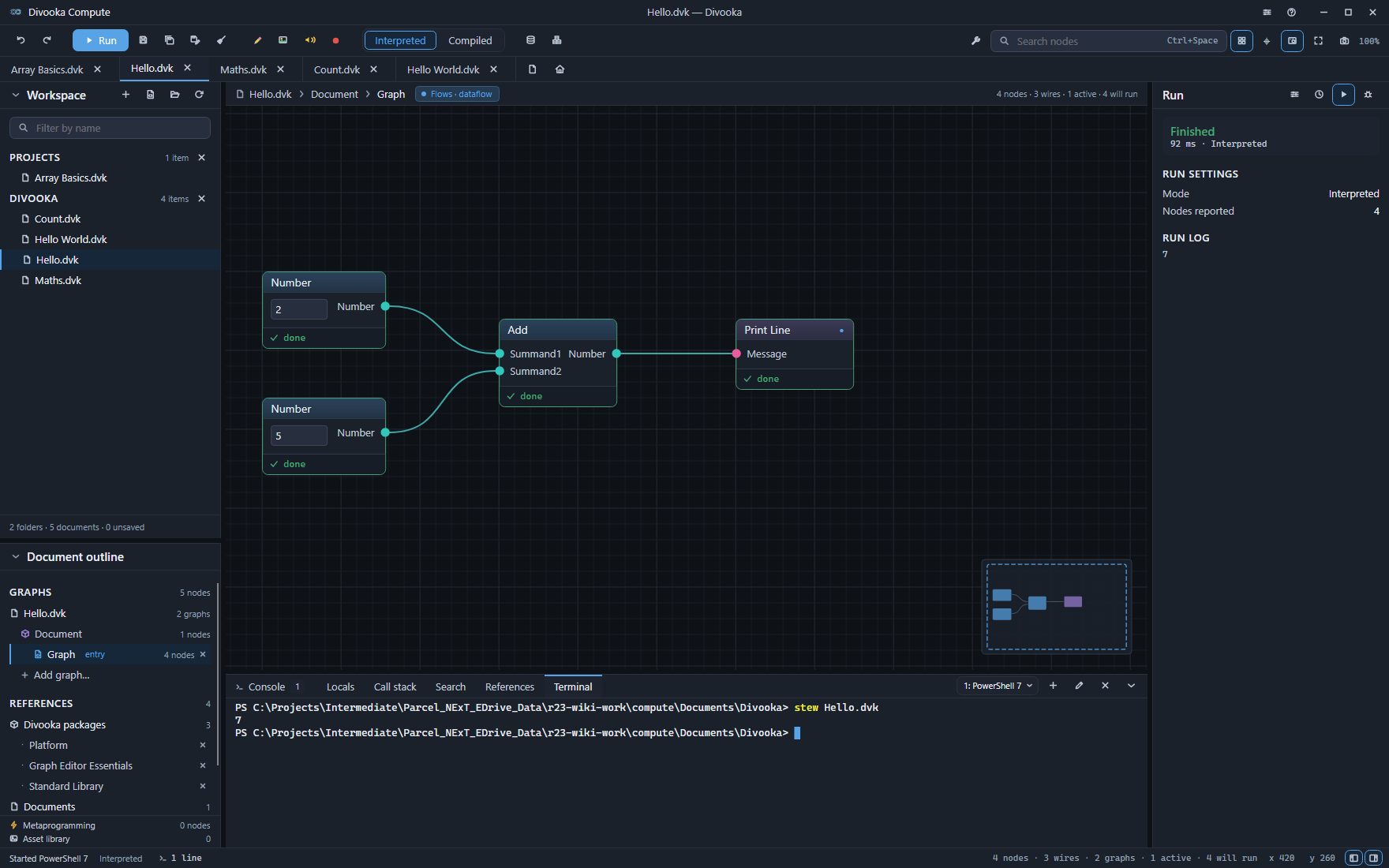
A Flows entry graph runs its active nodes, as in the editor, so mark the nodes that produce the program's output active before you save it.
Inputs
What a run takes in is what the entry graph declares: a Function's inputs, or the values a Routine's Begin declares. stew --help followed by a document says which graph a run starts from, what it takes in order, and how to run it:
> stew --help Examples/Benchmarks/Mandelbrot.dvk
Mandelbrot.dvk runs 'Graph' (Routine).
Inputs (in declaration order):
  Width: Number (Double), default 80
  Height: Number (Double), default 80
  MaxIteration: Number (Double), default 80
To run it:
  stew Examples/Benchmarks/Mandelbrot.dvk
  stew Examples/Benchmarks/Mandelbrot.dvk 80 80 80
  stew --mode interpreted Examples/Benchmarks/Mandelbrot.dvk
Values given after the document bind to the inputs in that order, and any left out take their defaults; quote a value that contains spaces. A Flows or Events entry declares no inputs, and what follows the document reaches it as the program's arguments.
When it ends
A finished run exits with 0 and lists what the entry graph returned; a failed one prints the failure and exits with 1. The other codes are 2 for a command line stew could not read, and 130 for a run stopped with Ctrl+C - the first Ctrl+C stops the run as the editor's Stop does, and a second ends stew at once. A script calling stew can test the code to know whether the program worked.
stew --measure followed by the document runs it as usual and then reports how long each stage took - opening, preparing, compiling, running - and what it used, on standard error, leaving the program's own output untouched. stew --help alone lists every option, and the environment variables that run a document with a window - a game, a GUI - without one.
Packing a document to hand on
A document that reads files beside it - an image, a table, another document it references - needs them with it. stew --pack puts a document and everything in its folder into one Divooka app bundle, a single .dvb file:
stew --pack Hello.dvk Hello.dvb
stew says how many files it packed and where. The document becomes the bundle's entry and every other file in its folder keeps its place beside it. With no bundle named, stew writes one named after the folder, beside the folder. A bundle runs like a document - stew Hello.dvb - unpacked for the length of the run and removed afterwards, so it can be copied to another machine that has Divooka Compute and run there as it ran here.
Serving a notebook
A Divooka Notebook document - a web page laid out by an Events graph, its cells answered by the document's Functions - is shared with dvn, which also ships in the folder: dvn "My Notebook.dvk" 0.0.0.0:5080 serves it to your local network until Ctrl+C. See Divooka Notebook.
A picture of the graph
To put a graph in a slide, a document or a message, press Ctrl+P or the camera on the toolbar. The Snapshot card offers the whole graph, fitted, at twice the screen's resolution - Graph on the grid, Graph on a plain background, Graph transparent and Graph transparent with grid - or The whole window as it stands. Choose one and press Save PNG….