
Methodox™ Image Editor
Fast, lightweight image editing for everyday work.
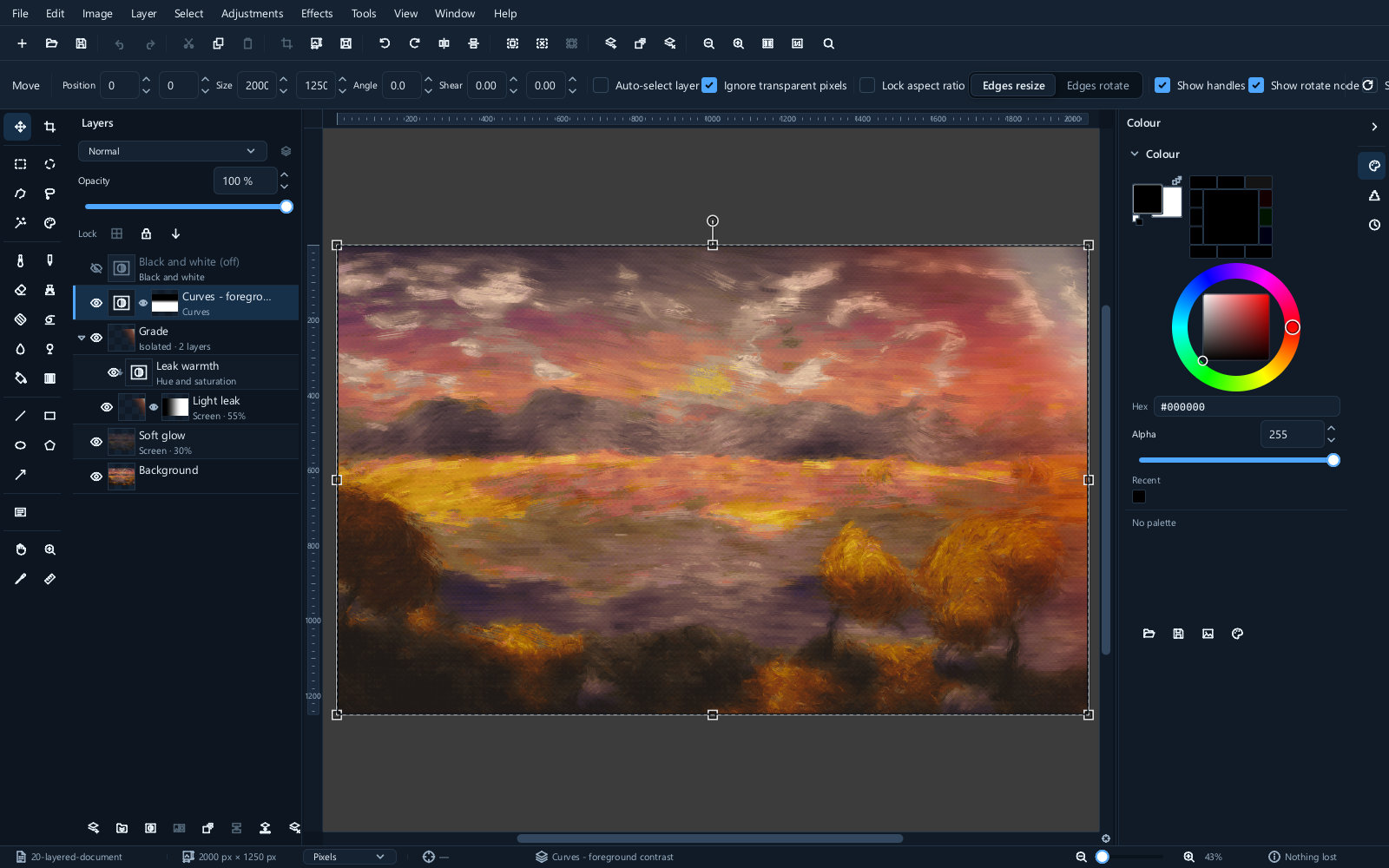
Methodox Image Editor is a layered editor for pictures. It opens photographs, camera raw files and layered documents, edits them with masks and non-destructive adjustments, and saves to eighteen formats. It runs on your own machine, keeps your pictures on it, and needs no account.
- Platforms: Windows, macOS, Linux
- Languages: English, 简体中文, 日本語
- Website: imageeditor.methodox.app
Start here
If you have just installed it, read Getting started. It takes you from an empty window to a finished, saved picture, and explains the parts of the workspace as you meet them rather than all at once.
The guide
Working with files
| Page | What it covers |
|---|---|
| Image basics | Pixels, dimensions, transparency, bit depth and compression |
| Practical recipes | Cut-outs, local corrections, composites and delivery copies |
| Getting started | Your first edit, and a tour of the workspace |
| Opening and saving | The thirty formats, what each is good for, and which to save in |
| Camera raw | Developing a file straight from a camera sensor |
Building a picture
| Page | What it covers |
|---|---|
| Layers | Stacking, groups, opacity and the blend modes |
| Masks | Hiding part of a layer without deleting it |
| Adjustment layers | Corrections you can change your mind about |
| Selections | Choosing the part of the picture you want to work on |
Changing what is there
| Page | What it covers |
|---|---|
| Adjustments | Exposure, levels, curves, white balance and colour |
| Painting and retouching | Brushes, the clone stamp, dodge and burn, fills and gradients |
| Text and shapes | Type and vector shapes that stay editable |
| Effects | Blur, sharpen, distort, stylise and the rest of the catalogue |
| Transforming | Resize, crop, rotate and straighten |
Getting more out of it
| Page | What it covers |
|---|---|
| Colour management | Profiles, working spaces, and why a picture changes colour |
| Animation and output | Frames, printing, scanning and capture |
| Troubleshooting and recovery | Diagnose problems and preserve available work |
| Automation | Macros and batch processing |
| Customising | Themes, keyboard shortcuts, panels and languages |
What it is for
It suits three kinds of work.
Correcting photographs. Exposure, white balance, contrast and colour, with a histogram that shows what you are doing to the picture and a clipping warning when you push too far. Many corrections can be made as an adjustment layer, which means you can reopen it a week later and change the number.
Composing images from parts. Layers, groups, masks and twenty blend modes, with editable text and vector shapes that stay editable until you decide otherwise.
Converting and preparing files. Thirty formats in, eighteen out, with real control over what each one does — JPEG quality, PNG colour depth, GIF palettes, TIFF compression — and a batch that will do the same thing to a folder of them.
A few things worth knowing early
Save in .mie while you are working. It is the editor's own format, and it is the only one
that preserves the editor’s layers, masks, editable text, live adjustments, selection and metadata.
Undo history is not restored when you reopen it. Export to JPEG or PNG when you are finished, and
keep the .mie as the copy you go back to.
Keep edits reversible where possible. Use adjustment layers, repaintable masks and editable shapes and text. Painting, cropping and raster effects still change pixels; preserve an original copy. See adjustment layers.
Colour is managed. If a picture opens looking different from how it looked elsewhere, that is usually a profile question rather than a bug, and Colour management explains what to look at.
The interface is in files, not in the program. English, Chinese and Japanese are included, and
a fourth language needs only another file in the Languages folder — see
Customising.