
Methodox Formula
Methodox Formula is the spreadsheet of Methodox Office. It reads and writes Excel workbooks (.xlsx and .xlsm) as its own format, computes the same answers as Excel for the functions it has, and saves workbooks Excel opens with their formulas, spills, tables, charts and pivot tables intact.
The window
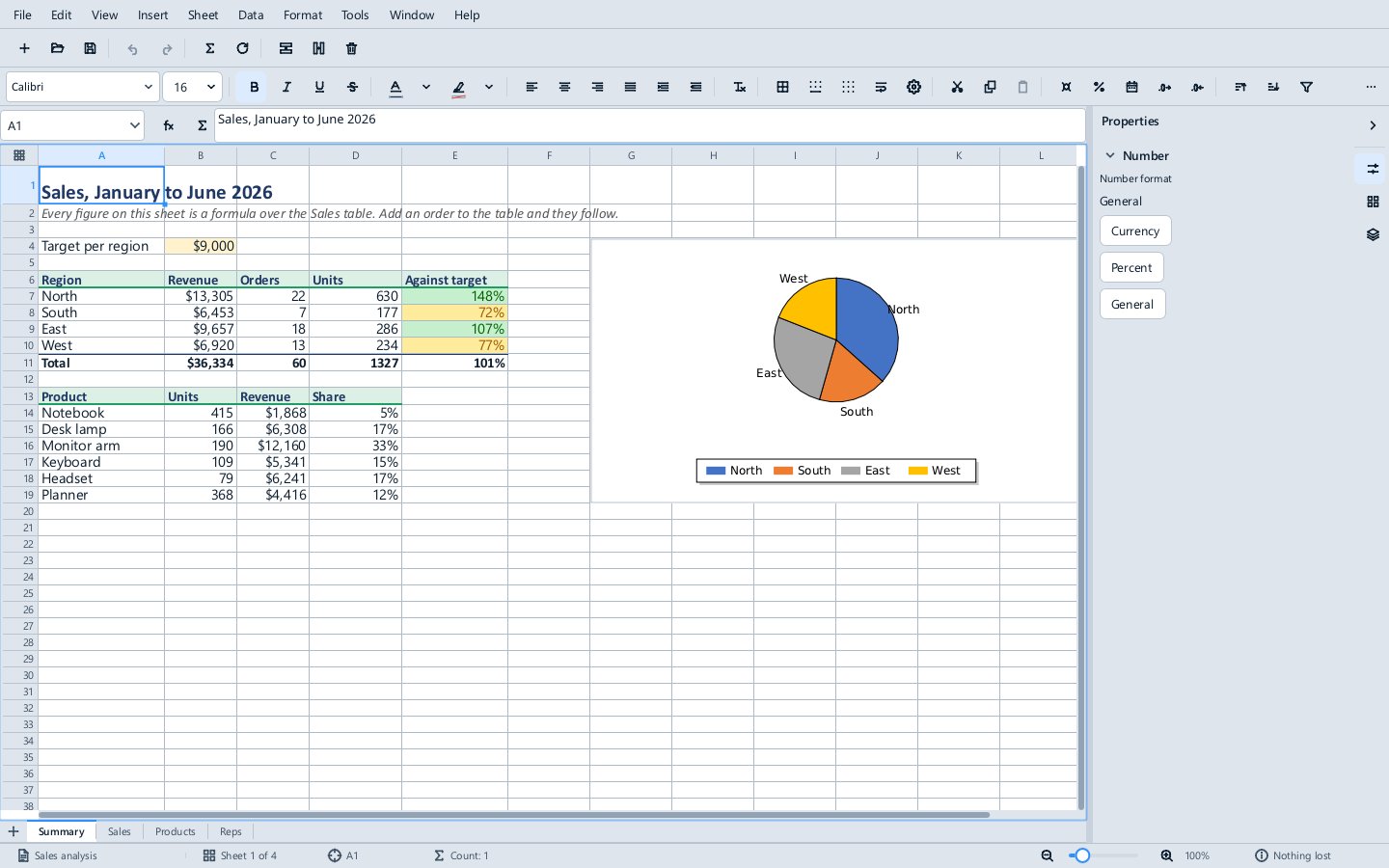
- The Name Box, at the left above the grid, shows the address or name of the selection. Type an address or a name into it and press
Enterto go there; type a new name to give the selection that name. Its arrow lists the workbook's names. - The fx button opens Insert Function, a searchable list of every function Formula computes; choose one to start a formula with it. The Σ button beside it sums the cells above or to the left (Data ▸ AutoSum).
- The formula bar shows and edits what the active cell holds.
- The grid, with the sheet tabs under it. The
+at the left of the tabs adds a sheet; right-click a tab to insert, rename, duplicate, move, colour or delete a sheet, and drag a tab to reorder. - The sidebar on the right has the Properties deck (number format and the formatting of the selection), the Sheet deck, and the PivotTable Fields deck while a pivot table is selected.
- The Navigator (View ▸ Navigator) lists the sheets, names, tables, charts, pivot tables and saved SQL queries; see Tables, names, pivot tables and SQL.
- The status bar shows the sheet, the active cell, the count of the selected cells and, when they hold numbers, their average and sum, and the zoom.
Entering data and formulas
Select a cell and type. A number, a date, a percentage or a currency amount is recognised as such; anything else is text. A number in the General format is rounded to fit its column (0.298077, 0.2981, 0.3), then shown in scientific notation, and shows ### only when nothing fits, as in Excel. Enter confirms and moves down, Esc cancels, and Alt+Enter puts the same entry into every selected cell. Edit ▸ Insert Current Date (Ctrl+;) and Insert Current Time (Ctrl+Shift+;) type today's date or the time.
A formula starts with =. While typing one, click a cell or use the arrow keys to put its reference in the formula, drag or hold Shift for a range, and press F4 to cycle the reference between relative and absolute (A1, $A$1, A$1, $A1). References are coloured in the formula and outlined on the grid. Formula reads and writes the same formula language as Excel, including structured references to tables (Sales[Revenue]), defined names, and references to other sheets (Sales!B2:B9).
Dynamic arrays
A formula that returns several values spills them into the cells below and to the right, outlined in blue, as in Excel 365: =SORT(UNIQUE(Sales[Region])), =SEQUENCE(12), =FILTER(A2:C99, C2:C99>100). Refer to the whole spill with # (=SUM(E2#)); a spill blocked by other content shows #SPILL!. LET names parts of a formula and LAMBDA makes a function of your own, with MAP, REDUCE, SCAN, BYROW, BYCOL and MAKEARRAY to apply it. GROUPBY and PIVOTBY summarise a table in a spill, and SQL.VIEW spills the answer to an SQL query.
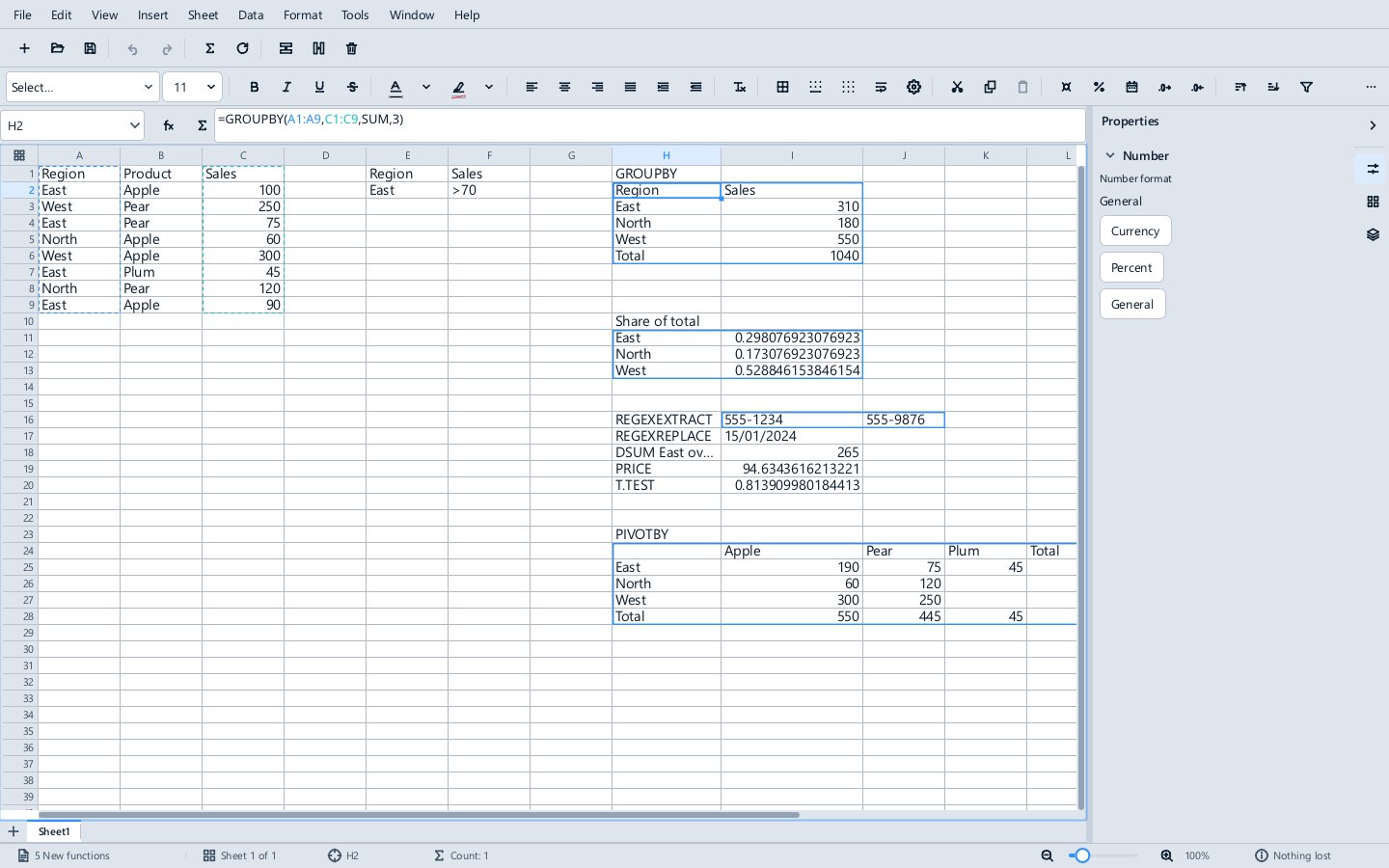
Formula recalculates automatically after every change. Data ▸ Recalculate recalculates everything at once.
Copying and filling
Cut, copy and paste work on cells, keeping formulas, values and formats. Edit ▸ Paste Special (Ctrl+Shift+V) pastes values only, values and formats, formats only, or transposed. Drag the small square at the corner of the selection (the fill handle) to continue a series or, with Ctrl, to copy; double-click it to fill down as far as the column beside it goes. Sheet ▸ Fill Down (Ctrl+D), Fill Right (Ctrl+R), Fill Up, Fill Left and Fill Series do the same from the menu.
Formatting
- The formatting toolbar sets the font, size, bold, italic, underline, colours, alignment, wrapping, borders and number format.
- Format ▸ Cells (
Ctrl+1) has the number format, font, alignment, borders, background and cell protection in one dialog; Currency, Percent, Date and General and the decimal places are also on the Format menu and in the Properties deck. - Format ▸ Conditional Formatting formats cells by rules: a cell value or formula, top and bottom values, above or below average, duplicates, colour scales, data bars and icon sets.
- Format ▸ Rows and Format ▸ Columns set heights and widths, fit them to the contents and hide or show them; double-clicking a header border fits it too.
- Format ▸ Table Style styles a table; see Tables.
- Clear Direct Formatting takes formatting away; Edit ▸ Clear Cells and Delete Contents (
Backspace) choose what to clear.
Sheets, rows and columns
The Sheet menu inserts, renames, duplicates, moves and deletes sheets; inserts and deletes rows, columns and cells (Ctrl with the keypad + and -); merges cells; and freezes the rows and columns above and left of the active cell so they stay in view (Freeze Panes).
Sorting and filtering
Data ▸ Sort Ascending and Sort Descending sort by the active column; Data ▸ Sort sorts by several columns, and by custom lists set in Edit ▸ Options. Data ▸ AutoFilter puts a dropdown on each header, with sorting, a search box and a checkbox for each value. Data ▸ Define Range names a range for sorting and filtering.
Charts
Select the data and choose Insert ▸ Chart. A chart follows its data: change a figure and it changes, and a chart over a table takes in rows added to the table. Click a chart and press Delete to delete it; right-clicking it gives it a menu of its own.
Printing
View ▸ Page Break shows where pages break; Sheet ▸ Insert Row Break and its siblings add and remove breaks. Format ▸ Print Ranges sets what prints, and Format ▸ Page Style the paper, orientation, margins, headers and footers, scaling to a number of pages, and whether grid lines and headings print. File ▸ Export as PDF can export the active sheet only.
Scripts and functions of your own
Tools ▸ Scripts (Alt+F11) opens the script editor under the grid. A script can change the workbook as one undoable step, and a workbook can carry functions of its own written in Lua or C#, which formulas call as =LUA.NAME() or =CS.NAME(). Workbooks also have =DVK.NAME() functions written as Divooka graphs, Document Parameters edited in Tools ▸ Parameters and read with =PARAM("Name"), and data-source functions refreshed by Data ▸ Refresh Data. See Scripts and Worksheet Functions.
Files
Formula opens and saves .xlsx and .csv, and .xlsm with its macros kept but never run; it exports PDF. .xls, .xlsb and .ods do not open yet. See Supported file formats.