
The Window
Divooka Compute has no menu bar. Everything is on a toolbar, in the panels beside the canvas, in a dock that opens under it, or one key away. Hover over any button to see its name and its key.
The start screen
The start screen is where Divooka Compute opens. Its rail on the left reads Start, Recent documents, Workloads, Examples, Node library, Settings and Quit; the body offers three ways to begin:
- New document - create a document; see Your first program.
- Open… - open a document from disk (
Ctrl+O). - Start without document - go to the editor with nothing open.
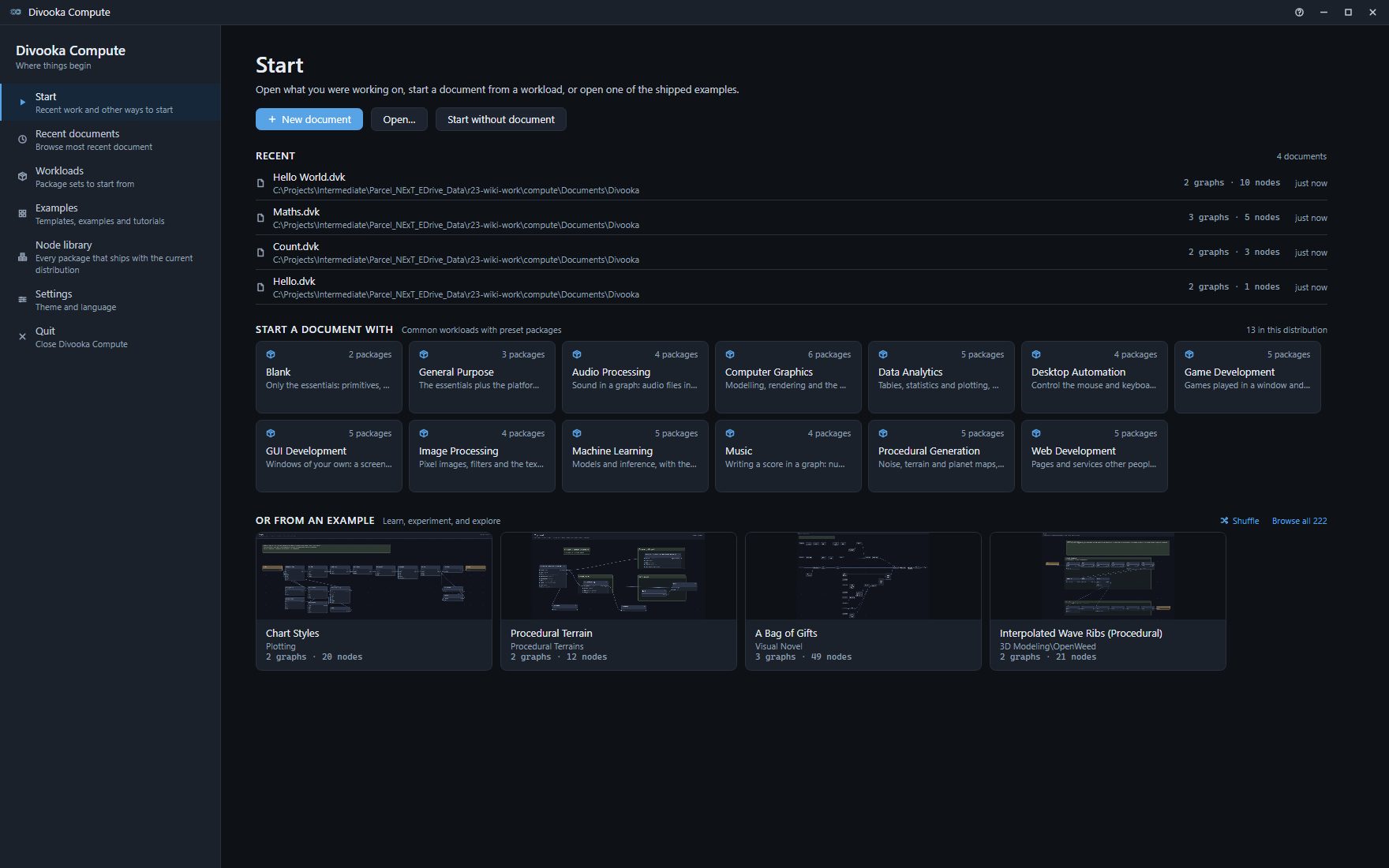
Under them, Recent lists the documents you opened, newest first; right-click one for Open containing folder or Remove from Recent. Start a document with shows the workloads this distribution ships - a workload is a starting set of packages - and clicking one creates a document from it. Or from an example shows four of the shipped examples: Shuffle draws four others, and Browse all opens the whole collection - see Examples.
With documents open, Ctrl+H or the house after the last tab brings the start screen back over them, and Esc (or Ctrl+H again) returns to the document.
The editor
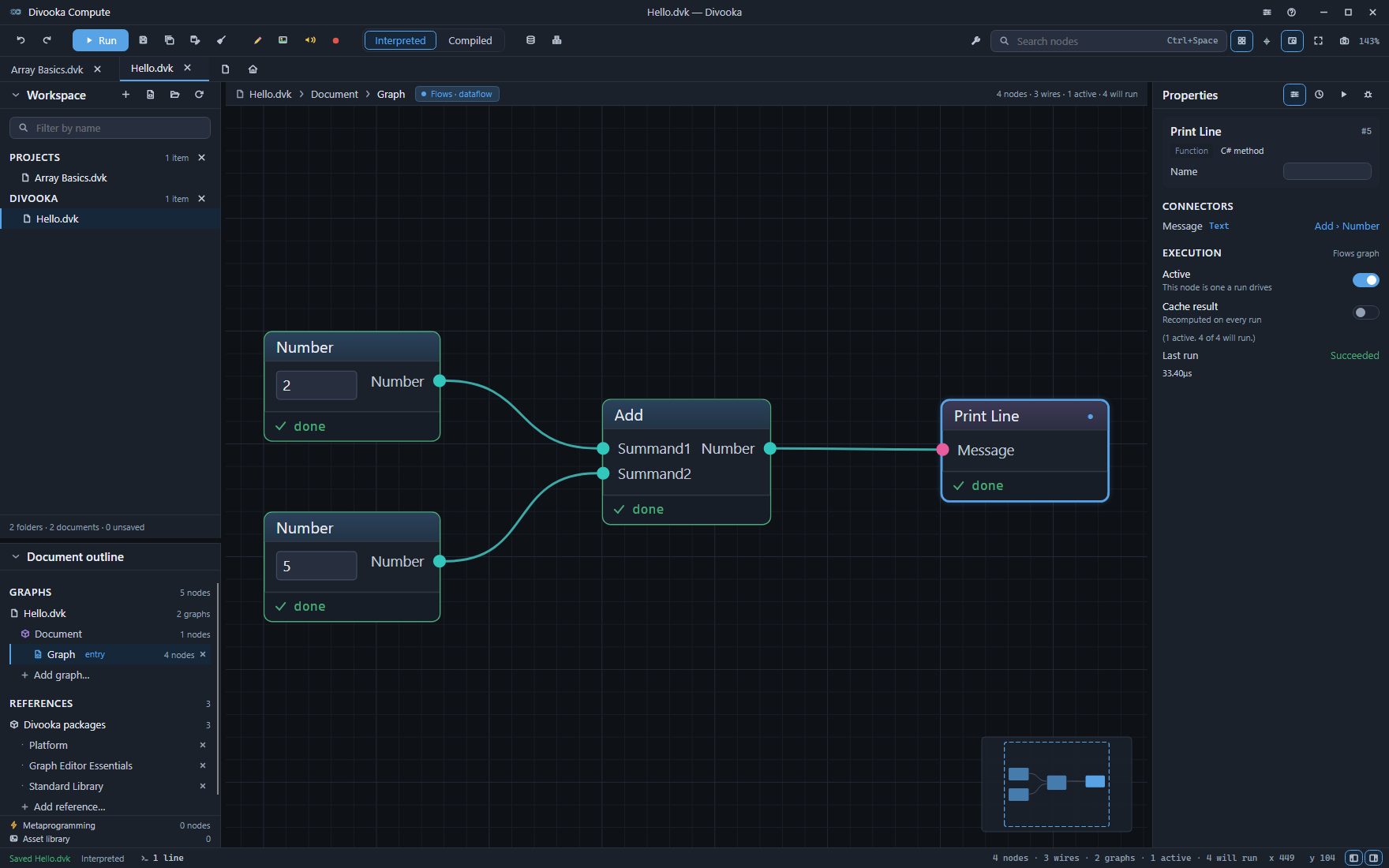
| Region | Where | What it is for |
|---|---|---|
| Title bar | Across the top | The document's name and folder in the middle; Appearance and settings (the sliders) and About and help (the question mark) on the right, beside the window buttons. |
| Toolbar | Under the title bar | From the left: Undo and Redo, Run, Save, Save all and Save as, Tidy layout, the drawing pen and the other annotations, the Interpreted / Compiled switch, the Asset library and the Node library. On the right: the plugins wrench, the Search nodes box, the grid, origin axes and minimap toggles, Fit the graph, Snapshot and the zoom. |
| Tab strip | Under the toolbar | One tab per open document; a dot on a tab means unsaved changes. After the last tab, Open a document and the start screen's house. |
| Workspace | Left, top | The folders you are working in, and the documents in them - see below. |
| Document outline | Left, bottom | The document on screen: its own graph - Document - and every graph in it, the one a run starts marked entry; and its References. Click a graph to show it; right-click for Rename…, Set as entry and Delete…; Add graph… adds one. |
| Navigation bar | Above the canvas | Where you are - the document, then the graph - with the graph's kind, and on the right its nodes and wires; on a Flows graph, also how many nodes are active and how many a run will touch. |
| Canvas | Middle | The graph itself. The minimap sits in its bottom-right corner. |
| Properties panel | Right | What is selected - see below. |
| Console dock | Under the canvas | Shut until there is something to read - see below. |
| Status bar | Along the bottom | What just happened, the tab's run mode and the console's line count; on the right, the graph's counts and the two switches that hide the side panels. |
The workspace and the tabs
The workspace is the folders you are working in. Ctrl+Shift+O, or Add a folder to the workspace at the top of the workspace panel, adds a folder; several can be open at once, and the cross on a folder's heading takes it out of the workspace again - it closes nothing and deletes nothing. The panel lists each folder's documents and subfolders: click a document to open it in a tab of its own, and right-click it for Open containing folder, Copy full path, Rename file… and Delete document…. A document opened from somewhere else is listed under Ungrouped. The panel does not watch the disk: a file another program adds appears after Refresh from disk, the last button at its top. Filter by name narrows the list, and New document at the top is Ctrl+N.
Each document opens in a tab of its own, with its own undo history and its own run mode. Ctrl+Tab and Ctrl+Shift+Tab move between tabs, and the wheel scrolls the strip when there are more than fit. Right-click a tab for Open containing folder, Copy full path, Rename file…, Close and Delete document….
Files dropped on the window open as Open… opens them: a document in a tab of its own, a script or a note in a text tab, and a folder joins the workspace.
A file that is not a document - a C# script, a Markdown note, a Python file - opens in a text tab of its own, with Ctrl+F to find in it. Ctrl+Shift+N, or New text file at the top of the workspace panel, creates one.
Moving around the canvas
| To do this | Do this |
|---|---|
| Pan | Drag with the middle mouse button; hold Alt, or Space with nothing selected, and drag; drag with the right mouse button from an empty spot; or move two fingers on a touchpad |
| Zoom | Turn the mouse wheel over the canvas, or pinch on a touchpad |
| See the whole graph | Fit the graph on the toolbar, or Ctrl+Shift+F |
| Jump somewhere far | Click or drag on the minimap |
Appearance and settings ▸ Mouse wheel set to Pan makes the wheel move the view instead, Shift with it sideways and Ctrl with it zooming - for a touchpad whose two fingers would otherwise zoom.
Back and Forward
The mouse's back and forward buttons, and Alt+Left and Alt+Right, step back and forward through the places you have jumped between: another graph or another document's tab, a search result, a reference you followed, a paused run bringing its node into view. Each step comes back to the graph as you left it, where the view stood and with what was selected. Panning, zooming and selecting are not jumps.
The side panels
F3 hides and shows the left column - the workspace and the outline - and F4 the Properties panel; the two switches at the status bar's right end do the same, and F12 hides them with every bar. Drag the edge between a panel and the canvas to resize it, and double-click that edge for the panel's own width again; the edge between the workspace and the outline moves the same way. All of it is remembered.
The toolbar, the document tabs, the navigation bar and the status bar can each be hidden from Appearance and settings, under Interface. F12 hides every bar and both side panels at once, leaving the title bar and the canvas, and shows them all again.
Finding nodes
The toolbox tray
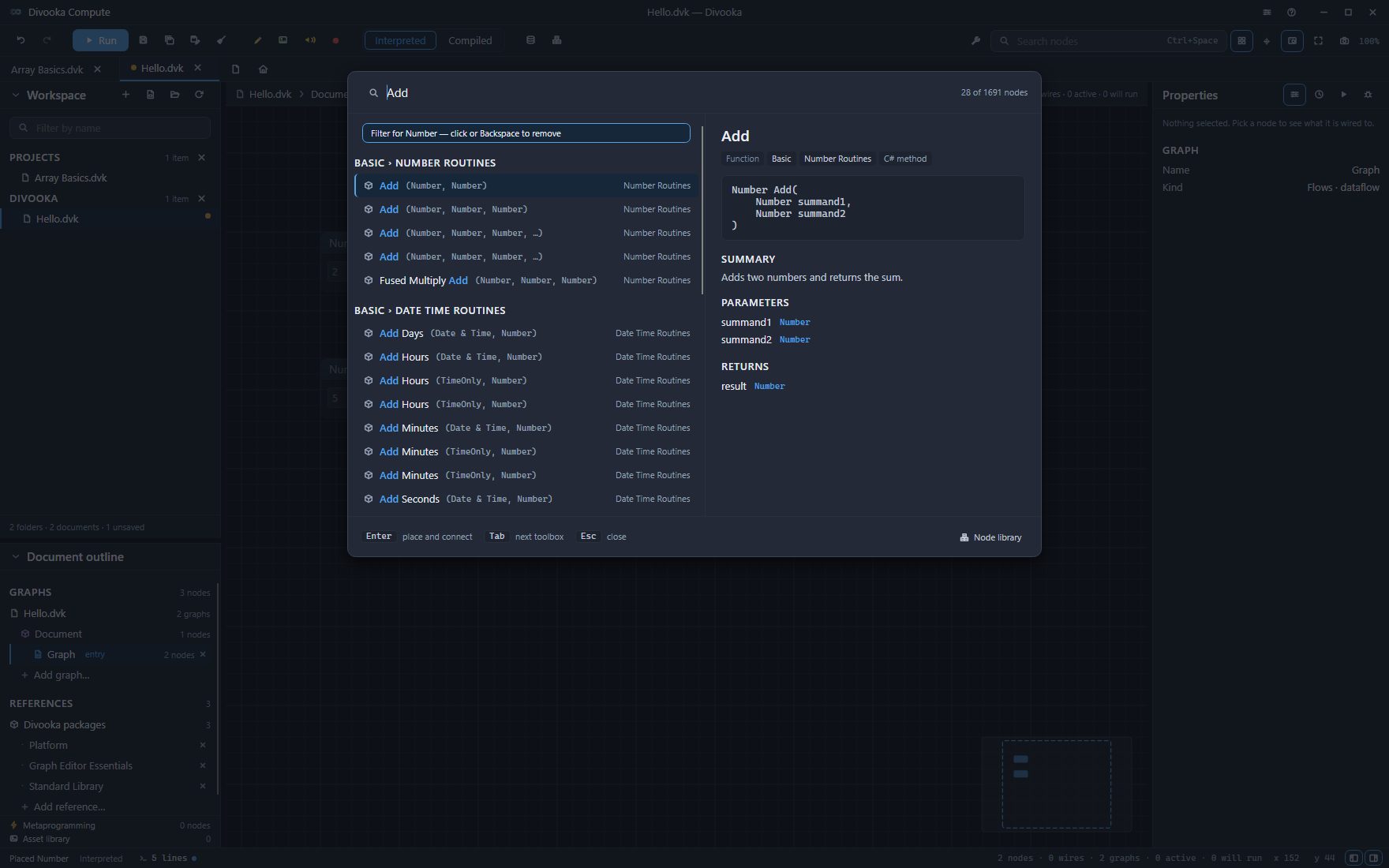
The tray is how nodes are placed. Press Ctrl+Space, double-click an empty spot of the canvas, or click the Search nodes box on the toolbar, and type part of a node's name. The results are grouped by toolbox and category, best match first, and the right half describes the highlighted node: what it does, what it takes and what it returns. It offers the nodes of the packages the document references - see References.
| Key | In the tray |
|---|---|
↑ ↓ |
Move the highlight; the text stays in the box |
Enter |
Place the highlighted node; opened from a wire, connect it too |
Tab |
Jump to the next toolbox |
Esc |
Close the tray |
With nothing typed, the tray offers the nodes you placed recently. Hover over the search box for its grammar: Add double:0 double:1 finds the nodes called Add whose first two inputs are numbers, and ->string the nodes that return text.
The tray also opens when you drag a wire from a pin and let go on an empty spot. A chip above the results then says what the wire carries - Filter for Number - and the tray offers only nodes that can take it, and wires the one you place. Click the chip, or press Backspace in the empty box, to search everything again. See Nodes, pins and wires.
The node library
The node library is for browsing rather than searching: every toolbox, the nodes in each grouped by category, and the selected node in full. Open it with Ctrl+Shift+Space, the Node library button on the toolbar, F1 with a node selected (the library opens at that node), the Node library button in the tray's bottom-right corner (which carries over what you typed), or Node library on the start screen's rail - which lists everything the distribution ships, whatever a document references.
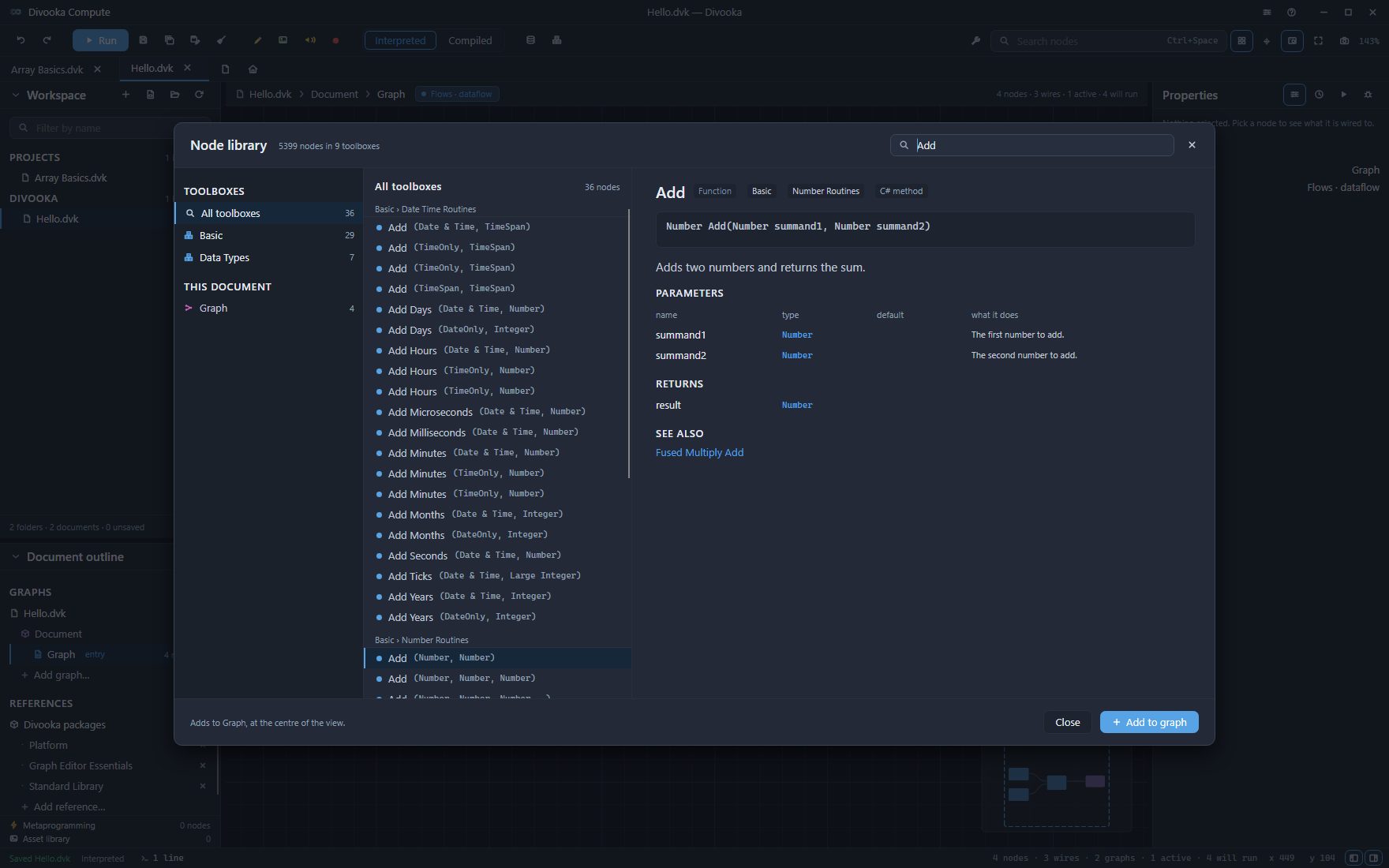
Type to search every toolbox at once: the toolbox column narrows to the toolboxes holding a match, with how many, and pressing one narrows the list to it. ↓ and Enter add the highlighted node at the centre of the view, and Add to graph does the same. Drag the strip between the list and the description to make room for a long signature.
The Properties panel
The panel on the right has four faces - Properties, History, Run and Debug - chosen by the four buttons beside its title, which names the face showing. A run turns it to Run, and a paused run to Debug.
- Properties describes what is selected. For a node: the value or wire on each input, the node's switches, and what it produced on the last interpreted run - Open in window… shows that in a window of its own, as
Alt+Enterdoes. With nothing selected: the graph itself - its name and kind, and, where a graph has them, its inputs and outputs, data members and local variables. On the document's own graph it also holds the document's Title, Author and Description. - History is the undo history. Click a row to go back to it, or forward again.
- Run describes the last run: how long it took, what it returned, and what failed.
- Debug is where a paused run is read - see Debugging.
The console dock
What a run prints goes to the console dock under the canvas. It stays shut unless a run writes an error, fails, or waits for you to type something; otherwise the status bar counts the lines and shows a dot until you have read them. Open and close it with Ctrl+` or by clicking that count. Its tabs are Console, Locals, Call stack, Search, References and Terminal; Running and the console and Debugging describe them.
Ctrl+F opens the dock's Search tab: it finds documents, graphs, nodes by their title, name or value, members, comments and groups - in This document, in the Open documents or across the Workspace - and clicking a result goes to it.
The terminal
The dock's Terminal tab is a command line inside the window: Ctrl+Shift+` opens it and starts a session in the workspace folder holding the document on screen. + starts another session in any shell the machine has - PowerShell 7 when it is installed, Windows PowerShell, Command Prompt, Git Bash when it is installed - or in Pure or EasyShell, which ship with Divooka Compute; the list beside it switches between sessions, the pen renames one and the cross closes it. Every session finds the tools Divooka Compute ships by name, so stew runs a document from it - see Exporting a program. While a session has the keyboard, every key goes to it, F5 included; click the canvas to give the keyboard back.
Plugins
The wrench at the right of the toolbar lists the commands the installed plugins and packages offer, grouped: under Frameworks, Glaze's Realtime Window and Novella's Run Novella Game; under Samples, the Say hello of the sample plugin the distribution ships. Right-click the wrench to open the Plugins folder in your file browser: a plugin is installed by putting its folder there, and Divooka Compute picks it up when it next starts.
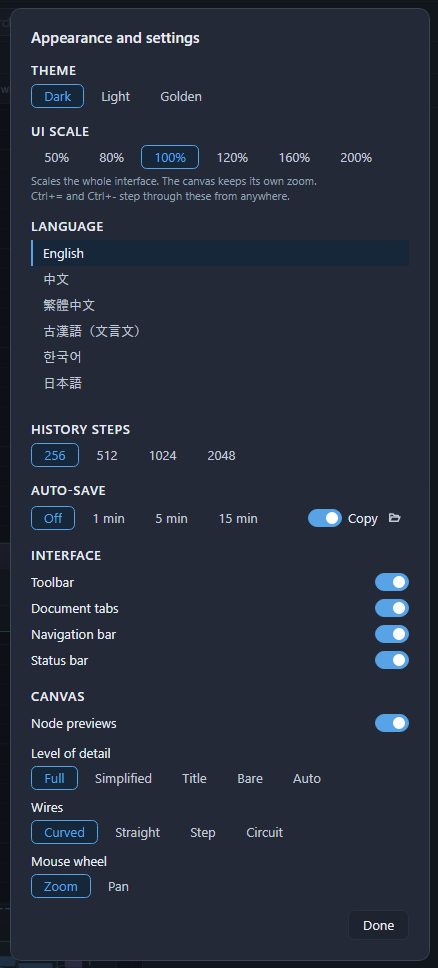
Appearance and settings
The sliders in the title bar open Appearance and settings. Every choice is remembered, the theme included.
| Setting | What it does |
|---|---|
| Theme | Dark, Light or Golden. |
| UI scale | Scales the whole interface, from 50% to 200%. Ctrl+= and Ctrl+- step through the presets from anywhere. The canvas keeps its own zoom. |
| Language | The language of the interface, of the node names and of the examples' names, each language listed in its own words. It changes at once. |
| History steps | How many steps the undo history keeps: 256, 512, 1024 or 2048. |
| Auto-save | How often documents and text files with unsaved changes are saved: Off, 1 min, 5 min or 15 min. Beside it, the Copy switch - on, auto-save writes copies to the Autosaves folder and leaves the documents alone; off, it saves them - and a button that opens the Autosaves folder. See Saving. |
| Interface | Switches for the Toolbar, the Document tabs, the Navigation bar and the Status bar. F12 hides or shows them all, with both side panels. |
| Canvas | Node previews - the pictures and values under the nodes; the Properties panel still previews the selected node. Level of detail - how much of each node is drawn: Full, Simplified (the header and title, and pins without their names or values), Title (one shape with the title across it), Bare (an empty shape with its pins), or Auto, less as you zoom out. Wires - Curved, Straight, Step or Circuit. Mouse wheel - Zoom or Pan. |
About and help
The question mark in the title bar opens About Divooka, Privacy, License and Keyboard shortcuts, and three links: Methodox website, Methodox Wiki and Divooka Explore on Steam. Keyboard shortcuts lists every key, button and gesture - the same list as Keyboard shortcuts. F1 with nothing selected opens About Divooka directly: the version, build and system, with Copy to paste them into a bug report.