
Saving
A Divooka Compute document is a file from the moment it is created: New document asks where it lives before anything else, because a document refers to the files and documents beside it by where they are. Everything in it is saved together - its graphs, their layout, its references, the comments and drawings, and the pictures and sounds placed on its canvas.
A tab with unsaved changes wears a dot, and so does its row in the workspace panel.
Saving
- Save -
Ctrl+S, or the disk on the toolbar - writes the document on screen to its file. The status bar reads Saved Hello.dvk. - Save all -
Ctrl+Shift+S, or the button beside Save - saves every document and text file with unsaved changes. The status bar counts them: Saved 2 files. - Save as - the disk with a pencil - writes the document to a new file and carries on with that one. It has no key.
A document is saved as .dvk, Divooka's own binary format. Give Save as a name ending in .json and it is written as text instead, in the DiDS JSON format, which other tools can read and version control can compare; its pictures and sounds then go in a folder beside it. Divooka Compute opens both, and the format follows the name each time it saves.
Auto-save
Appearance and settings ▸ Auto-save saves every document and text file with unsaved changes every 1 min, 5 min or 15 min, or never (Off, the default). It never saves in the middle of a run, while a question is on screen, or while you are dragging; it waits and tries again.
With the Copy switch beside it on, as it starts, auto-save writes a copy to the Autosaves folder - %AppData%\DivookaCompute\Autosaves - and leaves your document as it was: the status bar reads Autosaved Hello.dvk, and the document still has unsaved changes until you save it. The copy goes when the document is saved or closed. If the session ends with the document unsaved - a crash, a power cut - the next time you open the document it asks Recover unsaved changes? - Hello.dvk has changes autosaved at a time that were never saved. - and Recover opens the copy in its place, unsaved, Discard throws the copy away, and Cancel keeps it for next time. The folder button beside the switch opens the Autosaves folder.
With Copy off, auto-save saves the document itself, as Ctrl+S does, and the status bar reads Saved Hello.dvk.
Closing
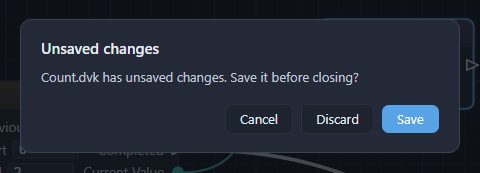
Ctrl+W, or the cross on a tab, closes the document. If it has unsaved changes, you are asked first - Count.dvk has unsaved changes. Save it before closing? - and Save writes it and closes the tab, Discard drops the changes and closes it, and Cancel leaves everything as it was.
Quitting with unsaved changes asks once for all of them: Quitting now would lose unsaved changes in 2 of the open documents:, with the documents named, and Save all, Discard all or Cancel.
Reopening
Ctrl+Shift+Treopens the tabCtrl+Wclosed last, where it stood in the strip; pressed again, the one before it. The status bar reads Reopened Maths.dvk.- The start screen's Recent list has every document you opened, newest first. Right-click one for Open containing folder, or Remove from Recent, which leaves the file alone.
Renaming a document
Right-click a document's tab, its row in the workspace panel or the document's row in the outline and choose Rename file…: the file is renamed as a file browser would rename it, and the document's type, named after the file, follows. Every open document that references it follows too, as an edit of its own that you save. A document that is not open is not changed, so rename a library with the documents that use it open.
Undo
Ctrl+Z undoes and Ctrl+Y (or Ctrl+Shift+Z) redoes, across every kind of edit, in the document on screen - each tab has its own history. The History face of the Properties panel lists the steps; click one to go back to it. Appearance and settings ▸ History steps sets how many steps are kept. The history belongs to the session: reopening a document starts a new one.