
Installing and Starting
Getting it
Divooka Compute releases says where to get Divooka Compute and lists its versions.
It comes as one folder, and it needs nothing else installed: the runtime it is built on, the packages it offers and the tools beside it are all inside. A downloaded archive has to be extracted whole, and the folder kept together.
Starting it
Run DivookaCompute.exe in its folder. It opens on the start screen.
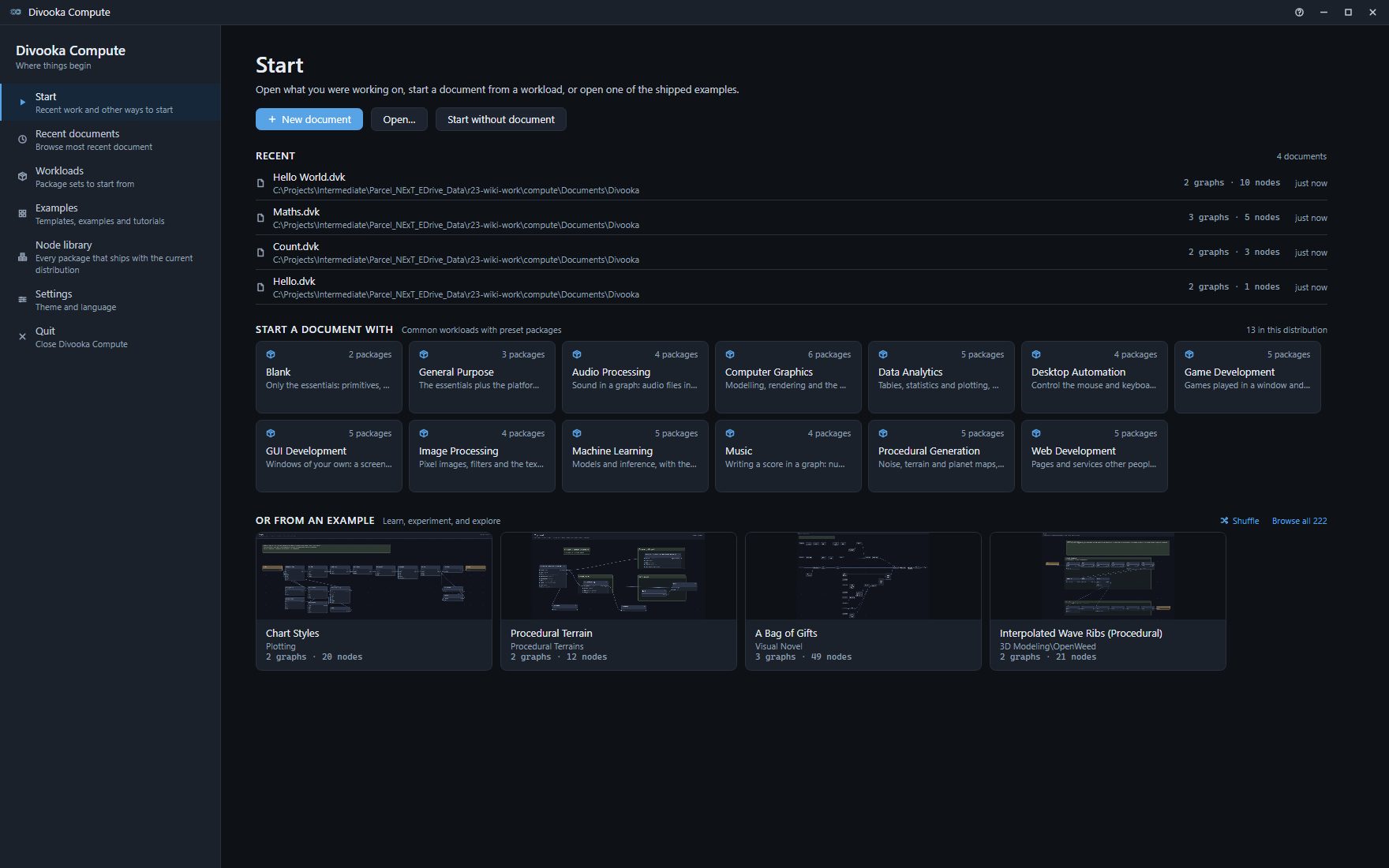
From here you can create a document, open one, or open a copy of an example. The window walks through the screen, and Your first program makes a document from it.
Opening a document or a folder from outside
- Drop a
.dvkfile ontoDivookaCompute.exe, or open one with it from your file browser. - With Divooka Compute open, drop files onto its window: a document opens in a tab of its own, a script or a note in a text tab, and a folder joins the workspace.
- From a command line, name the document:
DivookaCompute.exe "C:\Work\My Program.dvk". --workspacefollowed by a folder opens it in the workspace panel:DivookaCompute.exe --workspace C:\Work.--lightstarts in the light theme, and--languagefollowed by a language's name in that language -DivookaCompute.exe --language Chinese. Both can be changed at any time in Appearance and settings, which remembers the theme and the language you choose there;--lightstarts light whatever was chosen.
DivookaCompute.exe --help lists the options.
What it keeps on your computer
Divooka Compute works on your machine and sends nothing on its own: no account, no telemetry, no crash reports and no update check. Something leaves the machine only when you ask for it: the NuGet browser searches nuget.org when you type a search, a NuGet package a document declares is fetched from nuget.org when that document opens, a link in the help menu opens your browser, and a document you run reaches whatever services its own nodes call.
Besides the documents you save, it keeps three things in %AppData%\DivookaCompute: the list of recent documents; its preferences - the theme, the UI scale, the panel widths, the view toggles, the language and the other choices in Appearance and settings; and the Autosaves folder, where auto-save keeps its copies until a document is saved or closed - see Saving. About and help (the question mark in the title bar) ▸ Privacy says the same, with the folder's full path.
The folder it runs from
| In the folder | What it is |
|---|---|
Examples |
The examples it ships, by category. They are opened as copies and never changed - see Examples. |
Workloads |
The starting sets of packages a new document can be made from - see Your first program. |
Plugins |
Editor plugins, one folder each. What they add is under the wrench on the toolbar; right-click the wrench to open this folder. |
Licenses |
The license of Divooka Compute and of every open-source component it ships, one file each. |
stew.exe |
Runs a document from a command line - see Exporting a program. |
pure.exe, easy.exe |
Pure and EasyShell, two command languages the terminal's + menu starts - see The window. |
dvn.exe |
Serves a Divooka Notebook document as a web page - see Divooka Notebook. |
divooka-mcp.exe |
Lets an AI assistant search, read and check Divooka documents through the Model Context Protocol; divooka-mcp --help says how to connect one. |
The rest of the folder is the application and its packages. Leave it as it is.