
Methodox Office, the Start Centre
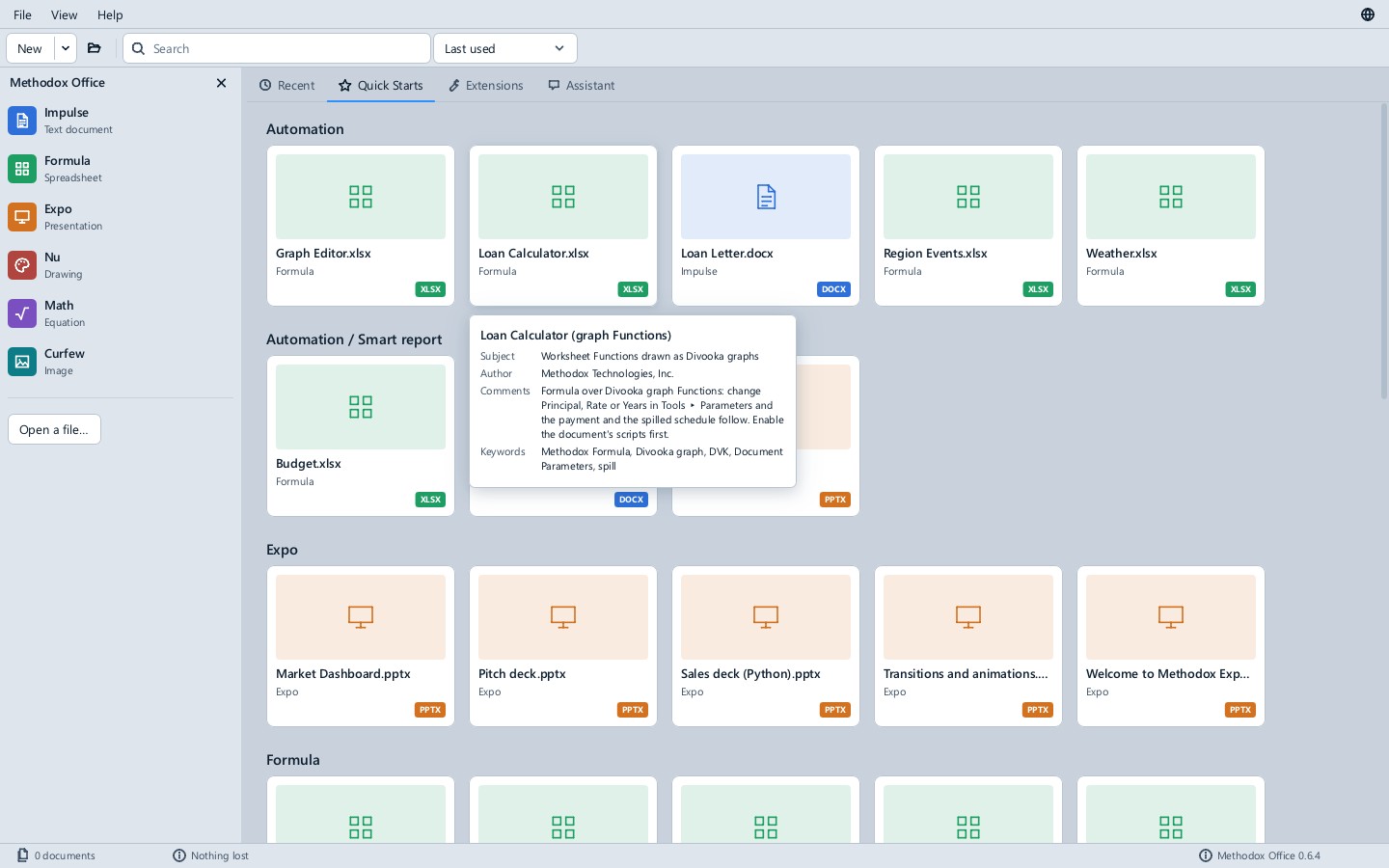
Methodox Office (MethodoxOffice.exe) is the window that opens the others: every application of the suite down the left, and beside them four pages, Recent, Quick Starts, Extensions and the Assistant, chosen by the tabs at the top.
Starting an application
Click Impulse, Formula, Expo, Nu, Math or Curfew to open that application with a new document (in Curfew, a new image); with the keyboard, move to one and press Enter or Space. New in the toolbar does the same, and its arrow, like File ▸ New, lists the kinds of document. Below them are the two viewers, Tiffin for PDF and e-books and Foundation for media, which open with nothing in them and are not under New, because they make nothing. View ▸ Applications, ticked while the list shows, hides it or brings it back, as does its ×.
Opening a document
Open a file… (or the folder button in the toolbar, or File ▸ Open), or dropping files on the window, opens any document the suite reads, in the application its type belongs to: .docx in Impulse, .xlsx in Formula, .pptx in Expo, .drawio in Nu, .mml in Math, pictures such as .png, .jpg and .psd in Curfew, .pdf and .epub in Tiffin, video, audio and a phone's .heic photographs in Foundation, and so on (the file formats page has the whole list). A file no application reads is refused with a message saying so.
Recent documents
Recent lists the documents you opened or saved in any of the applications, as cards. A click selects a card; a double-click, or Enter on the selected one, opens it. The arrow keys move the selection, and Home and End go to the first and last card. The search box in the toolbar filters them by name, and the list beside it sorts them by when they were last used, by name or by kind.
A right-click on a card, or the Menu key or Shift+F10, offers Open, Open File Location, which shows the file selected in Explorer, and Remove from List, also Delete, which takes it off the list without touching the file and selects the next card. A card whose file has gone offers only Open File Location, while its folder is there, and Remove from List. File ▸ Clear the recent list empties the list. Every application's File ▸ Recent documents shows the same list, and an application already open picks up a removal the next time you open its File menu.
Quick Starts
Quick Starts shows the examples that come with the suite, one group for each folder of the Examples folder (Automation, Expo, Formula, Impulse, Math, Nu and the folders inside them), each card naming the application it opens in. Clicking a card opens an untitled copy of the example, in the application its folder names, so you can change it and save it wherever you like, and the shipped file is never written. The search box filters the cards too.
A card shows the example itself where it can: the first page of a drawing, or the typeset formula of a Math example. Hover over a card to see the example's description as a card of its own: its title, subject, author, comments and keywords.
Extensions
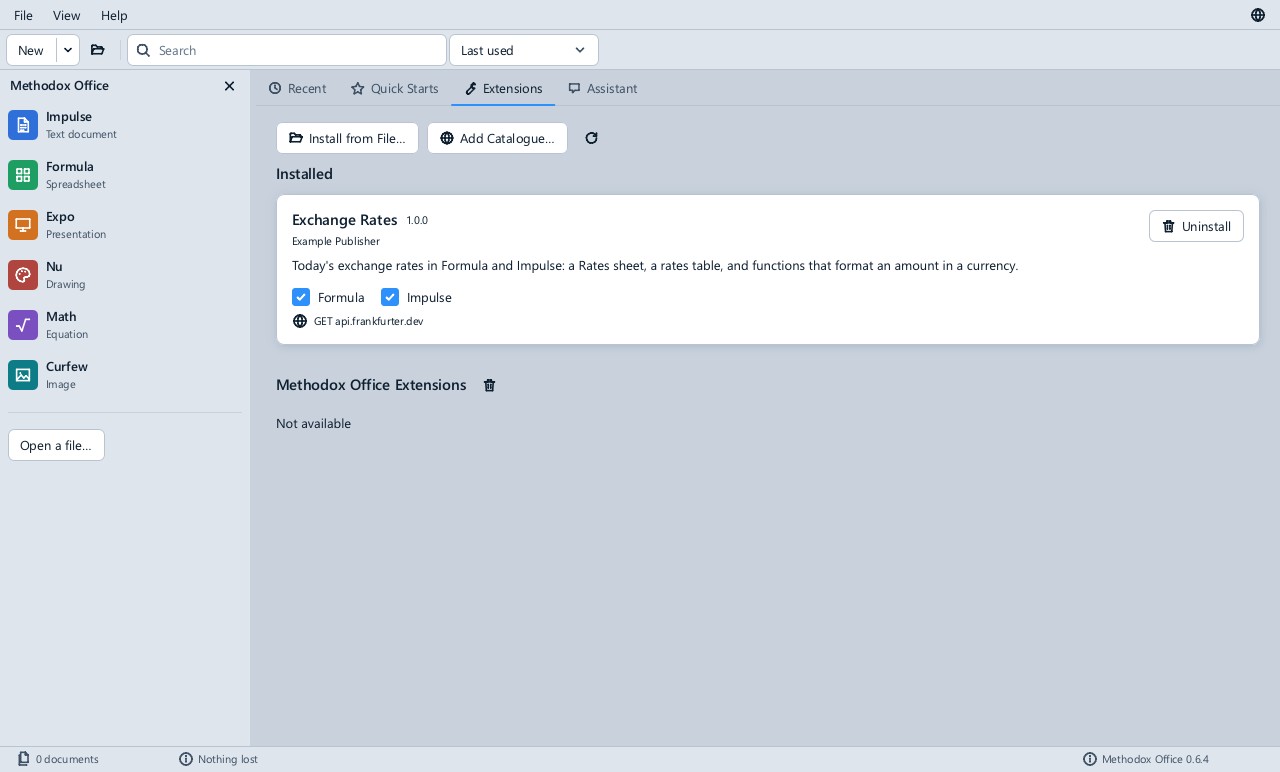
Extensions is where extensions are installed, enabled and removed.
- The official catalogue, Methodox Office Extensions, is listed for everybody: what it offers has an Install button, and an installed extension it has a newer version of gets Update to that version.
- Install from File… (also File ▸ Install Extension…), or dropping a
.dvbpackage on the Start Centre, installs an extension for you. Before it installs, it shows the publisher, the applications the extension is for and every website its code may reach. A publisher whose signature Methodox Office has checked is shown as verified, with a tick; anything else is not verified, so install it only if you trust where it came from, and a package changed after it was signed is refused. See Signed packages. - Add Catalogue… adds the address of another catalogue, a folder or website offering extensions, listed the same way. Removing the official catalogue hides it until you add its address again.
- Each installed extension is a card with a check box for every application it is made for: untick one to disable the extension there. Windows already open notice the change the next time a menu opens.
- Uninstall removes an extension and what it was allowed to reach. The official extensions that come with the suite, such as Office Tools, can be disabled but not uninstalled.
The Assistant
Assistant is a conversation with Claude about your documents, which reads them, edits them after asking, and adds automation to them. It is a prototype; see Assistant.
Language
The globe at the far right of the menu bar lists the language Windows is in and each language the suite has, by its own name. Choosing one shows the Start Centre in it at once, and every application started afterwards uses it, as the language chosen in an application's Edit ▸ Options does. See Language.
The status bar
The status bar counts the documents listed and shows the version of Methodox Office.
Help
Help ▸ Documentation (F1) opens this page, Help ▸ Open Examples Folder shows the shipped examples in Explorer, and Help ▸ About shows the version, the edition and the licences of what the suite ships. In the Compute edition with Divooka Compute installed, Help ▸ Open Divooka Compute Plugins Folder opens the folder Compute loads its plugins from.
See also
- The window and your documents
- Extensions
- Assistant
mos, which opens the Start Centre when given nothing to open