
Spy Notebook
Spy Notebook is a desktop notebook for SteelPython: a page of Python and Markdown cells, run one at a time in a live Python session, with each cell's output - printed text, the value of its last line, tracebacks and charts - shown underneath it. Notebooks are saved as plain Markdown files, which read well in any editor and in version control, and Jupyter notebooks (.ipynb) open and export too.
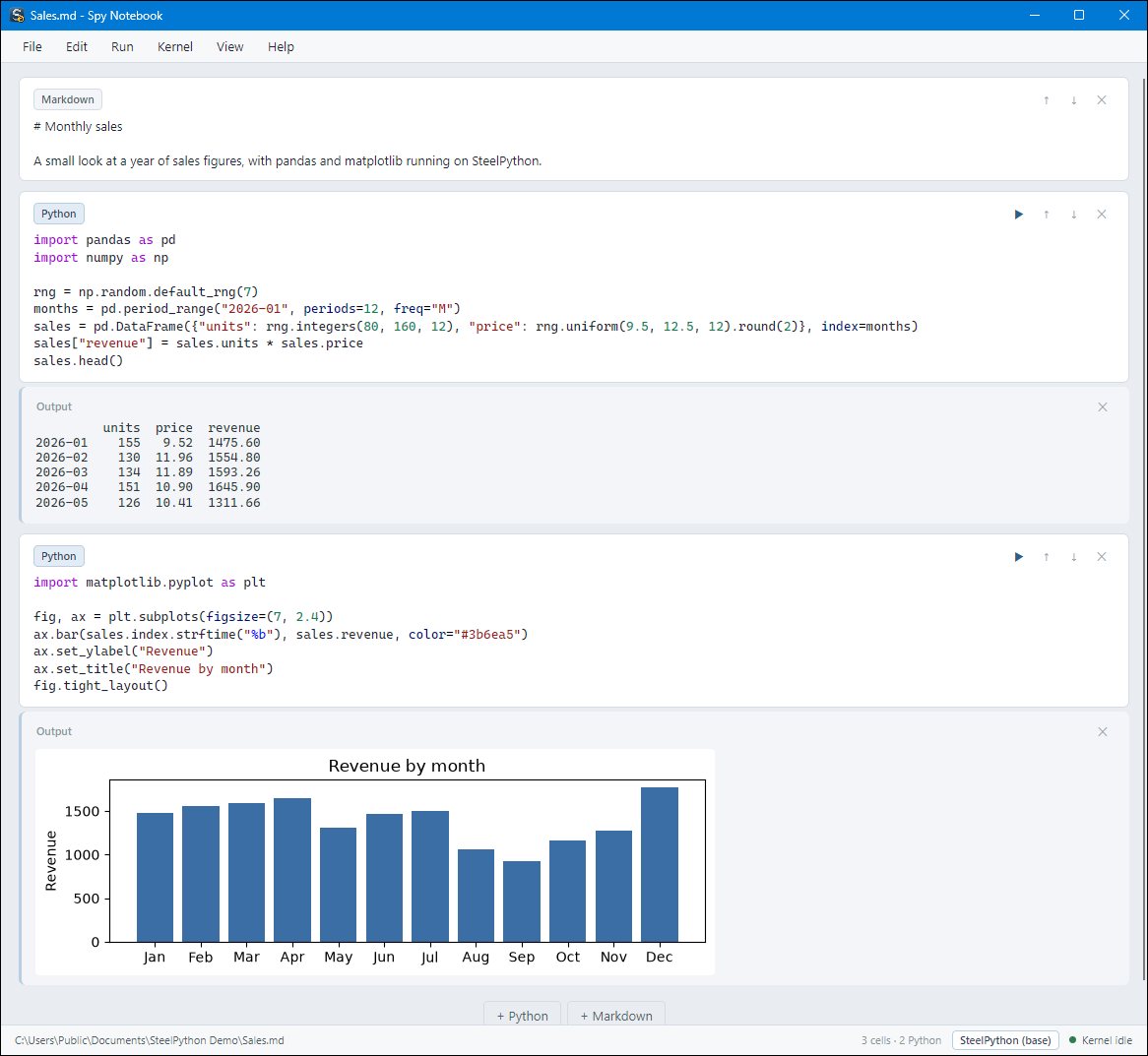
Starting
Run SpyNotebook.exe from SteelPython's folder. With no file, it opens your default notebook (kept in %APPDATA%\SteelPython\Spy Notebook\Default.md); SpyNotebook.exe analysis.md opens a notebook, and File > Open opens .md and .ipynb files.
Cells
A notebook is a list of cells. A Python cell holds code; a Markdown cell holds notes. All Python cells run in one session, so a variable or function defined in one cell is available in the cells after it - the same model as Jupyter.
| Key | Does |
|---|---|
F3 / F4 |
Add a Python / Markdown cell (hold Shift to copy the current cell) |
F5 or Ctrl+Enter |
Run the current cell, or just the selected text in it |
Shift+Enter |
Run the current cell and move to the next |
Ctrl+F5 |
Clear all outputs and run every Python cell in order (it stops at the first error) |
Tab / Ctrl+Space |
Complete the name before the cursor, from the live session |
F11 / F12 |
Turn the current cell into Markdown / Python |
Ctrl+Shift+Up / Down |
Move the current cell, with its output |
Ctrl+O / Ctrl+S |
Open / save |
Output
Under a cell appears what it printed (to stdout and stderr), the value of its last line if that is an expression (end the line with ; to suppress it), the traceback if it failed, and its images:
- every open matplotlib figure is shown when the cell finishes, so
plt.plot(...)needs noplt.show(); display(obj)shows an object with a_repr_png_method (a Pillow image, for example) as a picture, and anything else as text.
input() does not work in a cell, since there is no terminal to type into: put the value in a variable instead, or pass arguments with Kernel > Arguments..., which sets sys.argv[1:].
Stopping and restarting
While a cell runs, an amber indicator turns at the right of the menu bar and the cell's run button becomes a square. Click either, or use Run > Stop Running Cell, to stop it: Python raises KeyboardInterrupt in the cell, which ends a time.sleep, a network wait or a long loop, and keeps your variables. A cell that does not stop within three seconds (stuck in compiled code, or catching KeyboardInterrupt itself) is ended by restarting the session; a note in the output says so.
Kernel > Restart Kernel starts a fresh session with no variables, and Restart Kernel and Run All then runs the whole notebook from the top - the reliable way to check that a notebook works from start to finish.
Interpreters, environments and packages
The status bar shows the notebook's file, its cells, the interpreter and the session's state (starting, idle, busy). Click the interpreter, or use the Kernel menu:
Kernel > Interpreterpicks SteelPython itself or a virtual environment in the notebook's folder (.venv,venv,env);Kernel > Create Virtual Environment...makes one there, with pip, and switches to it;Kernel > Packages...lists, installs, upgrades and uninstalls packages with pip. pip runs separately from your session: a package you have already imported keeps its old version until you restart the kernel.
The file format
A notebook is a Markdown file. Python cells are code fences marked Python, and a cell's saved output follows it in a fence marked Cache:
# Monthly sales

A small look at a year of sales figures.

```Python
total = sum([1475.6, 1554.8, 1593.26])
total
```

```Cache
4623.66
```
Text outside the fences is Markdown. Images are kept while the notebook is open and in .ipynb files, but not in the Markdown file, which holds text only.
The format is the one used by Pure Notebook, the notebook of Pure for C#, so the same file opens in both. C# cells of a Pure notebook (fences marked C#) are shown read-only, marked as not run here, and kept unchanged when you save.
Jupyter notebooks
File > Import Jupyter Notebook...reads an.ipynband saves it as a Markdown notebook, keeping text outputs and images.- An
.ipynbcan also be opened directly; it is then saved as.ipynb. File > Exportwrites the notebook as.ipynb(with outputs and images), as a Python script, or as Markdown without outputs.
From the command line
SpyNotebook.exe analysis.md                  open a notebook
SpyNotebook.exe analysis.md input.csv        open it; its code sees sys.argv[1:] == ['input.csv']
SpyNotebook.exe --batch analysis.md          run every Python cell without a window and print the output
SpyNotebook.exe --create new.md              create an empty notebook
--batch turns a notebook into a script you can schedule or run in a build.
Safety net
Before anything runs, and when the window closes, Spy Notebook writes the notebook beside its file as <file>.backup, and deletes the backup again once it matches what is saved. If the program or your machine stops unexpectedly, the backup has your latest cells. Help > About shows the version numbers to quote when reporting a problem, with a button that copies them.