
Methodox Nu
Methodox Nu is the drawing and diagram program of Methodox Office: flowcharts, floor plans, org charts and any drawing made of shapes and the lines between them. It opens and saves draw.io diagrams, with draw.io's stencil shapes and formatted labels, opens LibreOffice Draw and Visio drawings and SVG as shapes you can edit, and keeps its own drawings as .pptx, the format PowerPoint and Expo use.
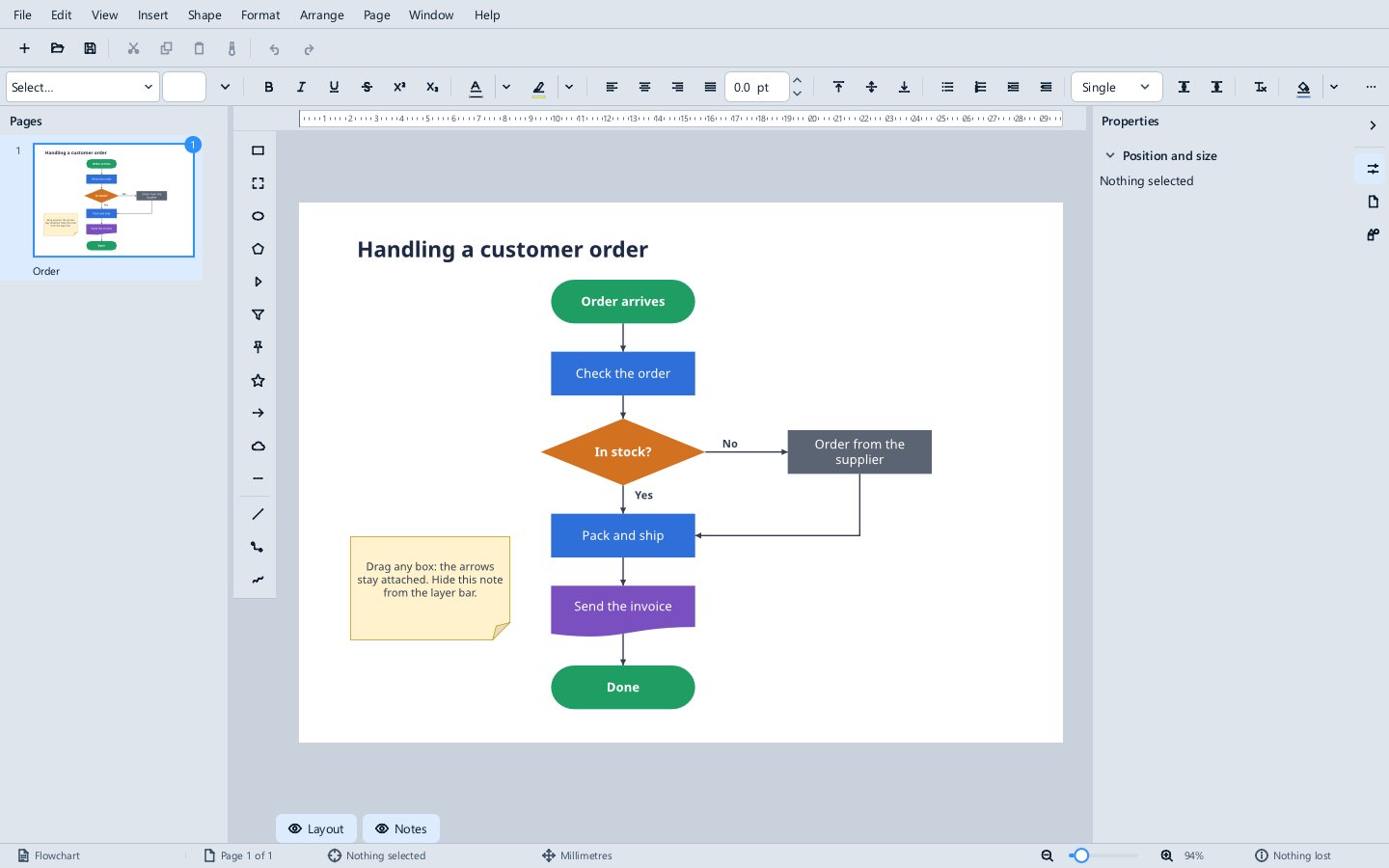
The window
- The Pages panel on the left lists the drawing's pages.
- The tool strip beside the page draws shapes, lines and connectors: click a tool, then drag on the page.
- The layer bar under the page has a button for each layer: its eye shows or hides the layer, a padlock beside a locked layer unlocks it, and right-clicking it gives the layer's other commands.
- The sidebar has the Properties deck (the position and size of the selection), the Page deck (the page size) and the Shapes deck (see below).
- The status bar shows the page, what is selected and the unit of measure.
Shapes
Shape has rectangles, rounded rectangles, ellipses, triangles, diamonds, pentagons, stars, arrows, clouds and lines, with many more under More Shapes. Drag to move a shape, with smart guides lining it up with the others; drag its handles to resize, and its round handle to rotate (Shift snaps to 15°). The arrow keys nudge the selection, Tab steps from shape to shape, and double-clicking a shape, or typing with it selected, puts text in it. Insert ▸ Image places a picture.
The Shapes panel
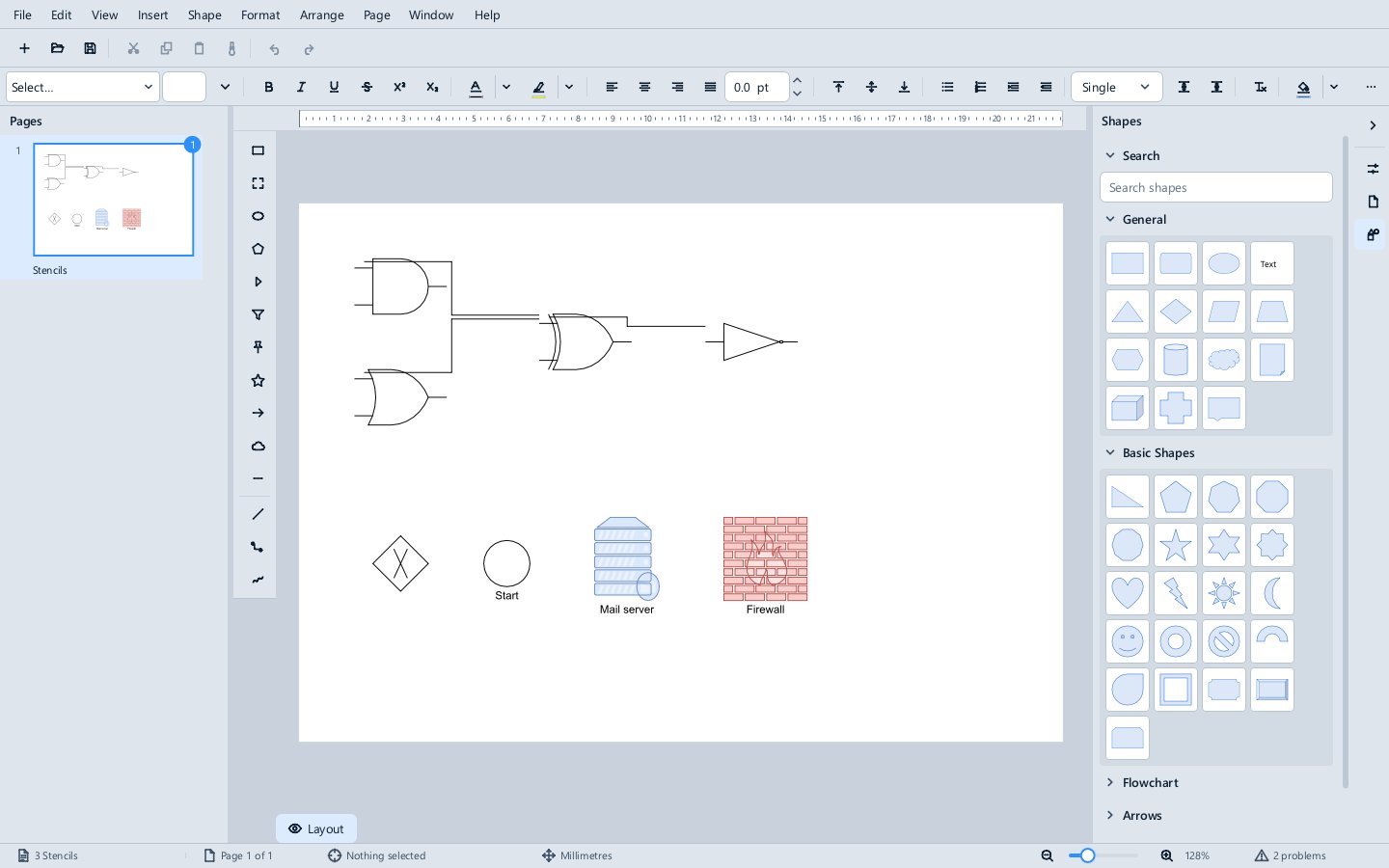
The Shapes deck, from its icon on the sidebar's right edge, offers shapes by library: General, Basic Shapes, Flowchart and Arrows, and draw.io's Logic Gates and BPMN when draw.io's stencils are on the computer (see below). Hover a shape for its name; click it to place it in the middle of the view, or drag it onto the page to place it where you drop it. The search box finds shapes by name across every library.
Text
Text is edited in place, in its own fonts, sizes and colours, with bold, italic, colour, size and font applied to the selected words, several paragraphs with their own alignment, bullets, and superscript and subscript in one shape. A connector's label is edited on its line (double-click it, or right-click the connector and Edit Label), and reads left to right whichever way the line runs.
Connectors
Shape ▸ Connector draws a straight, angled or curved connector. Start and end it on shapes and it stays glued to them when they move, routing round the shapes in its way. With a connector selected, drag the dot in the middle of a leg to add a bend, drag a bend's square to move it, and double-click it to remove it; Reset Connector Route goes back to the automatic route, and Connector Label puts text on it. Edit Glue Points adds, moves and removes the points connectors attach to (Delete removes the chosen one), and View ▸ Glue Points shows them.
Formatting and arranging
- Format ▸ Area and Format ▸ Line set a shape's fill and outline, the line's width and its arrow heads; No Fill and No Line take them away.
- Format ▸ Position and Size places a shape exactly; Format ▸ Page sets the page.
- Format ▸ Character, Paragraph, Bullets and Numbering and Text Attributes format the text in shapes, as in Expo.
- Edit ▸ Clone Formatting copies one shape's formatting onto others.
- Arrange has the same commands, with the same names, as Expo's: Bring to Front, Bring Forward, Send Backward and Send to Back; rotating by 90° and flipping; Align (left, centre, right, top, middle, bottom, and distributing horizontally or vertically with equal gaps, whatever the shapes' widths); and Group and Ungroup. The right-click menu on a shape offers them as in Expo, with Nu's own Move to Layer, Area, Line, Position and Size and Clone Formatting.
- View ▸ Display Grid, Snap to Grid and Smart Guides control what helps you place shapes.
Layers
Format ▸ Layer adds, renames, locks, reorders and deletes layers, and chooses whether a layer prints. A layer's shapes can be hidden together, which is useful for notes and alternatives in one drawing. Reordering layers changes their order in the list, never which shapes draw on top.
Pages
Page ▸ New Page, Delete Page, Next Page and Previous Page manage the pages. In the Pages panel, drag a page to reorder it and press Delete to delete it.
draw.io, LibreOffice Draw, Visio and SVG
Nu opens .drawio and .dio diagrams, including those draw.io keeps in a .drawio.png, with their shapes, connectors and glued ends, and saves them back as draw.io diagrams. Styles Nu does not draw are kept and written back unchanged, so a diagram survives the trip, and the problems list names what was approximated.
- Labels with mixed formatting (draw.io's HTML labels) are read as formatted text and written back as draw.io's editor writes them; a label you did not touch goes back exactly as it was.
- Stencil shapes from draw.io's libraries (
mxgraph.*: logic gates, BPMN, network and cloud icons and the rest) are drawn as draw.io draws them, when draw.io's stencils are on the computer: an installed draw.io Desktop, aStencilsfolder besideMethodoxNu.exe, or the folder theNU_DRAWIO_STENCILSvariable names. Without them, such a shape is a labelled box. Either way it is saved back as the stencil it was. A stencil's own inner colours are approximated, and the problems list says so. - LibreOffice Draw (
.odg) and Visio (.vsdx,.vsdm) drawings open as pages of editable shapes, with their text, connectors glued to shapes and common geometry and styles; Visio's masters and style sheets are resolved. They open read-only: edit, then Save As.drawioor.pptx. - SVG opens as editable shapes, and Save As writes the current page as SVG.
Files
Nu opens and saves .pptx, .drawio and .dio, opens .odg, .vsdx, .vsdm and .svg, saves the current page as .svg, and exports PDF, PNG and JPEG. See Supported file formats.
Not there yet
Writing .odg, .vsdx and .drawio.svg.
See also
- Nu keyboard shortcuts
- Methodox Expo, which shares Nu's shapes and connectors