
Methodox Impulse
Methodox Impulse is the word processor of Methodox Office. It reads and writes Word documents (.docx) as its own format, and opens a Word document and saves it back without disturbing what it did not change, so a document can go back and forth between Impulse and Word. It also opens Word 97-2003 documents (.doc).
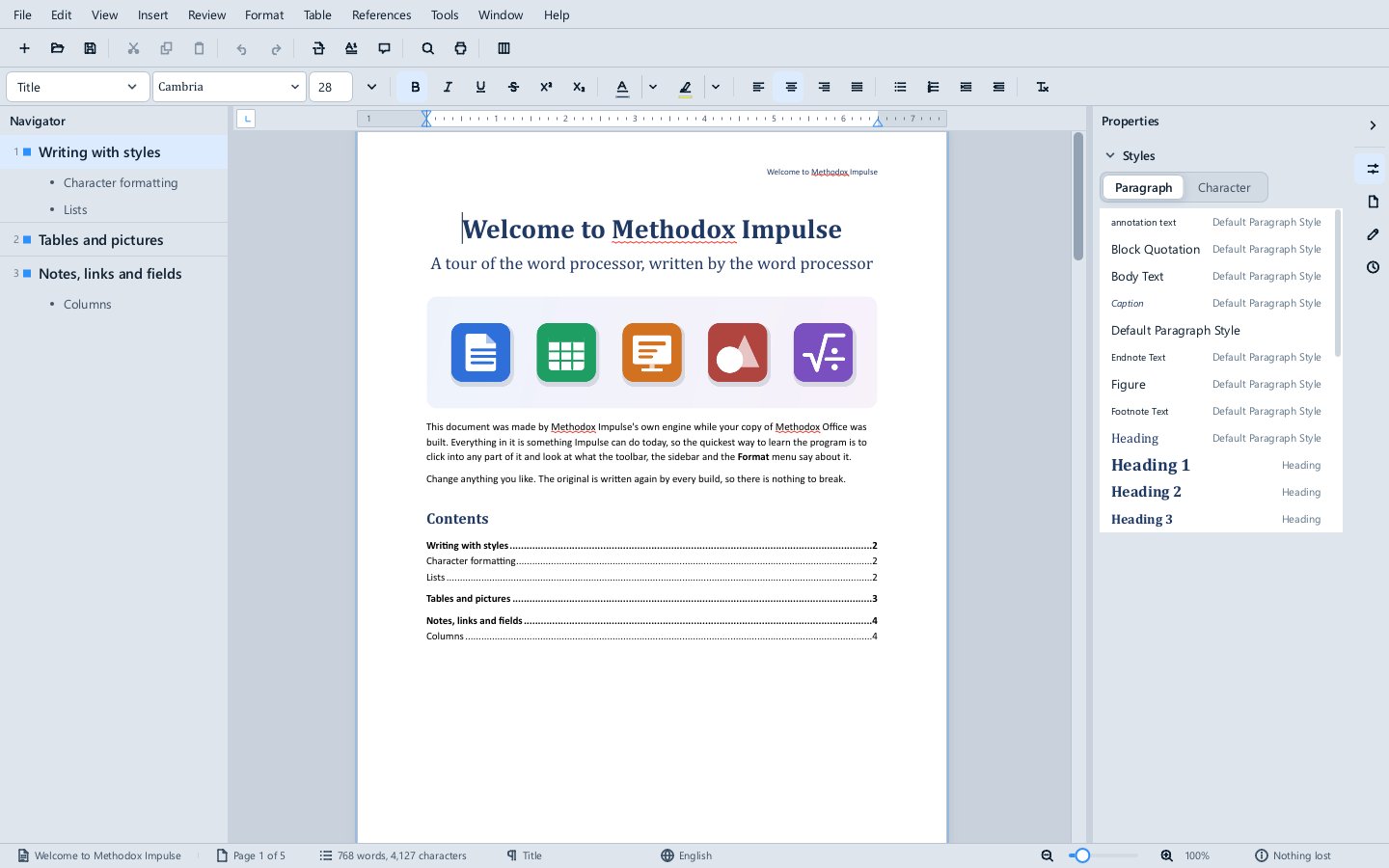
The window
- The Navigator on the left lists the document's headings; click one to go there.
- The page in the middle is where you write; the scrollbar beside it, or the wheel, scrolls through the document. View switches between Print Layout (pages as they print, the usual view), Draft (the text without page layout), and Single Page, Multiple Pages and Book View for how many pages are shown side by side.
- The sidebar on the right has four decks: Properties (the paragraph and character styles), Page (paper size, margins and columns), Comments and Changes (the tracked changes).
- The status bar shows the page, the word and character count, the paragraph style at the caret and the language it is checked in.
The Welcome to Methodox Impulse example, in Examples\Impulse, is a tour of the program written by the program.
Writing and formatting
Type on the page as in any word processor; the keyboard shortcuts page lists the keys for moving and selecting.
- Characters: the formatting toolbar sets the font, size, bold, italic, underline, strikethrough, superscript, subscript, text colour and highlight. Format ▸ Character has everything at once, and Format ▸ Text changes case (UPPERCASE, lowercase, Sentence case, Capitalize Every Word, tOGGLE cASE).
- Paragraphs: alignment, indents and line spacing are on the toolbar and under Format; Format ▸ Paragraph has them all in one dialog.
- Lists: the toolbar's list buttons make a bulleted or numbered list. Format ▸ Lists chooses the kind: Bullets (• ◦ ▪ ◆ – ➢ ✓), Numbering (1. 2. 3., 1) 2) 3), a. b. c., A. B. C., i. ii. iii., I. II. III.) and Outline (1. 1.1. 1.1.1., or I. A. 1. a. i.), each shown with its own marker and ticked where the caret is.
- Styles: the style box at the left of the formatting toolbar, and the Properties deck, apply paragraph styles (Title, Heading 1 to 3, Body Text and the document's own). Format ▸ Paragraph Style and Format ▸ Character Style do the same from the menu, Format ▸ Edit Style changes a style, and Format ▸ New Style from Selection makes one from the formatting at the caret. Headings are what the Navigator and a table of contents list.
- Clear Direct Formatting takes away formatting applied by hand and leaves the style's.
- Format ▸ Columns sets the page in columns, and Format ▸ Drop Cap drops the paragraph's first letter two or three lines; drop caps are saved as Word saves them. Format ▸ Page Style sets up the page.
Tables
Table ▸ Insert Table places a table at the caret. In a table, Tab moves to the next cell and adds a row after the last one. The Table menu inserts and deletes rows and columns, selects cells, rows, columns or the whole table, merges and splits cells, and sets whether the header rows repeat on every page and whether a row may break across pages.
Pictures, text boxes, shapes and charts
- Insert ▸ Image places a picture. A selected picture can be moved with the arrow keys and resized from its corners; Format ▸ Image sets its position and size, crops it and gives it alternative text.
- Insert ▸ Text Box places a box of text and puts the caret in it. Insert ▸ Shape places a shape, a line or an arrow; double-click a shape to type in it. Format ▸ Area and Format ▸ Line set their fill and outline.
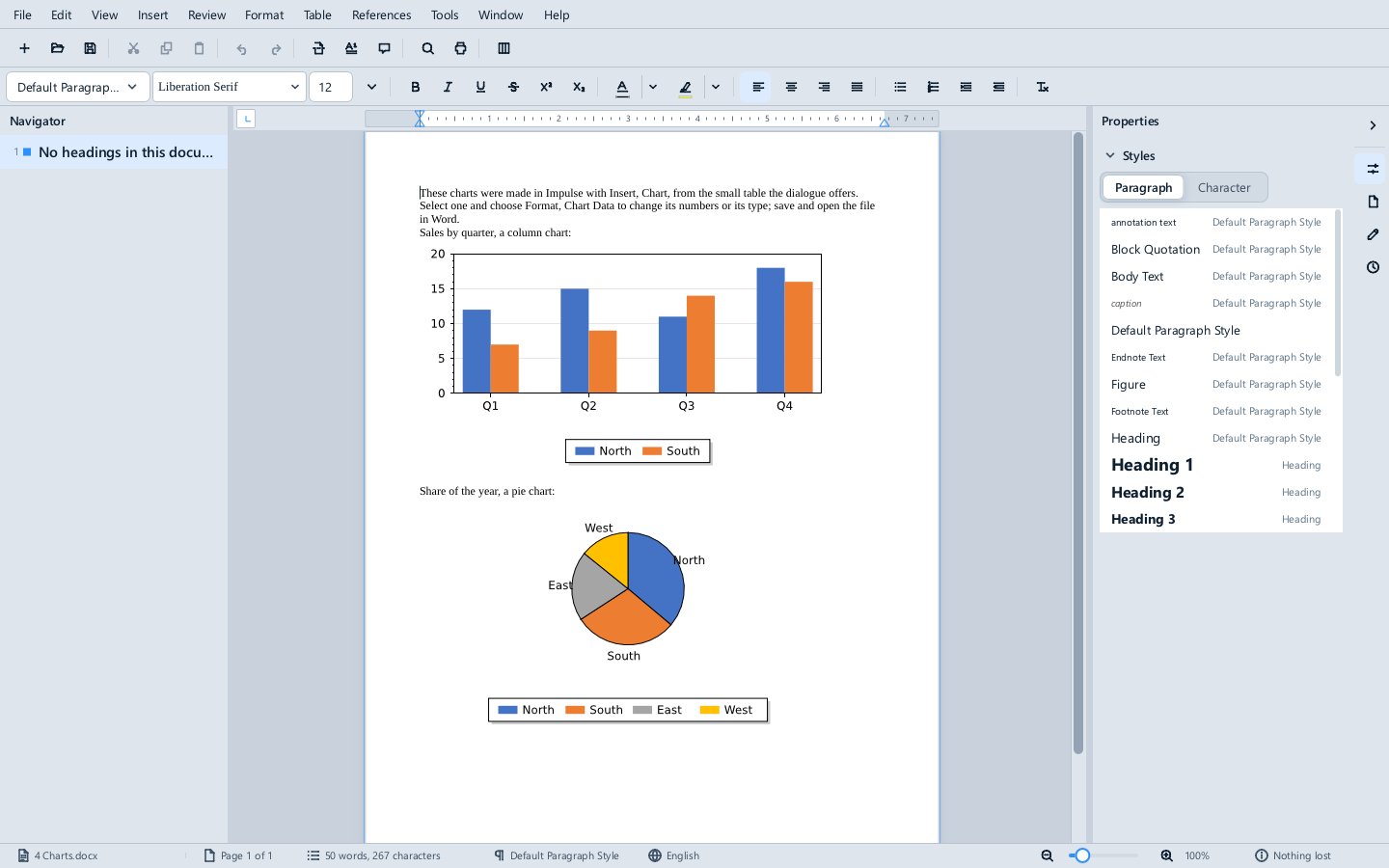
- Insert ▸ Chart makes a chart from a small table you type, and Format ▸ Chart Data edits its numbers later. Charts in Word documents open as charts, can be edited, and are saved back; a chart left untouched is written back exactly as it was.
- Format ▸ Anchor decides what an object moves with (a character, a paragraph or the page), and Format ▸ Wrap how text flows round it: None (above and below), Parallel (square), Optimal, Before, After, Through (in front of the text) and In Background.
Fields, notes and references
The Insert menu has:
- Page Break, Page Number, and Field for the page count, the date and time, the title, subject, author and file name, and more under More Fields.
- Header and Footer, with different first pages and left and right pages;
Escleaves a header or footer. - Footnote and Endnote.
- Comment, Hyperlink, Bookmark, Cross-reference and Caption.
- Table of Contents and Index: a table of contents, index entries and an alphabetical index.
As in Word, fields are not recalculated when a document opens. Tools ▸ Update ▸ Fields (F9) brings them up to date, as does printing, and Update All also updates the indexes and table of contents. View ▸ Field Shadings (Ctrl+F8) shows which text is a field.
Review
Review ▸ Track Changes (Ctrl+Shift+E) records insertions, deletions and formatting changes. Review ▸ Markup chooses how they are shown (all markup, simple markup, no markup, or the original), Previous Change and Next Change move between them, and Accept or Reject settles one, or all of them at once. The Changes deck in the sidebar lists them. Tracked changes go to and from Word unchanged.
Review ▸ Comment adds a comment on the selection; comments appear beside the page and in the Comments deck. Review ▸ Reply, Resolved and Delete Comment act on the comment at the caret.
Spelling and language
Words not in the dictionary are underlined as you type (Tools ▸ Automatic Spell Checking, Shift+F7); Tools ▸ Spelling (F7) goes through them one at a time. Tools ▸ Language sets the language of the selection, the paragraph or the whole text, which is what decides the dictionary. English dictionaries come with the suite. Tools ▸ AutoCorrect corrects common typing slips as you type, from the AutoCorrect lists shipped beside the program.
Smart objects
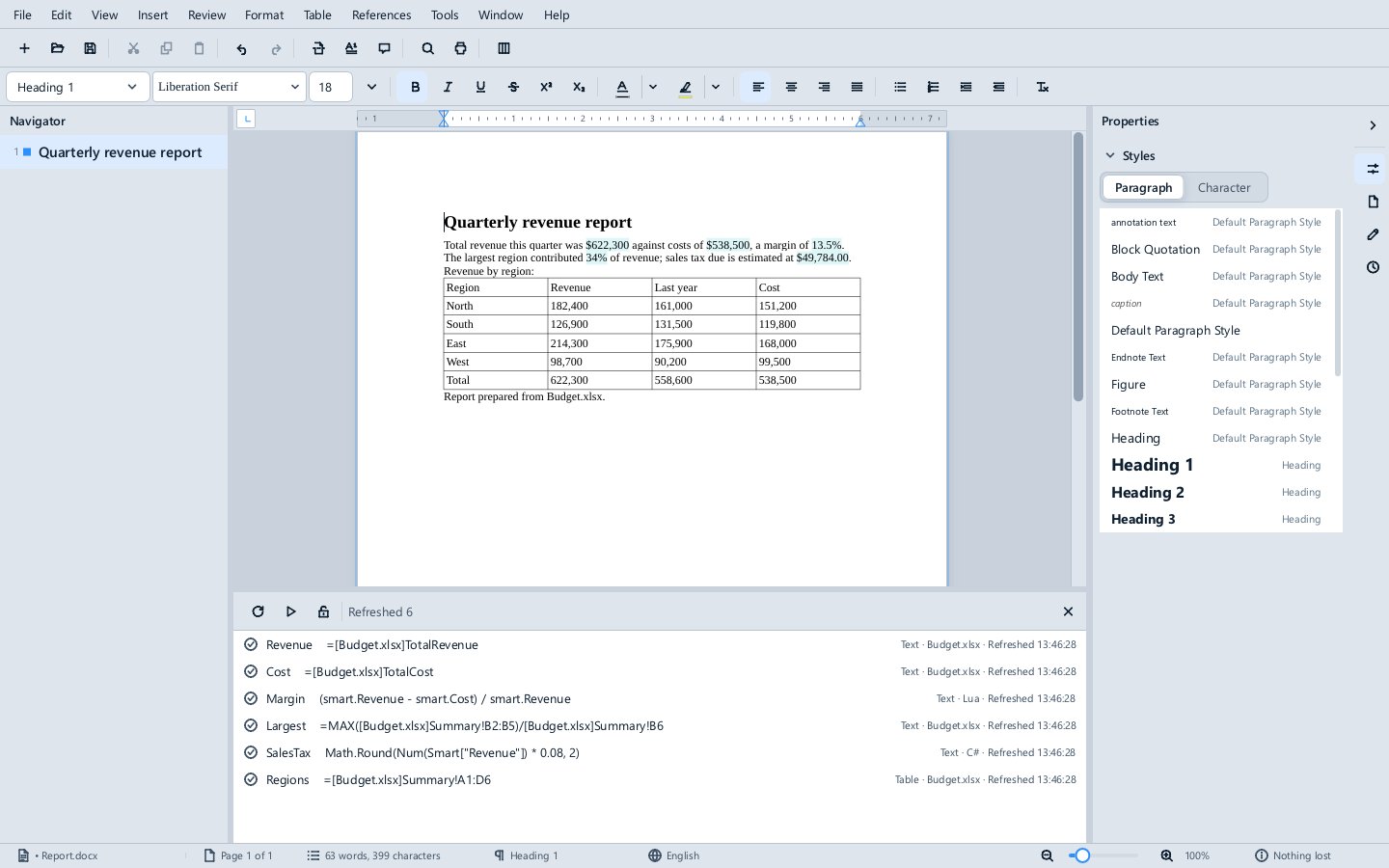
A smart object is text, a table or a picture whose content comes from somewhere else: a cell or range of a workbook beside the document, a short Lua or C# expression, or a Divooka graph. Insert ▸ Smart Object makes one; the References menu refreshes them (Ctrl+Shift+F9 refreshes all) and opens the Sources pane that lists them. The values are stored as ordinary text in the document, so Word, PDF and anyone without Methodox Office see the last values. See Smart objects.
Scripts
Tools ▸ Scripts (Alt+F11) opens the script editor under the page, for Lua or C# scripts that change the document as one undoable step. See Scripts. Tools ▸ Parameters edits the document's parameters, the values its smart objects and scripts share.
Files
Impulse opens .docx, Word 97-2003 .doc and .dot, .rtf, .odt, .html, .txt and Markdown, saves .docx, .rtf, .odt, .html and .txt, and exports PDF. A .doc opens read-only: edit it and save it as .docx. See Supported file formats.
Several documents
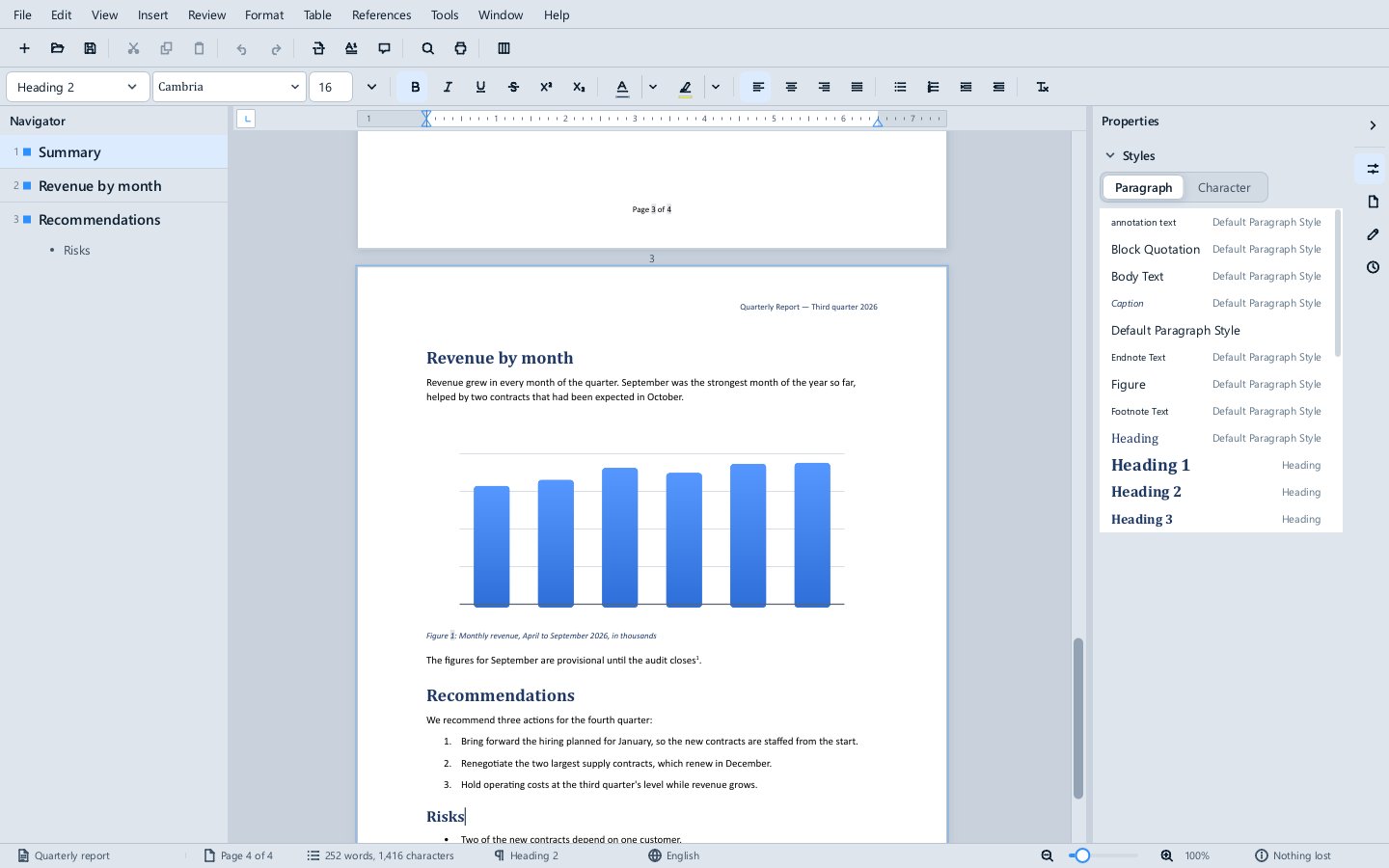
Each document opens in the same window, and the Window menu lists them: choose one to switch to it, or use Next Document (Ctrl+F6) and Previous Document (Ctrl+Shift+F6). Drop files from Explorer onto the window to open them; a file another application reads, such as a workbook, opens in that application.