
Running and the Console
Running
Press Run on the toolbar, F5 or Ctrl+E. While a run is going, the button reads Stop, and Stop or Shift+F5 ends it.
What runs depends on the graph:
- On a Routine or an Events graph, Run runs the graph on screen.
- Anywhere else, Run runs the document's entry graph - the one the outline marks entry.
- A Flows graph runs its active nodes and everything they depend on, and nothing else.
- A Function runs every node, from its Input to its Output.
When the run ends, the status bar says how it went - how many nodes ran and how long they took, 4 nodes in 266 ms, or what failed. Each node that ran shows done under it, with a preview of what it produced where there is something to show, and the node that failed wears a red border. A run never changes the document; the next run starts from what is on the canvas.
To see a node's result at full size, select it and press Alt+Enter, or right-click it and choose Open preview in window: it opens in a window of its own. Before a run there is nothing to show, and the status bar says Run the graph first; there is nothing to preview yet.
The Properties panel turns to its Run face, which describes the last run in full: Finished or Failed and how long it took, the problems that stopped it, and its Run log - what it printed.
Active nodes
On a Flows graph, a run starts from the nodes marked Active and runs only what they need. Select a node and press Space to mark it active or not, or use the Active switch in its Properties. The line above the canvas counts them - 1 active · 4 will run - and the nodes a run would not touch are dimmed. A run with nothing active reads Nothing ran (no active nodes).
Cached results
A slow node - one that loads a large file, or renders - can keep its result between runs. Select it and press Shift+Space, or turn on Cache result in its Properties: the next runs reuse what it produced and skip it and everything before it, until something it depends on changes. The status bar counts what was reused - 1 node in 5 ms · 10 reused. Switching it on right after a run keeps that run's result at once. Turn it off and on again to recompute it on purpose, for example when the file it reads has changed.
The console
What a run prints - Print Line, Print, and anything else that writes - goes to the console dock under the canvas. The dock stays shut while a run prints quietly: the status bar counts the lines, a dot beside the count says there is something unread, and a short note appears over the canvas. It opens by itself when a run writes to standard error, fails, or waits for you to type something.
Open or close it with Ctrl+`, or by clicking the line count in the status bar.
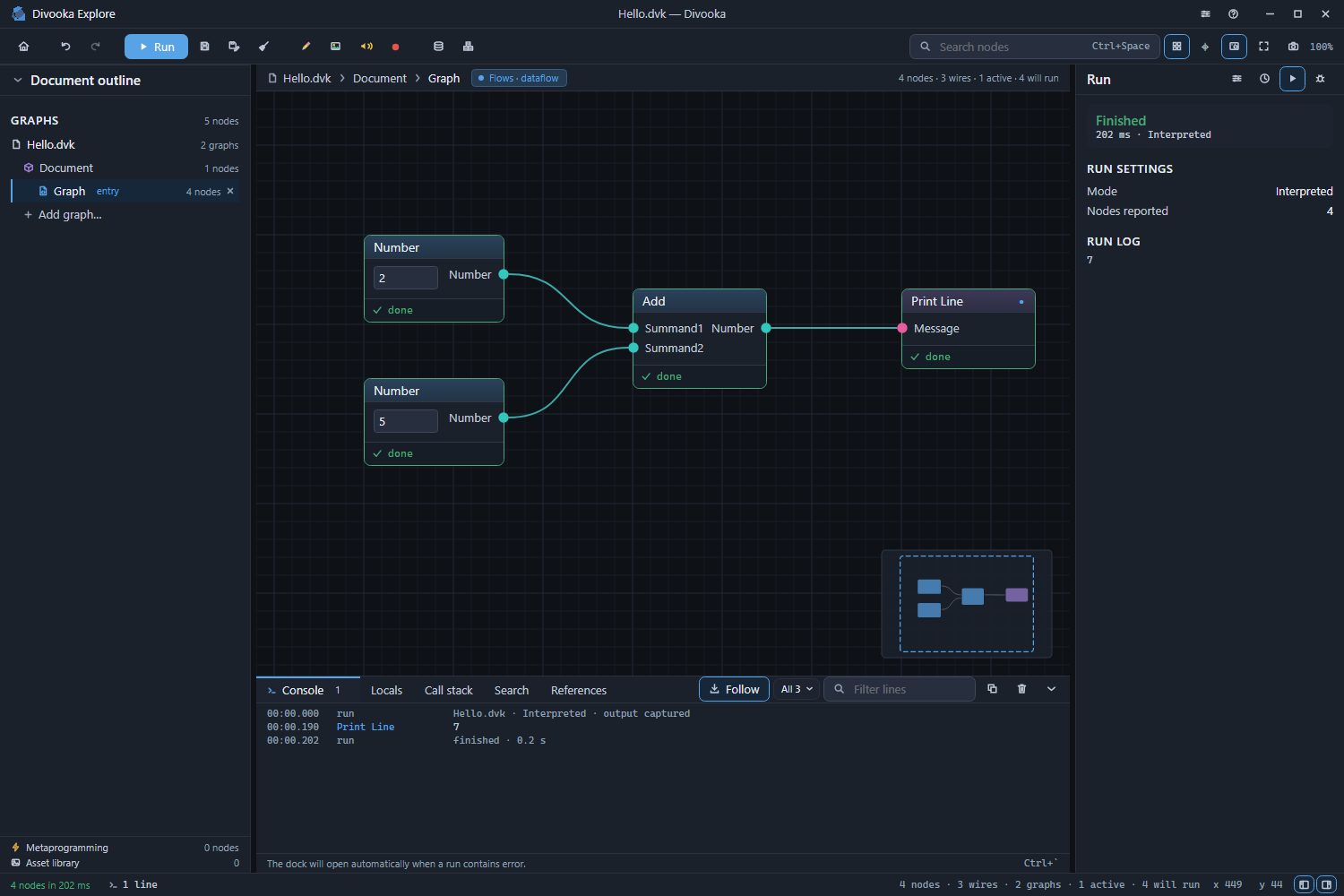
Along the top of the Console tab, from the left:
| Control | What it does |
|---|---|
| Follow | Keep the newest line in view. |
| The category list | Show All lines, or only the run's Output, its Standard error, or the Run errors - the failure that stopped it. |
| Filter lines | Show only the lines containing what you type. Esc empties it. |
| Copy | Copy the lines showing, with the full detail of a failure. |
| Clear | Clear the console until the next run. |
Each line carries the time it was printed and the node that printed it, between two rows that name the document the run was of and say when it finished. The lines can be selected and copied with Ctrl+C. The status bar's own message can be copied too: click it.
When a run asks for input
A node such as Read Line waits for a line of text. The dock opens on the console with an input row under the last line, and the status bar reads Waiting for input. Type and press Enter to send it. Shift+Enter starts a second line, and each line answers one read in turn. Ctrl+D ends the input, and Shift+F5 stops the run.
The other tabs
- Locals and Call stack show where a paused run is - see Debugging.
- Search (
Ctrl+F) finds the document's graphs, nodes by title, name or value, members, comments and groups. - References lists every node that reads, sets or calls a member: right-click a data member's node, or a Get or a Set, and choose Find All References.