
Misp
Misp (Methodox Interactive Spy) is the IDE that comes with SteelPython: a multi-file Python editor with a debugger, a workspace explorer, and management of virtual environments and packages. It is a small, fast desktop program; there is nothing to configure before you start.
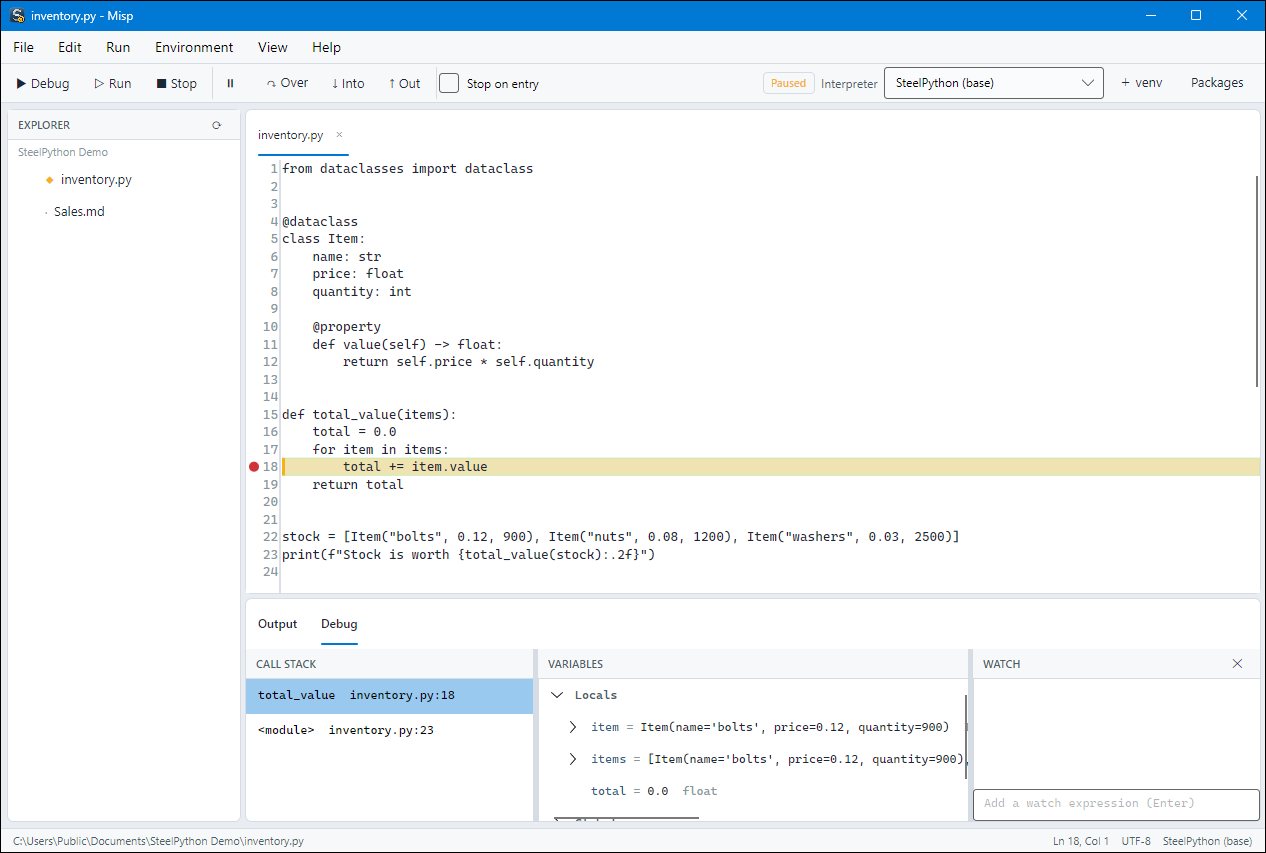
Starting
Run Misp.exe from SteelPython's folder. To open something straight away, pass it on the command line: Misp.exe C:\Projects\inventory opens a folder as the workspace, Misp.exe script.py opens a file. Misp remembers the last workspace, the recent files and your theme.
The window has the Explorer on the left (the workspace folder), the editor in the middle (one tab per file), and the Output and Debug panels below.
Editing
The editor highlights Python syntax, indents as you type, and has find and replace, go to line, commenting of the selected lines, and word completion (keywords, built-ins and the names in the file).
| Key | Does |
|---|---|
Ctrl+N / Ctrl+O / Ctrl+Shift+O |
New file / open files / open a folder as the workspace |
Ctrl+S / Ctrl+Shift+S / Ctrl+W |
Save / save as / close the file |
Ctrl+F / Ctrl+H / Ctrl+G |
Find / replace / go to line |
Ctrl+/ |
Comment or uncomment the selected lines |
Ctrl+Space |
Complete the word |
Ctrl+Shift+E / Ctrl+J / Ctrl+Shift+P |
Show the explorer / the output and debug panels / the packages panel |
Running
Ctrl+F5 runs the current file without the debugger. Misp saves your open files first, then runs the file with the interpreter chosen in the toolbar, from the workspace folder. What the program prints appears in the Output panel; the line at the bottom of that panel sends input to the program, so input() works. Shift+F5 stops the program at any time, even one stuck in a loop.
Debugging
| Key | Does |
|---|---|
F9 |
Toggle a breakpoint on the current line (or click in the margin) |
F5 |
Start debugging; continue when stopped |
F10 / F11 / Shift+F11 |
Step over / into / out |
F6 |
Pause the running program wherever it is |
Shift+F5 / Ctrl+Shift+F5 |
Stop / restart |
Run > Conditional Breakpoint... sets a breakpoint that stops only when a Python expression is true, such as item.quantity > 1000. Stop on entry in the toolbar starts the program paused on its first line; so does F10 or F11 when nothing is running.
When the program stops, the current line is highlighted and the Debug panel shows:
- the call stack - select a frame to see its source and its variables;
- the variables of the selected frame, locals and globals, which expand to show the contents of lists, dictionaries and objects;
- watch expressions, any Python expression, evaluated in the selected frame each time the program stops.
An exception that nobody catches stops the program in the frame that raised it, after the traceback is printed, so you can still look at the variables that led to it. Continue to end the program.
Interpreters and virtual environments
The Interpreter box in the toolbar lists the SteelPython that Misp came with and the virtual environments in the workspace folder (.venv, venv, or any folder with a pyvenv.cfg). Misp remembers the choice for each workspace.
- + venv (or
Environment > Create Virtual Environment...) creates an environment in the workspace and selects it. - Packages (
Ctrl+Shift+P) lists the packages of the selected interpreter, and installs, upgrades and uninstalls them with pip, showing pip's output as it works. An environment without pip is offeredensurepipto get one. Environment > Open SteelPython REPLopens the interactive prompt of the selected interpreter in a console window.
See Packages and environments for what pip and venv do.
Where Misp keeps things
Your settings (theme, last workspace, recent files, the interpreter of each workspace) are in %APPDATA%\SteelPython\Misp\settings.json. Programs always run in a separate spy process, so a crashing or hanging program never takes Misp with it.