
Methodox Formula
Methodox Formula is the spreadsheet of Methodox Office. It reads and writes Excel workbooks (.xlsx and .xlsm) as its own format, opens and saves OpenDocument spreadsheets and opens Excel 97-2003 workbooks, computes the same answers as Excel for the functions it has, and saves workbooks Excel opens with their formulas, spills, tables, charts, pivot tables, styles, comments, links and protection intact.
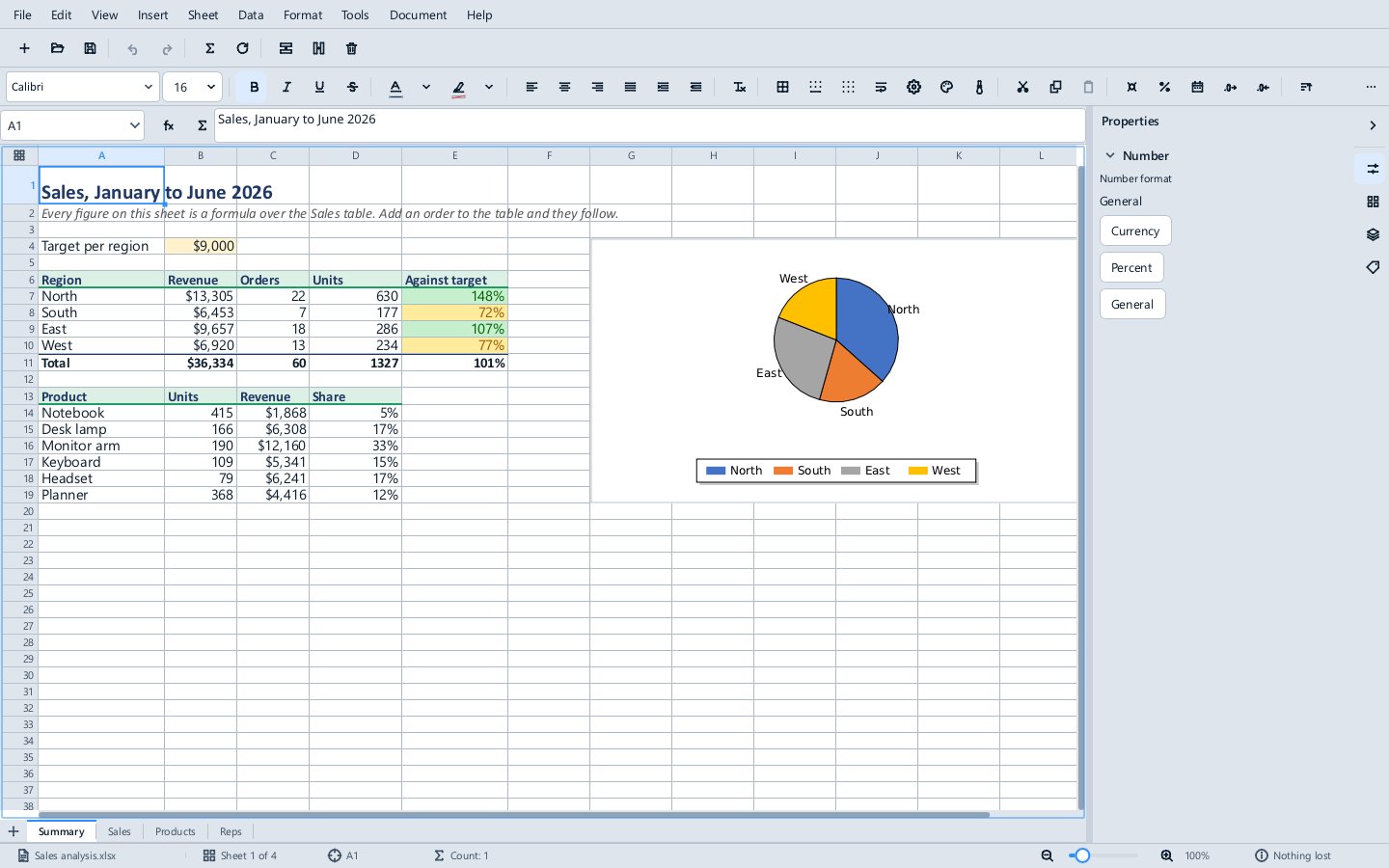
The window
- The Name Box, at the left above the grid, shows the address or name of the selection. Type an address or a name into it and press
Enterto go there; type a new name to give the selection that name. Its arrow lists the workbook's names. - The fx button opens Insert Function, a searchable list of every function Formula computes; choose one to start a formula with it. The Σ button beside it sums the cells above or to the left (Data ▸ AutoSum,
Alt+=). - The formula bar shows and edits what the active cell holds.
- The grid, with the sheet tabs under it. The
+at the left of the tabs adds a sheet; right-click a tab to insert, rename, duplicate, move, colour, hide or delete a sheet, and drag a tab to reorder. - The sidebar on the right has the Properties deck, the Sheet deck, the Parameters deck, the PivotTable Fields deck while a pivot table is selected, and the Format Object deck for pictures and shapes.
- The Navigator (View ▸ Navigator) lists the sheets, names, tables, charts, pivot tables and saved SQL queries; see Tables, names, pivot tables and SQL.
- The status bar shows the sheet, the active cell, the count of the selected cells and, when they hold numbers, their average and sum (right-click it to choose which figures it shows), and the zoom; View ▸ Zoom… sets the zoom in a dialog.
- View ▸ Formula Bar, Headers and Grid Lines show or hide those parts (the last two are saved with the sheet), and View ▸ Show Formula shows each cell's formula instead of its value.
Ctrl+PgDnandCtrl+PgUpmove to the next and previous sheet.
The Properties deck
The Properties deck follows the selection. At its top are the actions of the cell you are on, each shown only where it applies: Format Cells…, Edit Data Source… on a Data Source's table (which opens it in the Data Sources tab), the cell's comment and hyperlink, its pivot table, Unmerge on a merged cell and Clear Direct Formatting. Under them are Character (font, size, bold, italic, underline, colours and the rest), Number Format, Alignment and Cell Appearance (background and borders), each applied to the selection as you change it.
Entering data and formulas
Select a cell and type. A number, a date, a percentage or a currency amount is recognised as such; anything else is text. A number in the General format is rounded to fit its column (0.298077, 0.2981, 0.3), then shown in scientific notation, and shows ### only when nothing fits, as in Excel. Enter on the keypad confirms like the main Enter. Esc cancels. Edit ▸ Insert Current Date (Ctrl+;) and Insert Current Time (Ctrl+Shift+;) type today's date or the time.
Quick entry
- Across a row:
Tabconfirms and moves right,Shift+Tableft.Enterafter a run ofTabs goes down a row and back to the column the run started in, so a table is typed row by row without touching the arrows. - Picking from the column:
Alt+↓in an empty cell lists the entries already in the column, to pick one. - Down a column:
Enterconfirms and moves down,Shift+Enterup. WhereEntermoves (down, right, up, left, or staying put and opening the cell instead) is set in Edit ▸ Options ▸ Formula. - Arrows while typing: typing into a cell opens it in Enter mode, where an arrow key confirms the entry and moves, as in Excel.
F2or a double click opens a cell in Edit mode, where the arrows move the caret in the text;F2switches between the two. - Inside a selection: with several cells selected,
EnterandTabwalk through them and keep the selection. - One entry into many cells: over a selected block,
Alt+EnterorCtrl+Enterputs the same entry into every cell. In a single cell, either of them breaks the line inside the cell. - AutoComplete: typing text in a column offers the rest of an entry already in the column's block when only one entry fits, selected so that typing on replaces it;
Entertakes it. Tools ▸ AutoInput turns it off. F4outside a cell repeats the last action on the selection (Repeat).
Insert ▸ Function… (Ctrl+F2, or the fx button) opens Insert Function: pick a function, and for some eighty everyday ones each argument gets a field of its own with its help and the result shows as you fill them in; OK writes the formula. Ctrl+Shift+U makes the formula bar taller for a long formula.
A formula starts with =. While typing one, click a cell or use the arrow keys to put its reference in the formula, drag or hold Shift for a range, and press F4 to cycle the reference between relative and absolute (A1, $A$1, A$1, $A1). References are coloured in the formula and outlined on the grid. Formula reads and writes the same formula language as Excel, including structured references to tables (Sales[Revenue]), defined names, and references to other sheets (Sales!B2:B9).
Ctrl+Space selects the column, Shift+Space the row.
Dynamic arrays
A formula that returns several values spills them into the cells below and to the right, outlined in blue, as in Excel 365: =SORT(UNIQUE(Sales[Region])), =SEQUENCE(12), =FILTER(A2:C99, C2:C99>100). Refer to the whole spill with # (=SUM(E2#)); a spill blocked by other content shows #SPILL!. A cell inside a spill belongs to the formula that spilled it: typing into one and pressing Enter ends the edit and says why the cell cannot be changed. LET names parts of a formula and LAMBDA makes a function of your own, with MAP, REDUCE, SCAN, BYROW, BYCOL and MAKEARRAY to apply it. GROUPBY and PIVOTBY summarise a table in a spill, SQL.VIEW spills the answer to an SQL query, and =DATASOURCE("Name") spills a Data Source.
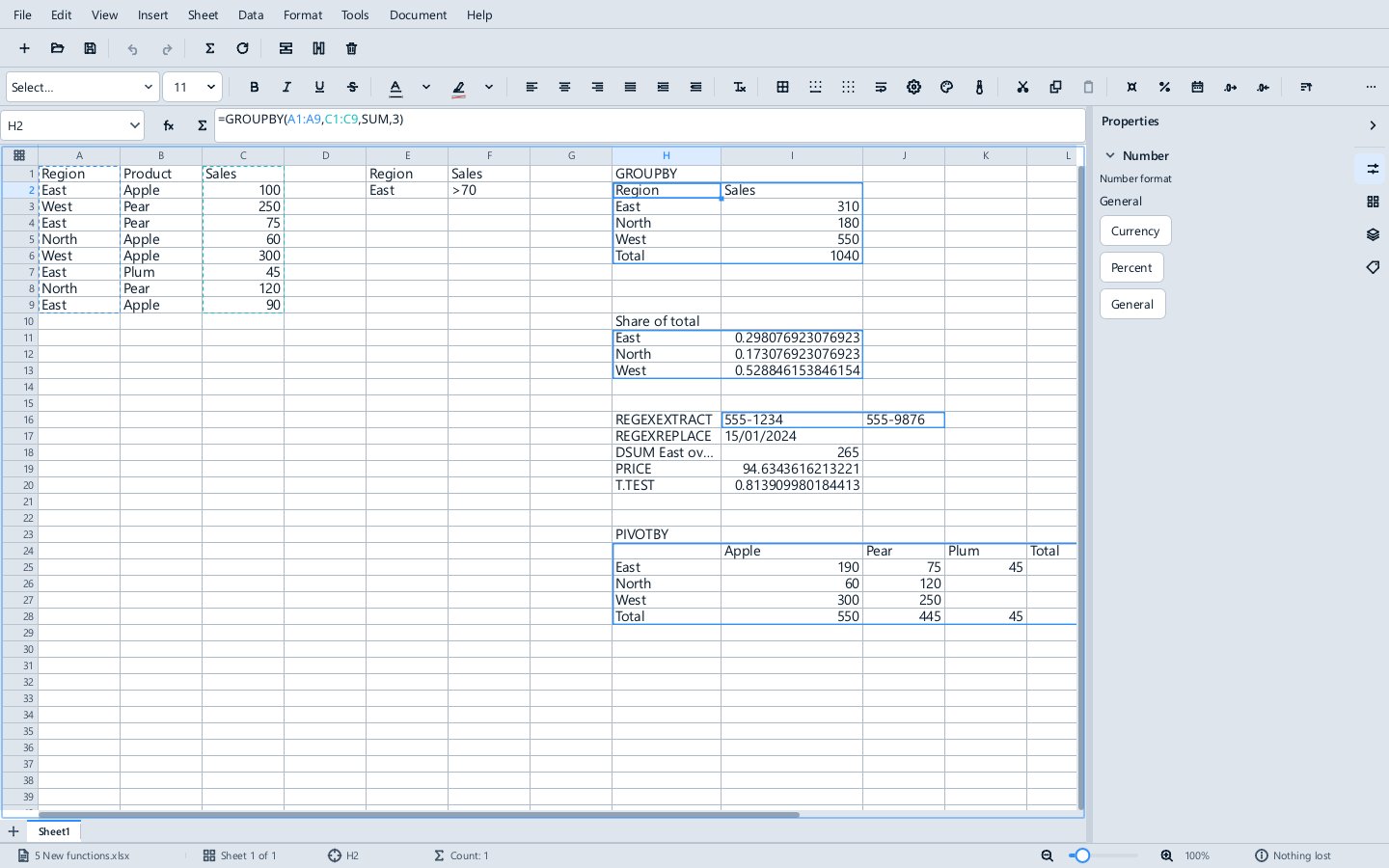
Formula recalculates automatically after every change. Data ▸ Recalculate (F9) recalculates everything at once, and Data ▸ Formula to Value replaces the selected formulas with their results.
Copying and filling
Cut, copy and paste work on cells, keeping formulas, values and formats. Ctrl+C and Ctrl+X mark the cells with a moving dashed outline and leave them as they are; pasting a cut moves the cells, with the formulas that refer to them following, as one undo step, and Esc lets go of the outline. To move cells with the mouse, drag the selection by its border; hold Ctrl to copy instead. Hold Shift as you drag to insert the cells where the bar shows, moving the others aside, or Ctrl+Shift to insert a copy. Edit ▸ Paste Special (Ctrl+Shift+V) pastes values only, formulas only, values and formats, formats only, unformatted text, column widths, transposed, or as a Paste Link to the copied cells, and Insert Copied Cells on a cell's right-click menu makes room for what you copied by moving the cells down. Drag the small square at the corner of the selection (the fill handle) to continue a series or, with Ctrl, to copy; double-click it to fill down as far as the column beside it goes. Sheet ▸ Fill Down (Ctrl+D), Fill Right (Ctrl+R), Fill Up, Fill Left and Fill Series do the same from the menu.
Number formats
Format ▸ Cells (Ctrl+1) ▸ Numbers chooses how a cell's number is written, previewed on the cell's own value.
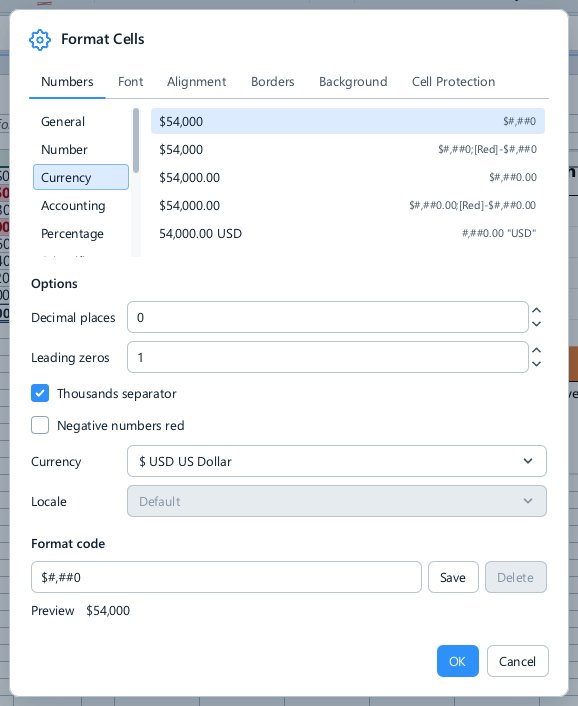
- Category and Format: General, Number, Currency, Accounting, Percentage, Scientific, Fraction, Date, Time, Date and Time, Text and the workbook's Custom formats, each format shown as your number would look.
- Options: decimal places, leading zeros, a thousands separator, negative numbers in red, the currency, and the locale whose way of writing numbers and dates is used.
- Format code: the code itself, which every option writes and which you can type, such as
#,##0.00;[Red]-#,##0.00ordd mmm yyyy, with a live preview in colour. A code that cannot be read is marked before you press OK. Codes are shown and typed with your locale's separators (#.##0,00in German) and stored as Excel stores them. - Save keeps the code in the workbook's own list of custom formats, where Excel finds it too, and Delete takes one out.
The toolbar's currency, percent, date and decimal-place buttons, Format ▸ Number Format, and Ctrl+Shift+1 (number), 2 (time), 3 (date), 4 (currency), 5 (percent), 6 (scientific) and Ctrl+Shift+~ (General) set the common formats in the workbook's own currency and language.
Formatting
- The formatting toolbar sets the font, size, bold, italic, underline, colours, alignment, wrapping, borders and number format.
Ctrl+]andCtrl+[grow and shrink the font, as in Calc; Format ▸ Character… also has superscript, subscript, double underline and overline, the Font and Background Colour palettes are on the Format menu, Format ▸ Align Text has every alignment (distributed, filled and vertically justified among them), and Thousands Separator adds one to a number.Ctrl+-andCtrl++delete and insert cells,Ctrl+9andCtrl+0hide rows and columns (withShiftto show them),Ctrl+'copies the formula from the cell above andCtrl+Shift+'its value,Ctrl+Shift+Oselects the cells with comments, andShift+F11inserts a sheet. - Format ▸ Cells (
Ctrl+1) has the number format, font, alignment, borders, background and cell protection in one dialog. Its Background page has a colour, Excel's eighteen patterns with their colour, and linear and path gradients, with a preview; the grid and print draw them as Excel does. It shows what the selected cells have: a field the cells disagree on is left blank, and only the fields you change are applied, so formatting several different cells changes only what you meant to. The Font page has the typeface, underline styles, superscript and subscript, with a sample; Alignment has vertically stacked text and Merge cells. Borders have a section of their own. - Merge and Center, Merge Across, Merge Cells and Unmerge merge and split cells. A merged cell is drawn without grid lines inside it.
- Format ▸ Cell Styles opens Excel's gallery of cell styles (Good, Bad and Neutral; Data and Model; Titles and Headings; the themed accents; and the number styles), and Format ▸ Cell Style lists them by name. A styled cell is saved with its style, so Excel shows the same style.
- Format ▸ Format Painter (the brush on the toolbar) takes the formatting of the selection: click it, then select the cells to paint once; double-click it to keep painting until
Escor another click on it. A small block painted over a larger range repeats across it. - Format ▸ Conditional Formatting formats cells by rules: a cell value or formula, top and bottom values, above or below average, duplicates, colour scales, data bars and icon sets.
- Format ▸ Rows and Format ▸ Columns set heights and widths, fit them to the contents and hide or show them; double-clicking a header border fits it too. A row grows to fit a larger font unless its height was set by hand.
- Format ▸ Table Style styles a table; see Tables.
- Clear Direct Formatting takes formatting away; Edit ▸ Clear Cells and Delete Contents (
Backspace) choose what to clear.
Borders
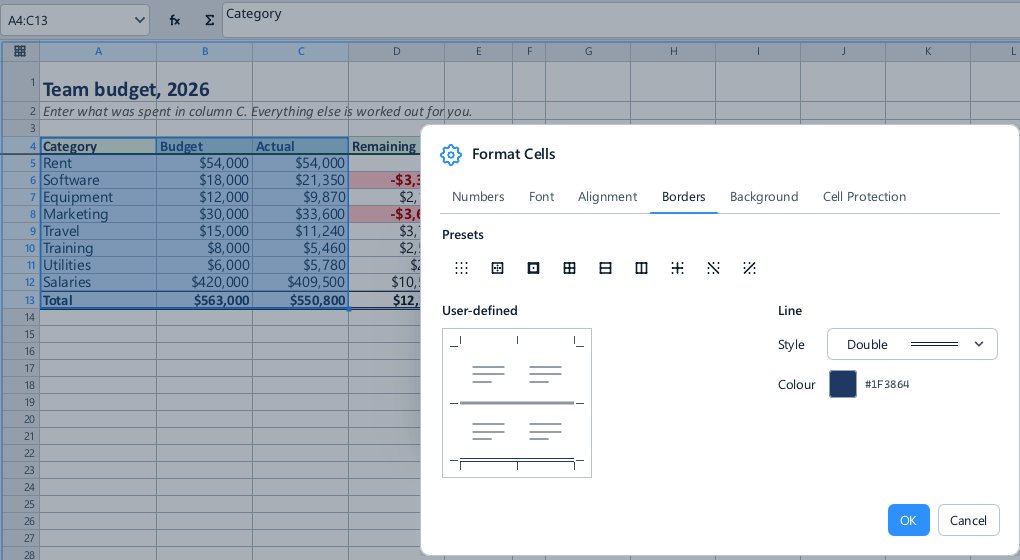
Borders apply to the block you have selected, as in Excel and Calc: an outer border goes round the outside of the block, inner lines go between its rows and columns, and the cell across an edge is brought into agreement, so taking a border off really removes the line.
- The Borders button on the toolbar applies the border it shows, and its arrow lists Excel's presets (Bottom, Top, Left and Right Border, No Border, All Borders, Outside Borders, Thick Outside Borders, the double and thick bottom borders, Top and Bottom Border and the rest) and LibreOffice's inner-line ones (Inside Borders, Inside Horizontal and Inside Vertical Borders, Outside and Horizontal and Outside and Vertical Borders, and the diagonals). More Borders… opens Format Cells at its Borders page.
- Draw Border and Draw Border Grid turn the pointer into a pen that draws an outline, or every line, along the cells you drag over, and Erase Border takes lines off; Line Colour and Line Style choose the pen's line. Border Style and Border Colour beside the button set the line the presets use.
Ctrl+Shift+&puts an outline round the selection andCtrl+Shift+_removes its borders.- Format Cells ▸ Borders has the presets as buttons (no borders, outer border only, outer border and all inner lines, outer border with horizontal or with vertical lines, inner lines only, and outer border with the inner lines left as they are), a frame of the selection on which you click an edge, an inner line or a diagonal to set it in the chosen style, and the line styles drawn as lines.
Where two cells' borders meet, the heavier line is drawn.
Comments, hyperlinks and validity
- Insert ▸ Comment (
Ctrl+Alt+CorShift+F2) adds a comment to the cell. A cell with a comment has a red corner, and hovering over it shows the comment; Show Comment keeps it open on the sheet as Excel's yellow box, Show All Comments and Hide All Comments open and close every one, and Delete Comment and Delete All Comments remove them. Comments left open stay open in Excel and LibreOffice. - Insert ▸ Hyperlink (
Ctrl+K) links a cell to a web page or file, a place in the workbook, or an e-mail address, with the text to show and a tip.Ctrl+click follows a link; a plain click selects the cell. Open Hyperlink and Remove Hyperlink are beside it. Only web and e-mail addresses are handed to your browser or mail program; any other kind of link is shown, not opened. Links move with the cells when rows and columns are inserted or deleted. - Data ▸ Validity sets what a cell accepts: a whole number, a decimal, a date, a time, text of a length, a value from a list, or whatever a formula allows (Custom); the help shown when the pointer is over the cell; and the alert when something else is typed. Any value takes the rule off. A list puts a dropdown on the cell (
Alt+↓opens it), and the input help is shown beside the cell while it is selected. Tools ▸ Detective ▸ Mark Invalid Data rings the cells whose values break their rule.
Sheets, rows and columns
The Sheet menu inserts, renames, duplicates, moves and deletes sheets; inserts and deletes rows, columns and cells (Ctrl with the keypad + and -); merges cells; and Freeze Cells keeps the rows and columns above and left of the active cell in view (Freeze Rows and Columns), or only the first row or column.
- Hide Sheet hides the sheet's tab and Show Sheet lists the hidden ones to bring back.
- Protect Sheet protects the sheet, with an optional password and a list of what everyone may still do: select locked or unlocked cells, format cells, columns or rows, insert or delete columns and rows, insert hyperlinks, sort, use AutoFilter and pivot tables, and edit objects. On a protected sheet a locked cell (every cell, until Format Cells ▸ Cell Protection unlocks it) cannot be changed by any key, menu or script. Choose it again, with the password, to take the protection off. Protection and hidden sheets are saved as Excel saves them.
Sorting, filtering and cleaning up
- Data ▸ Sort Ascending and Sort Descending sort by the active column; Data ▸ Sort sorts by several columns, and by custom lists set in Edit ▸ Options.
- Data ▸ AutoFilter (
Ctrl+Shift+L) puts a dropdown on each header, with sorting, a search box and a checkbox for each value. Filter by Selected Cell's Value on the cell's right-click menu filters to the value under it, and Reapply filters again after the data changed. - Data ▸ More Filters ▸ Standard Filter filters by up to four conditions joined by AND or OR, optionally without duplicates; Advanced Filter takes its criteria from a range of the sheet, written as in Excel, and filters in place or copies the rows elsewhere, optionally unique; Reset Filter shows every row again.
- Data ▸ Text to Columns splits a column of text by a separator or at fixed widths, with a preview; text that starts with
=stays text. - Data ▸ Remove Duplicates deletes the rows that repeat in the columns you choose.
- Data ▸ Define Range names a range for sorting and filtering.
Pictures, shapes and other objects
Insert puts objects on the sheet over the cells:
- Picture… places a picture from a file, an SVG drawing among them, which is placed as a sharp picture at its own size; a picture copied in another program pastes in as a picture, and one dropped on the sheet is placed where it is dropped.
- Shapes has the gallery Expo and Nu use, by category, with More Shapes…; drag on the grid to draw one, or click to place it.
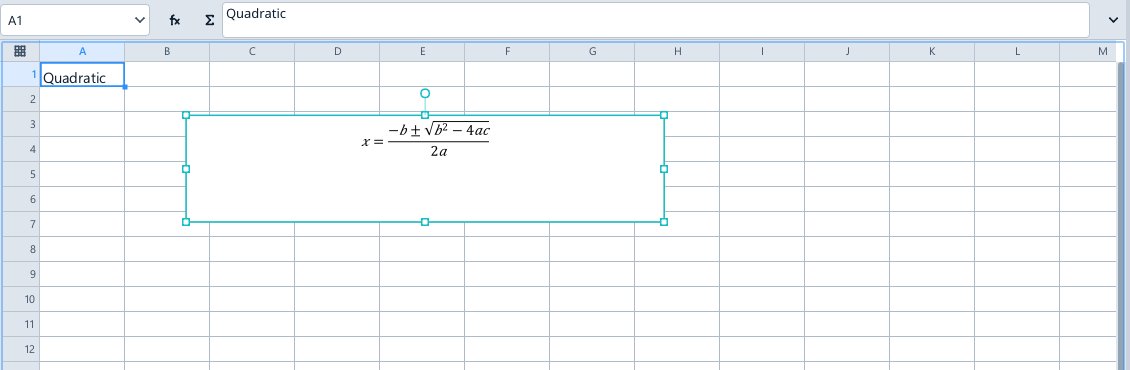
- Icons… places a drawn icon, found with its search box. Text Box and Equation… (see Equations) place text and typeset formulas.
Click an object to select it, and Ctrl-click or Shift-click to select several. Drag to move them, drag the eight grips to resize (a picture keeps its proportions, and Shift changes that), and drag the round knob to turn (Shift snaps to 15°). Hold Alt to snap to the cells. The arrow keys nudge, and Tab steps from object to object. Crop shows a picture's whole image with filled grips to crop it by. Every gesture is one undo step.
Format ▸ Object and the object's right-click menu have Align, Distribute, Rotate, Flip, the order commands and Group, as in Expo, the Area…, Line… and Position and Size… dialogs, and Alt Text…. The Format Object deck in the sidebar has its fill, line, size, rotation and proportions, its crop, its alternative text, and its Placement: Move and Size with Cells, Move but Don't Size with Cells, or Don't Move or Size with Cells, which decides what happens to it when rows and columns are inserted, resized or hidden. Copy and paste carry objects between sheets, and a copied object reaches other programs as a picture.
Pictures, shapes, connectors, groups and equations made in Excel are drawn as Excel draws them, on screen and in print, and are written back as they were unless you change them.
Charts
Select the data and choose Insert ▸ Chart. A chart follows its data: change a figure and it changes, and a chart over a table takes in rows added to the table. Double-click a chart, or choose Edit Chart… on its right-click menu, to open it in edit mode, where every part of it can be selected and formatted, with trend lines and error bars; Data Ranges on the right-click menu chooses the cells it is drawn from. Click a chart and press Delete to delete it. See Charts.
What depends on what
Tools ▸ Detective draws arrows on the grid from the cells a formula reads (Trace Precedents, Shift+F9) and to the formulas that read a cell (Trace Dependents, Shift+F5), and Tools ▸ Dependencies draws a map of the whole workbook, from its parameters and Data Sources through its sheets to what they feed. See Dependencies.
Printing
View ▸ Page Break shows where pages break; Sheet ▸ Insert Row Break and its siblings add and remove breaks. Format ▸ Print Ranges sets what prints, and Format ▸ Page Style the paper, orientation, margins, headers and footers, scaling to a number of pages, and whether grid lines and headings print. File ▸ Export as PDF can export the active sheet only.
Data, scripts and functions of your own
- Tables (
Ctrl+T), names, pivot tables and SQL: see Tables, names, pivot tables and SQL. - Data ▸ New Data Source… brings a live table in from a web API, a SQLite file or an ODBC database, and Data ▸ Data Sources lists them all in a tab of their own; see Data Sources. Data ▸ Refresh Data (
Ctrl+Shift+F5) refreshes them and the workbook's data-source functions. - Tools ▸ Scripts (
Alt+F11) opens the script editor in the bottom tray. A script can change the workbook as one undoable step, and a workbook can carry functions of its own, written in Lua, C# or Python, which formulas call as=LUA.NAME(),=CS.NAME()or=PY.NAME(), and=DVK.NAME()functions written as Divooka graphs. Document Parameters are edited in the sidebar's Parameters deck (Tools ▸ Parameters) and read with=PARAM("Name"). See Scripts and Worksheet Functions. - Tools ▸ Extensions lists the commands of the extensions enabled in Formula.
Spelling
Tools ▸ Spelling (F7) goes through the words in the sheet that are not in the dictionary, one at a time, with suggestions, in the dialog Impulse uses. Words not in the dictionary are underlined on the grid and in the cell you are typing in; Tools ▸ Automatic Spell Checking (Shift+F7) turns that off.
The right-click menu
A cell's right-click menu has what Excel's has: Cut, Copy, Paste and Paste Special; Insert and Delete with rows above or below and columns before or after; Filter and Sort; the comment's Edit, Show and Delete; Styles, Data Validation, Conditional Formatting and Manage Names; and Format Cells…. A row or column header's menu also has Paste Special and inserts on either side.
Files
Formula opens and saves .xlsx and .csv, .xlsm with its macros kept but never run, and OpenDocument spreadsheets (.ods, .fods); it opens Excel 97-2003 workbooks (.xls) to be saved in another format, opens templates (.xltx, .xltm, .ots, .xlt) as new workbooks, and exports PDF. File ▸ Properties (title, subject, keywords, author and comments) is saved in the workbook. .xlsb does not open yet. See Supported file formats.