
Methodox Expo
Methodox Expo is the presentation program of Methodox Office. It reads and writes PowerPoint decks (.pptx) as its own format and draws them as PowerPoint does: the same fonts, sizes, spacing and placeholder layout, taken from the deck's masters and layouts.
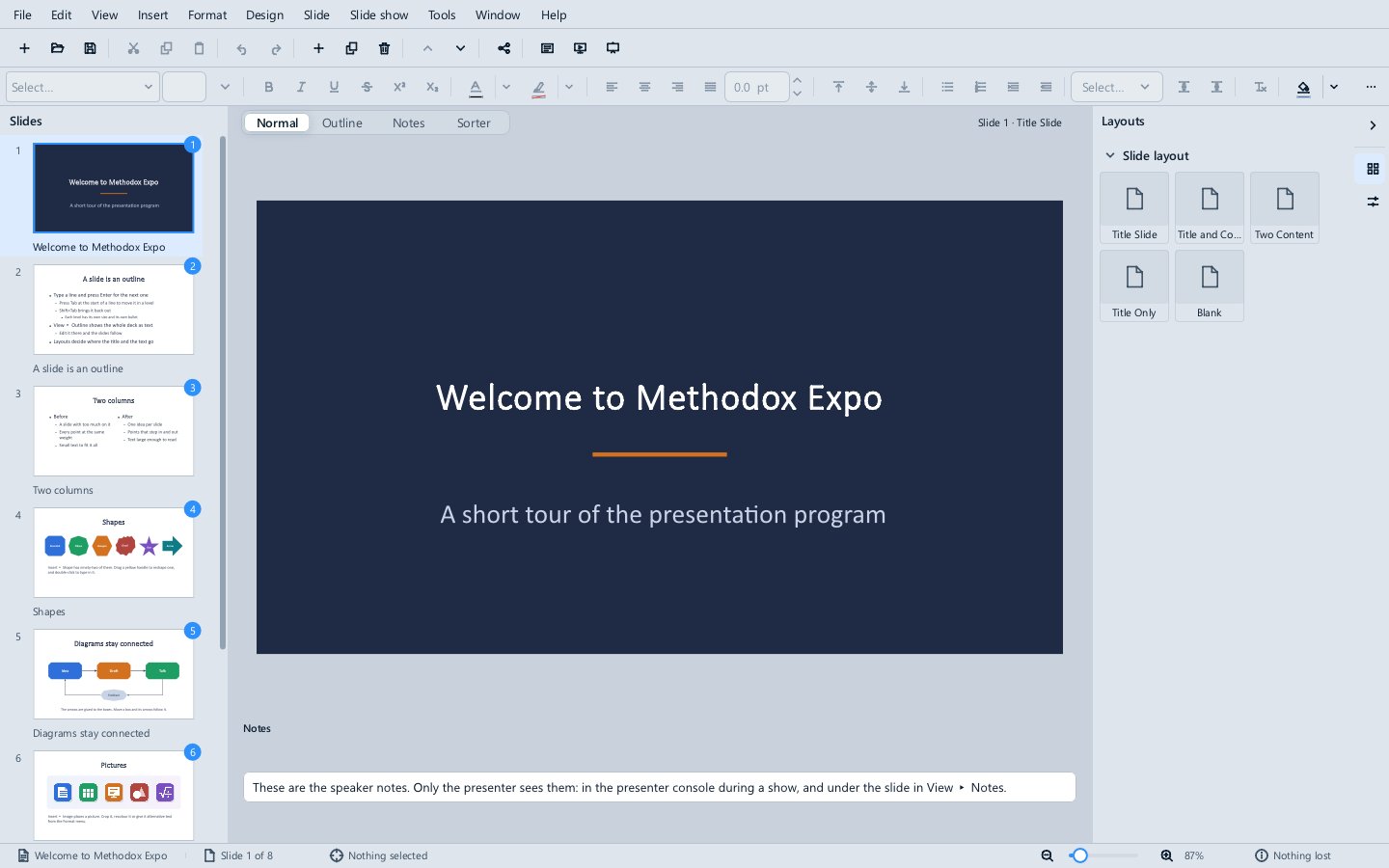
The window
- The Slides panel on the left shows every slide. Click one to open it, drag to reorder,
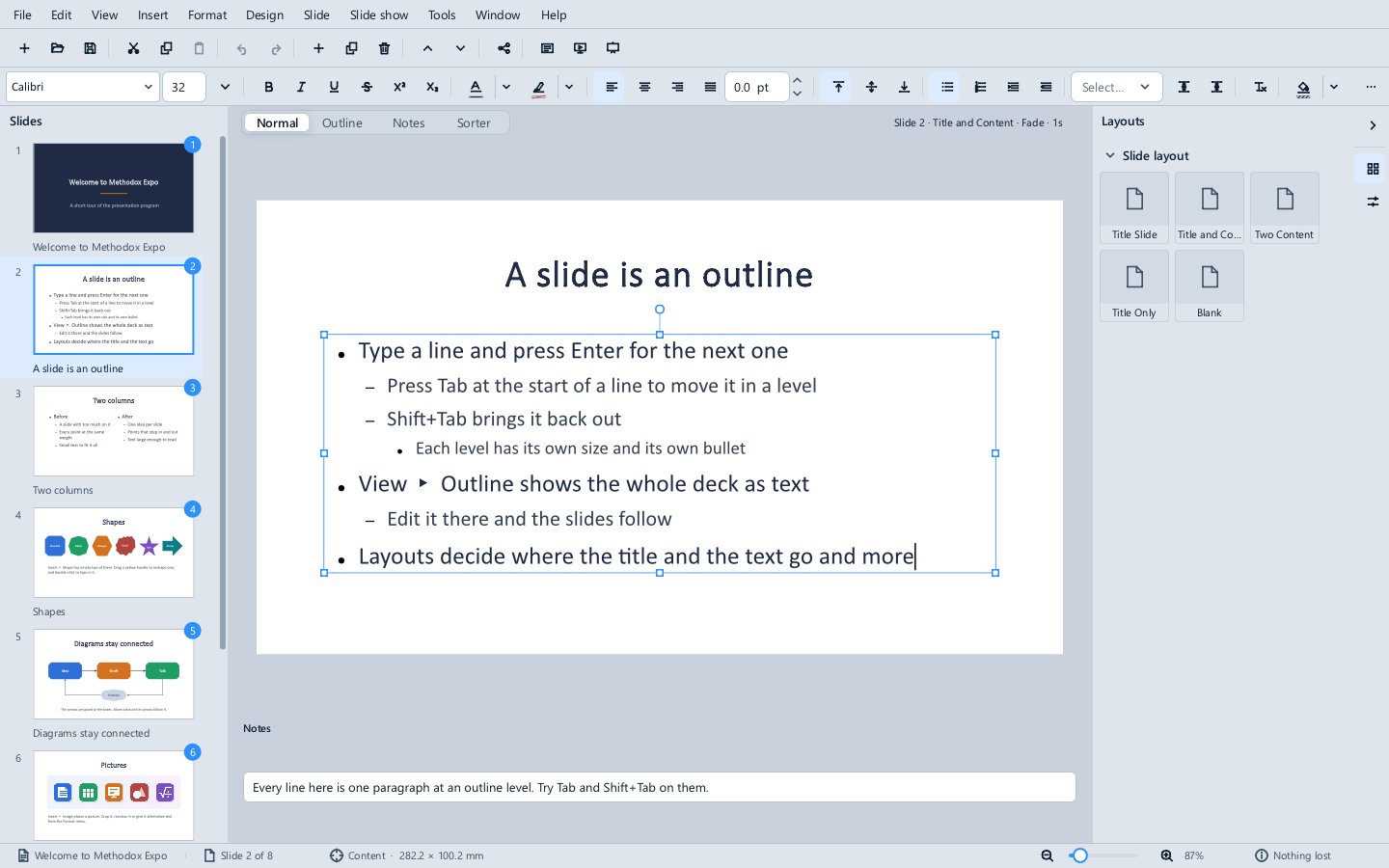
Ctrl+click to select several, and right-click for the slide commands. - The views, from the tabs over the slide: Normal (one slide to edit, with its notes), Outline (the whole deck as text, where
TabandShift+Tabchange a line's level and the slides follow), Notes (the slide with its speaker notes) and Sorter (every slide as a thumbnail, to reorder and select). - The notes under the slide are what only the presenter sees.
- The sidebar has the Layouts deck (the deck's slide layouts; click one to apply it to the slide) and the Presentation deck (how many slides and masters the deck has).
- The status bar shows the slide number and what is selected, with its size.
Slides
The Slide menu adds a New Slide (with the placeholders of its layout already in place, Title and Content after a title slide, as PowerPoint does), duplicates, deletes and hides slides, moves to the previous and next one, changes the Layout, sets a Background, and applies the master to one slide or all of them. Page Up and Page Down move between slides; Delete in the Slides panel deletes the selected ones.
Text
Click into a placeholder or a text box and type. Text is edited in place, in the slide's own fonts, sizes, colours, alignment and bullets, so what you see while typing is what the show will show, and an empty placeholder shows the caret where the first character will go. Tab and Shift+Tab at the start of a bulleted line move it a level in or out; Esc finishes typing.
Format ▸ Character and Format ▸ Paragraph set the font, alignment, line and paragraph spacing and indents; Bullets and Numbering sets the bullet or the numbering of a list; Text Attributes anchors text to the top, middle or bottom of its shape and chooses whether text shrinks to fit, the shape grows to fit, or neither.
Shapes, pictures, tables and charts
- Insert adds a text box, a title, shapes (rectangle, ellipse, star, arrow, cloud and more under More Shapes), lines and connectors (straight, angled and curved), pictures, tables and charts, and a header and footer with the date and slide number.
- Select a shape by clicking it, or with
TabandShift+Tab; drag to move it, with smart guides lining it up with the others, and drag its handles to resize or rotate it. The arrow keys nudge it. - Format sets fill and line colours, Shape Fill, Shape Line and Background in full, Align and Distribute, Order (bring to front, send to back), Rotate and Flip, and Group and Ungroup.
- Edit ▸ Format Painter, or Copy Formatting (
Ctrl+Shift+C) and Paste Formatting (Ctrl+Shift+V), copies one shape's formatting to another. - Insert ▸ Table places a table styled by the deck's theme; type in its cells, and
Tabmoves between them. Insert ▸ Chart places a chart drawn by Formula's chart engine. - Connectors stay glued to the shapes they join when the shapes move; Edit Glue Points adds and removes the points they attach to.
- Edit ▸ Find and Replace works across every slide.
Design: themes and masters
- Design ▸ Theme Colors and Theme Fonts restyle the whole deck with one of Office's colour palettes or font pairs. The deck's theme is written back on save, so PowerPoint shows the same.
- Design ▸ Slide Size sets the size and shape of the slides; Format Background the background.
- Design ▸ Edit Master (or View ▸ Master Slide) edits the master slide and its layouts, which every slide built on them follows; Close Master View returns to the slides.
Giving the show
| Key | |
|---|---|
| Slide show ▸ Start from First Slide | F5 |
| Start from Current Slide (also a toolbar button) | Shift+F5 |
| Present with the Console | Alt+F5 |
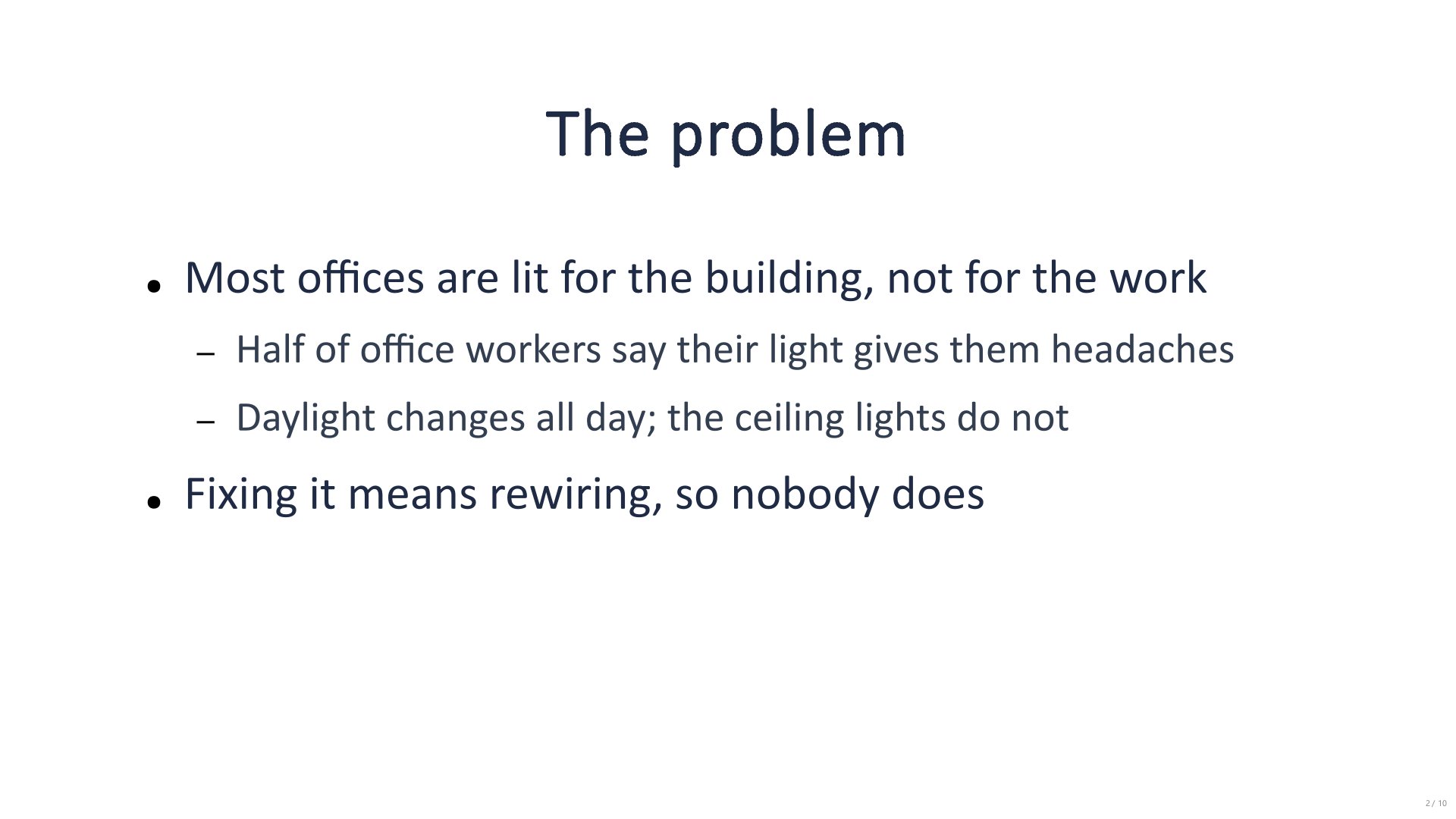
The show opens in a window of its own, full screen, on another display than the editor's when there is one, or on the display chosen in Slide show ▸ Show On. Esc or closing the window ends it and returns to the editor on the last slide shown. Empty placeholders are not drawn in the show.
In the show, Space, → or a click go forward and ← or a right-click go back; a slide number followed by Enter jumps to that slide; B and W blank the screen black or white. The keyboard shortcuts page lists every key.
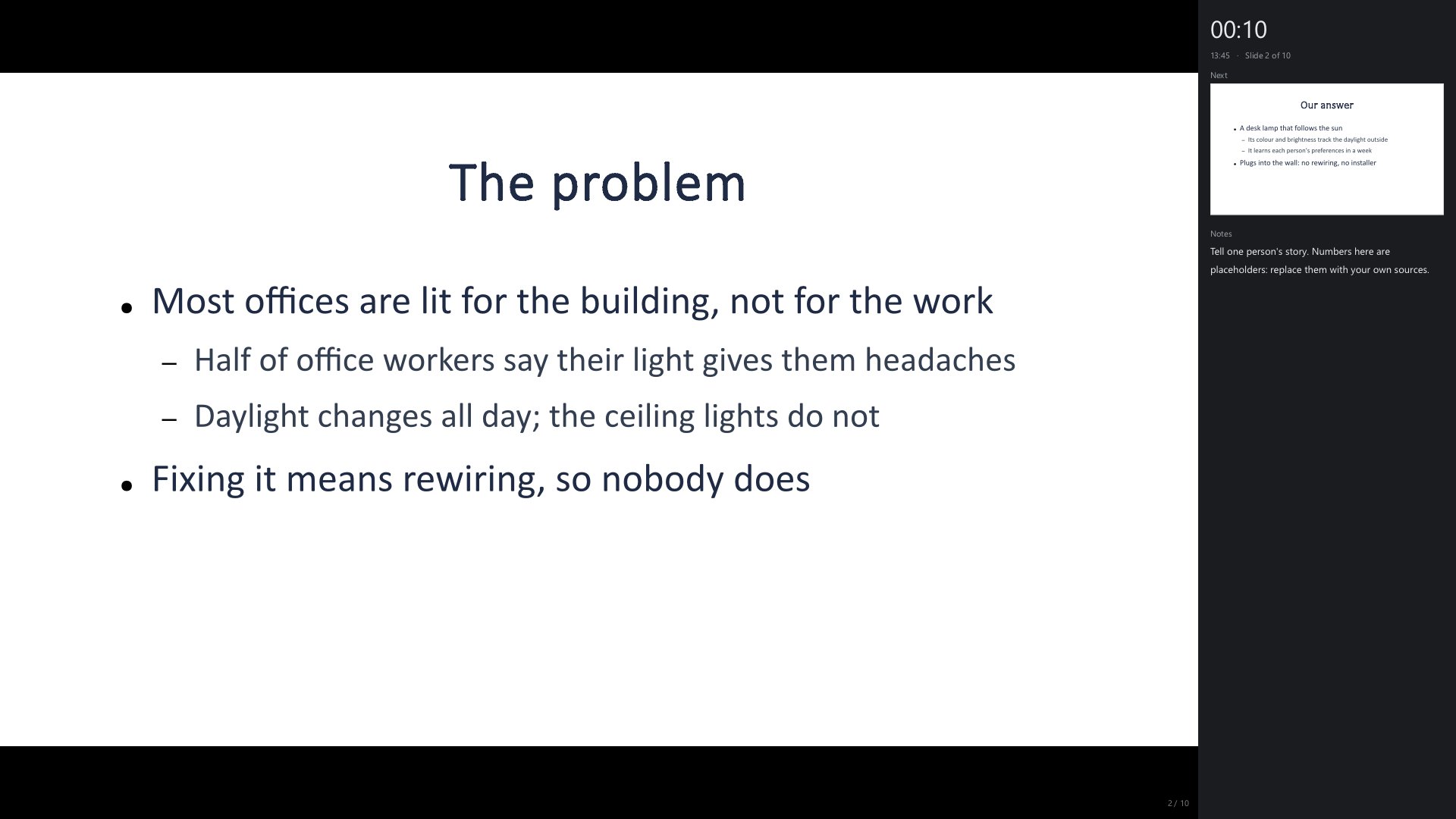
The presenter console shows the current slide, the next one, the speaker notes and a clock. With two displays, Present with the Console shows the slides on one and turns the editor window into the console on the other, and the console's keys drive the show. With one display, the console sits beside the slide, and P shows or hides it during any show.
Slide show ▸ Slide Transition sets how a slide comes in.
Scripts
Tools ▸ Scripts (Alt+F11) opens the script editor under the slide; see Scripts. A deck also has parameters (Tools ▸ Parameters) and event handlers for the start, advance and end of the slide show.
Files
Expo opens and saves .pptx, and exports PDF, PNG and JPEG images of the slides, and the current slide as SVG. .ppt and .odp do not open yet. See Supported file formats.
Not there yet
An animations pane, and table text styled from the master.
See also
- Expo keyboard shortcuts
- Methodox Nu, which draws with the same shapes