
The Window and Your Documents
Impulse, Formula, Expo, Nu and Math are built on one window, so what you learn in one holds in the others. Each application supplies its document, its menus and the formats it reads; everything on this page is the same in all five. Curfew, the photo editor, shares the suite's recent documents, language and About, but has a window, menus and panels of its own.
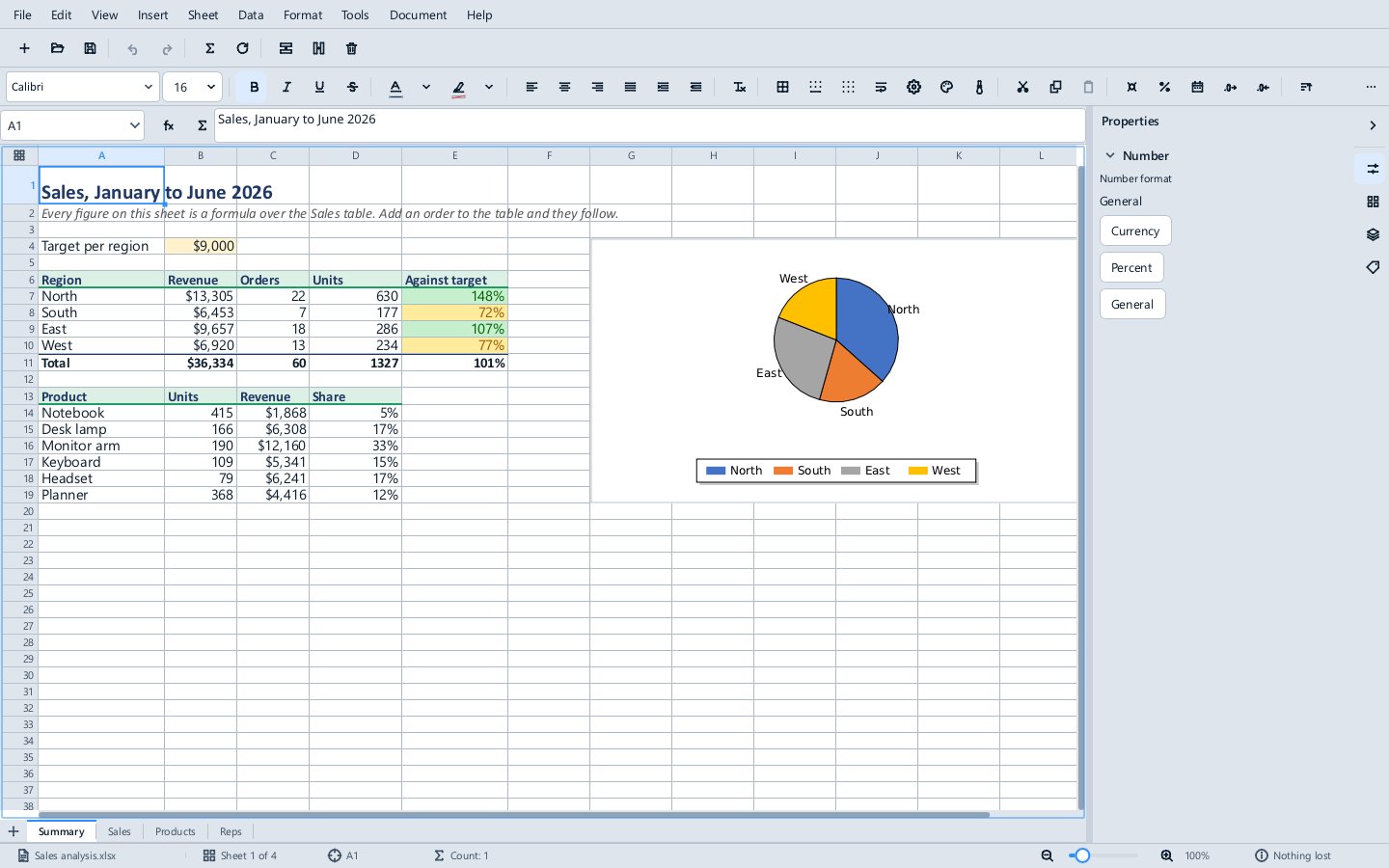
The parts of the window
- The title bar names the file you are editing and the application, such as
Budget.xlsx — Methodox Formula, with a•in front while it has unsaved changes. - The menu bar holds every command the application has. A menu item shows its key on the right; the keyboard shortcuts pages list them all.
F10, orAltand the underlined letter of a menu's title, opens a menu from the keyboard, and the arrow keys walk the bar and the menu; the letters are underlined whileAltis held (in Chinese, Japanese and Korean they are shown in parentheses after the title). An item that switches something on and off shows a check box, ticked while it is on. - The toolbars under it: the first has the document commands (new, open, save, undo, redo and the application's most used commands), the second the formatting of what is selected. Hover over a button to see its name. The arrows beside Undo and Redo list the steps you can take back or do again; choose one to undo or redo everything down to it. Buttons that do not fit are under the
…at the right end. View ▸ Toolbars shows or hides each of them. - The Navigator, on the left (View ▸ Navigator, or its
×to close it), lists what the document is made of: headings in Impulse, sheets, names, tables, charts and pivots in Formula, slides in Expo, pages in Nu, the structure of the formula in Math. Click an entry to go there. - The sidebar, on the right (View ▸ Sidebar), shows properties of the selection and the document, in decks you switch between with the icons down its right edge. The arrow at its top folds it away. In Impulse, Formula, Expo and Nu one of the decks is Parameters.
- The bottom tray opens under the document for tools that need room. Each tool is a tab with its own
×, so several stay open at once and you switch between them: Scripts (Tools ▸ Scripts,Alt+F11), Immediate (Tools ▸ Immediate), Smart Objects (Tools ▸ Smart Objects), Data Sources and Dependencies (Tools ▸ Dependencies). The bar between the tray and the document drags to make it taller or shorter. - Bars over the document say what the document needs from you, each with its button: a yellow Scripts disabled bar with Enable, an orange bar naming access the document's code asked for, such as Needs GET api.open-meteo.com, with Allow, and a red one when something failed. See Trust.
- The status bar names the document and shows where you are (page, cell, slide), the zoom slider, and how the last open or save went. View ▸ Status Bar hides it. When the window is narrow, the less important fields give way first.
- The Document menu, before Help, lists the documents open in the application, and hovering over one shows its full path; choose one to switch to it. Next Document (
Ctrl+F6) and Previous Document (Ctrl+Shift+F6) step through them, as doCtrl+TabandCtrl+Shift+Tabwhile the document has the keyboard. - Help ▸ Documentation (
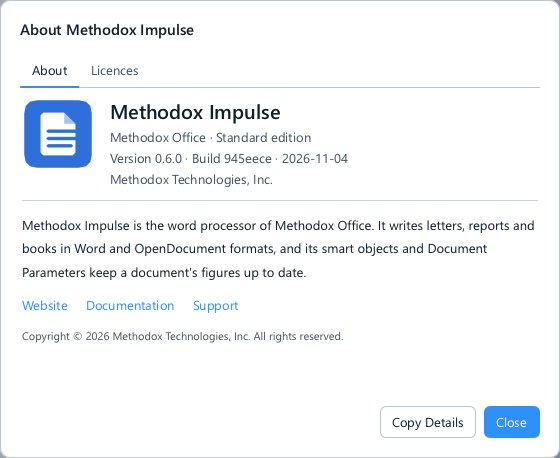
F1) opens the application's page on this wiki in your browser. Help ▸ About names the application and its edition, its version and build, and Methodox Technologies, with a short introduction, links to the website, this wiki and support, and a Licences page listing the third-party components, dictionaries and AutoCorrect lists the build ships; Copy Details copies the version, build and system for a support request.
View ▸ Full Screen (Ctrl+Shift+J) gives the whole screen to the window; the same command brings it back.
Each application remembers how you left its window: its size and position, whether it was maximised, which toolbars, panes and sidebar deck were showing, and the tray's tabs and height.
The colours come in light and dark, in layers a visible step apart: the desk behind a document, the panes and toolbars, and the fields, lists and pages you work in, which are white in the light theme. The theme follows --dark and --high-contrast on the command line.
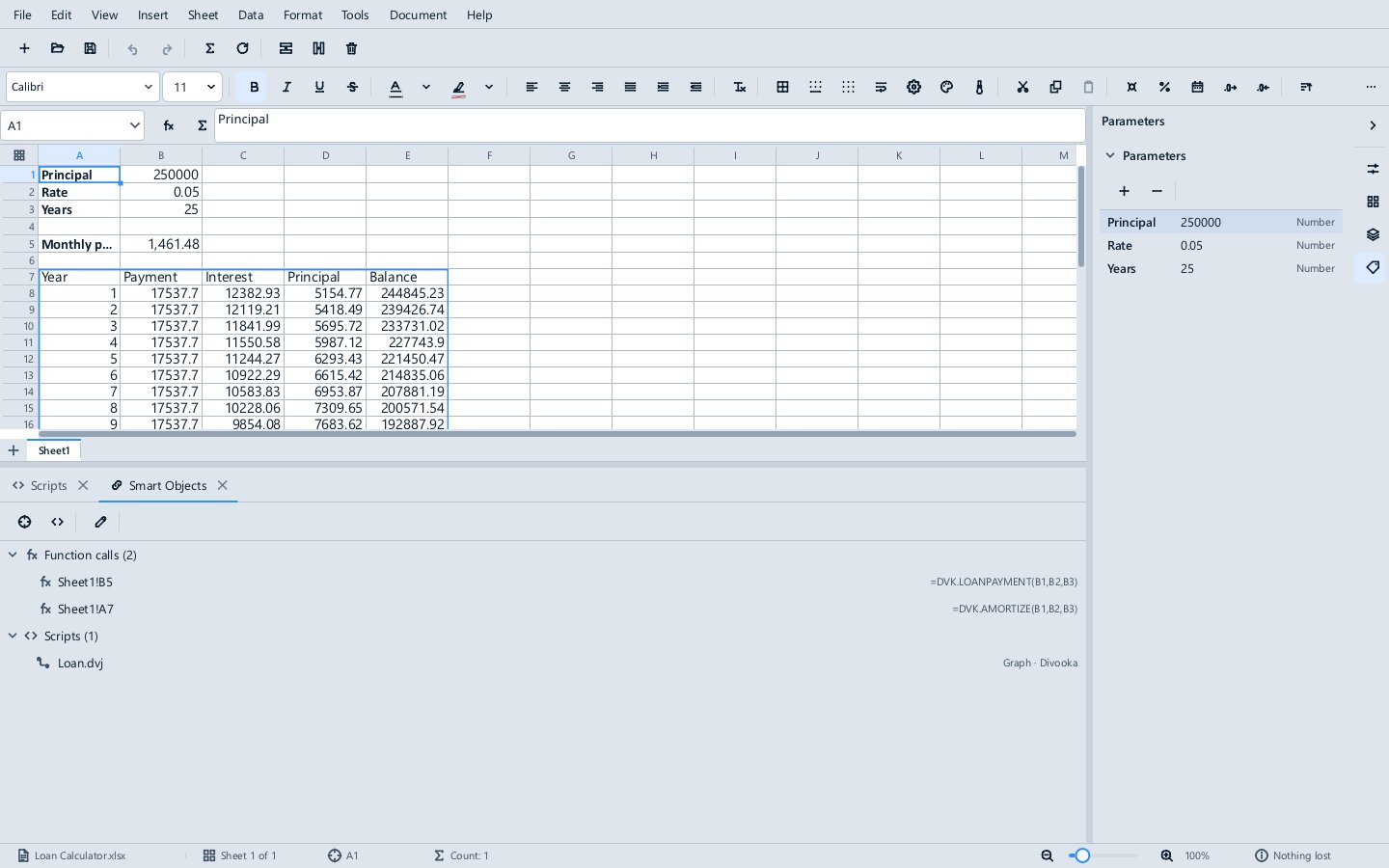
The Properties deck
In Impulse, Expo and Nu the sidebar's Properties deck formats what is selected as you change it, with the same panels in all three: Character (font, size, the effects and colours), Paragraph (alignment, spacing, indents and lists), Area (fill), Line (outline), Image (a picture's corrections and crop) and Position and Size, each shown only when the selection has it. Format ▸ Character… and Format ▸ Paragraph… open the same Character and Paragraph dialogs in the three applications, each with the pages its documents can carry. A dialog applies only what you changed, so OK without a change changes nothing. Formula's deck follows the cell; see Formula.
The Parameters deck
A document's Document Parameters, the named values its formulas, smart objects and scripts share, are a deck of the sidebar: Tools ▸ Parameters opens it. Each row is a parameter's name, value and type, and the row is where you edit it: double-click the value (or press F2 or Enter on the row), type, and Enter keeps it while Esc puts it back. Double-clicking the name renames the parameter. The + and − at the top add and remove parameters, and right-clicking a row offers the same with a choice of its type. Every change is one step of Edit ▸ Undo, and what read the parameter recalculates or refreshes at once.
The Smart Objects tab
Tools ▸ Smart Objects (in Impulse also References ▸ Smart Objects) opens a tab in the bottom tray listing everything in the document that code fills or computes, in groups: Smart objects, Function calls (the cells that call the document's own Functions), Data sources (what fetches, or reads another file) and Scripts. Each row says what it runs and how it last went.
- Double-click a row to go to it: the document scrolls there and selects it. For a script, double-clicking opens it.
- Show Definition, on the tab's strip and on a row's right-click menu, opens the Scripts tab at the script, or at the node of the graph, that defines it.
- In Impulse the strip also refreshes everything (
Ctrl+Shift+F9) or the selected smart object, and Unbind turns a smart object back into ordinary text; in Expo a smart object's right-click menu refreshes it. See Smart objects.
Opening documents
- File ▸ Open (
Ctrl+O) lists every format the application reads under All supported formats; see Supported file formats. - File ▸ Recent documents lists what you opened or saved lately, in any of the applications; it is the same list the Start Centre shows.
- File ▸ New (
Ctrl+N) starts an empty document. - A template, such as a
.dotx,.xltx,.potx,.ott,.ots,.otpor.otg, opens as a new untitled document made from it, as in Word and LibreOffice, so saving never writes over the template. - From the Start Centre, any document opens in the application its type belongs to, and a Quick Start opens an untitled copy of one of the shipped examples.
- Drop files from Explorer onto any window, or the Start Centre, to open them, several at once. A file another application reads opens in that application. A picture dropped on Impulse, Formula, Expo or Nu goes into the document where you let go, and in Expo so does a sound or a film.
- Double-clicking a document in Explorer opens it once Methodox Office is the default application for its type (see Installing).
When a document opens, the status bar says Nothing lost if every part of it was understood, or how many problems there were, such as a feature the application draws approximately or leaves out. Click that field for the list. Every format's reader reports what it could not carry, so Nothing lost is shown only when that is true. A part of a file the application does not understand is usually kept and written back unchanged when you save; the file formats page says what is kept and what is not.
Saving
- File ▸ Save (
Ctrl+S) writes the document back in the format it came in. - File ▸ Save As (
Ctrl+Shift+S) writes it under another name or in another format; the dialog lists only the formats the application can write.
Saving to a format that cannot hold everything in the document, such as a workbook saved as CSV, lists what was left out in the same problems list, so nothing disappears silently. An OpenDocument file (.odt, .ods, .odp, .odg) has no place for a document's scripts, Functions, smart objects, Data Sources or parameters, and saving one says so; keep a document with automation in its Office format.
If something else saved the file after you opened it, such as Word, a colleague or a sync client bringing in another copy, Save does not replace it unasked. It says when the file changed and offers Save a Copy…, Overwrite or Cancel; Enter keeps both files by choosing Save a Copy…, and Escape leaves everything as it was. A file whose time moved but whose contents did not raises no question, and a file that has been deleted is simply written again.
Closing
- File ▸ Close (
Ctrl+W) closes the document, and asks whether to save it first when it has unsaved changes. With nothing open, or only the untouched empty document a window starts with, it closes the application. - File ▸ Exit (
Ctrl+Q), closing the window orAlt+F4leaves the application. Before anything closes it asks Save, Don't Save or Cancel for every open document with unsaved changes, showing each one as it asks. Cancel at any of them leaves the window open with every document as it was.Enteranswers Save.
Recovery
Each application keeps a recovery copy of a document with unsaved changes, every 10 minutes or every 25 edits by default. If an application stops without saving, the next start offers to recover what it kept. Edit ▸ Options ▸ Recovery sets how often.
Printing and exporting
- File ▸ Print (
Ctrl+P) prints, with the printer and the pages to print; Print Preview shows the pages first and Print Directly prints at once to the default printer. - File ▸ Export as PDF writes a PDF of the whole document, a range of pages or the selection, with image compression and PDF/A as options.
- File ▸ Export as Image (Expo, Nu and Math) writes the slide, page or formula as PNG or JPEG.
- File ▸ Properties shows and edits the title, subject, author and other properties stored in the file.
Options
Edit ▸ Options holds what applies to the whole suite rather than one document: the interface language, the locale new windows use, the custom lists Formula sorts and fills by, where Enter moves in Formula, and how often recovery copies are made.
Language
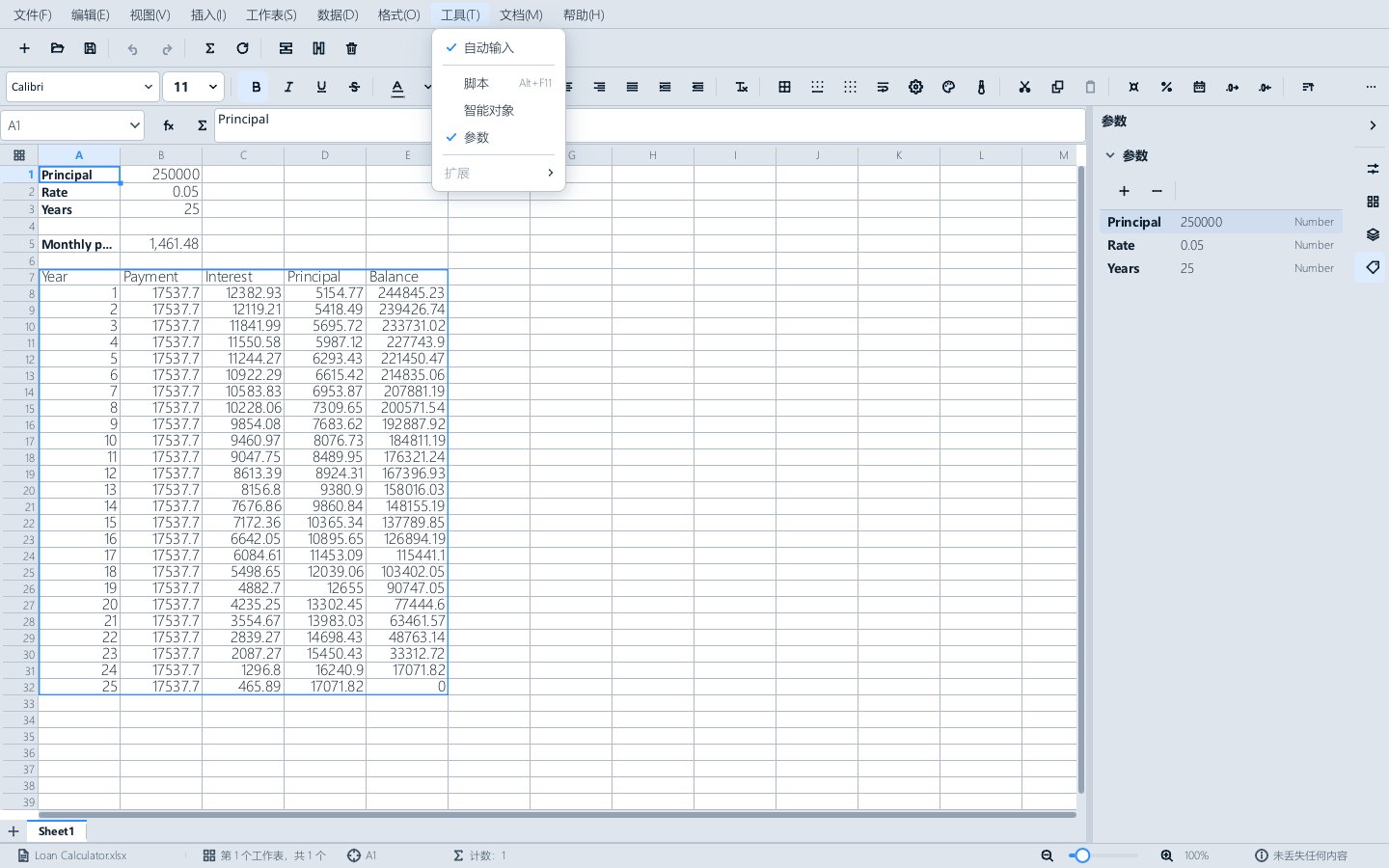
Edit ▸ Options ▸ Language ▸ Interface language chooses the language of the menus, toolbars, dialogs and messages: System default (the language Windows is in), English, 简体中文, 繁體中文, 日本語 or 한국어. The choice applies to every application from its next start, Tiffin included, and to Foundation while its own Settings ▸ Language is left at System default. The globe at the right of the Start Centre's menu bar sets the same choice, and shows the Start Centre in the new language at once. For a single run, start an application with --ui-language and a tag (en, zh-Hans, zh-Hant, ja or ko), or set the DIVOOKA_OFFICE_LANGUAGE environment variable to one.
The Simplified Chinese, Japanese and Korean translations are machine drafts that have not yet been reviewed by native speakers, so expect wording that reads oddly. Traditional Chinese is converted from the Simplified Chinese with OpenCC and uses the words Microsoft Office uses in Taiwan, such as 投影片 for a slide, 活頁簿 for a workbook and 列 and 欄 for a table's rows and columns, as Divooka Compute's does. In those languages a menu's access key is shown in parentheses after its title, as in 文件(F).
Some things stay in English in every language: the product names, font names and number-format codes; the names of styles, layouts and default slides, which belong to the document rather than the interface; Math's list of elements; and mos's help.
Zoom and moving about
The zoom slider at the right of the status bar, with its − and +, sets the zoom. Click the percentage beside it for the presets: the fits the view has, then 50 to 200 percent. View ▸ Zoom has the same fits as commands: Page Width and Whole Page where there are pages, and Zoom to Selection for shapes and cells. In Impulse's page, Formula's grid, Expo's and Nu's canvas and Math's formula, Ctrl with the mouse wheel zooms too, and dragging with the middle button pans.
Repeat
Edit ▸ Repeat runs the last command again, with the same settings, on what is selected now: make one cell bold, select another and repeat. It is Ctrl+Shift+Y, as in LibreOffice; Ctrl+Y repeats when there is nothing to redo, as in Word and Excel; and F4 repeats wherever the application has not given F4 a meaning of its own. A command that asked you something is not repeated, since repeating it would only ask again.