
Your first program
This page writes a program that prints a line, runs it and saves it, and on the way names every part of the window.
The window
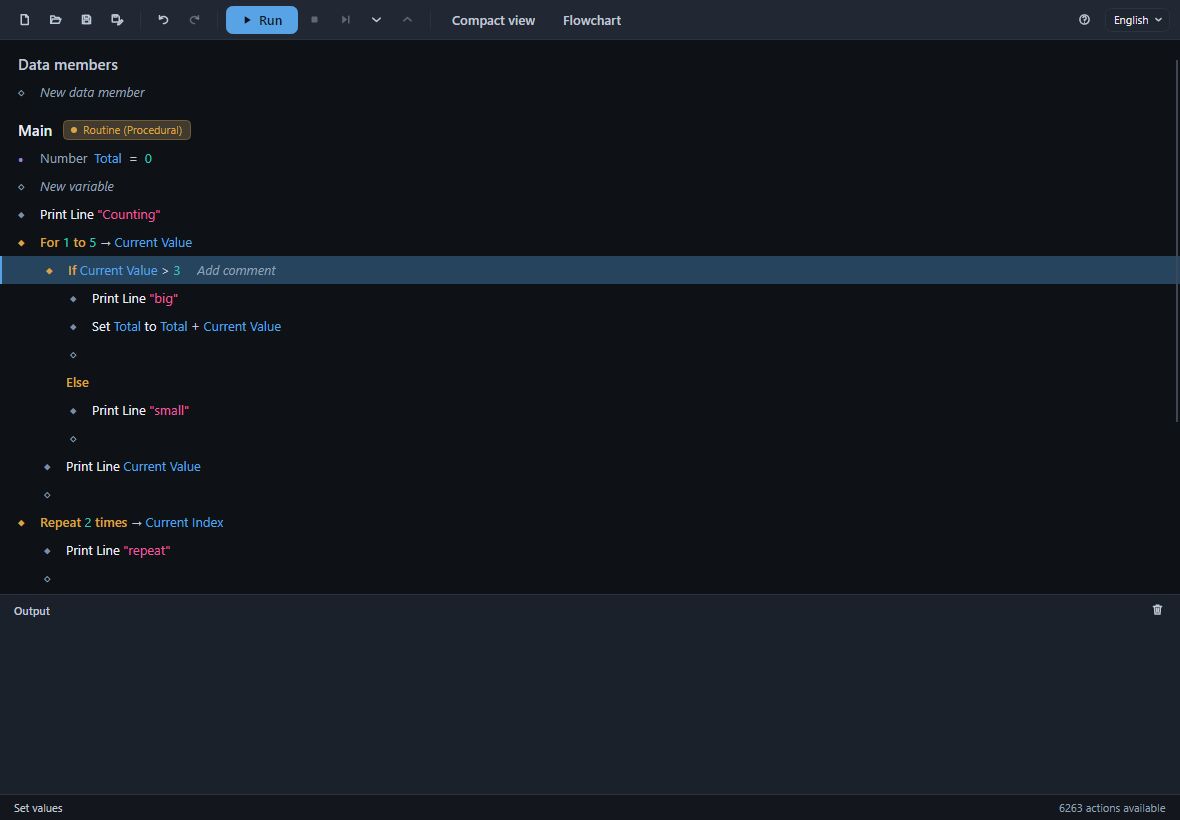
From the top:
- The toolbar. New, Open, Save and Save as; Undo and Redo; Run with Stop, Step over, Step into and Step out beside it; Compact view and Flowchart, two other ways to read the program; and at the right About and the language list.
- The rows. The program itself. At the top, under Data members, the values every routine shares. Then each routine under its heading - first Main, where the program starts - with its variables, then its rows. A row in white is an action; a row in orange is control flow (If, a loop, Return) and the rows it holds are indented under it.
- The empty rows. Every block ends in an empty row that reads New action, and that is where a row is added. New data member, New variable and New routine are the same kind of row for those three things. Hover over any of them and the tooltip says what to do: Double click to create a new action.
- Output. What the program prints, as it prints it. The bin at its right clears it.
- The status bar. What just happened on the left - Added Print Line, Saved Hello.dvk, Paused at Print Line Count - and on the right how many actions this copy of Action Maker offers.
A new program is one routine, Main, with nothing in it but its empty row.
Add a row
- Double-click the New action row under Main (or select it and press
Enter). The picker opens.
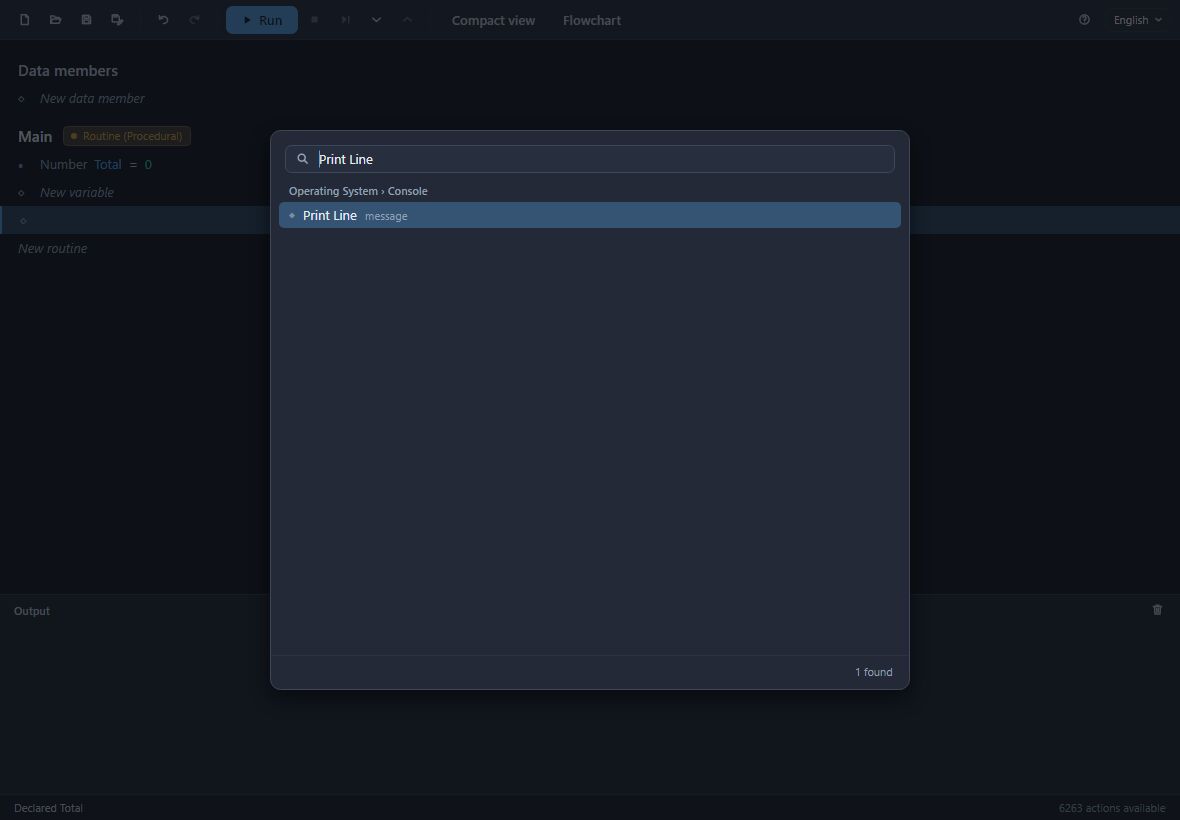
- Type
print line. The picker narrows to what matches, grouped by where the action lives - here Operating System › Console. - Press
Enter, or double-click Print Line. The row is filled, and because Print Line needs a value, its card opens at once.
Without typing, the picker lists everything you can add, in this order: Flow control (If, Sequence, the loops, Try, and Break, Continue and Return where they make sense), a Set and a Get for each of the routine's variables and New variable…, the same for data members, a call of each of your routines, and then every action, grouped by toolbox and category. The names are in the interface's language.
Give it a value
A card has one line per value the action takes: its name, where its value comes from, and the box for it. For Print Line that is Message.
Choose where a value comes from in the list beside its name:
- Literal Value… - a value you type. The box fits the value's type: text for text, a number for a number, a switch for true or false, a list for a choice of options. Type
Hello. - A variable, a data member or an input of the routine - read by its name.
- A loop's current value, when the row is inside a loop - a For's Current Value, a For Each's Current Item.
- The result of an earlier row - by the name that row gives its result (see Routines).
- Operation… - a value worked out on the spot: it opens the picker for an action that answers the right type, then a card of the same shape for that action's own values, with a way back.
Total + Current Valueis an Operation.
Press OK. The row now reads Print Line "Hello". OK is one step of the undo history; Esc or Cancel changes nothing. Double-click a filled row at any time to open its card again.
Run it
Press Run, or F5. Hello appears under Output. The status bar says how long the run took.
Every run is a debugging run: it stops at a breakpoint, and when a row fails the run stops at that row and says why. Debugging has the whole story.
Save it
Press Ctrl+S. A program that has never been saved asks where; it is saved as a Divooka document, .dvk. Until then it lives in a scratch document, so nothing is lost while you try things.
Ctrl+Oopens a program in place of the one open, and so does dropping a.dvkon the window.Ctrl+Nstarts a new one.- New, Open, a drop and closing the window all ask about unsaved changes first.
The document is an ordinary Divooka document: Divooka Explore and Divooka Compute open it too, as nodes on a canvas. Action Maker programs and Divooka documents explains how the two views relate.