
Cleaning Up a Scene
A trained scene usually has things in it you do not want: a smudge floating in front of the subject, a passer-by, haze where the camera never looked, or the rest of the street round the thing you filmed. The Edit section takes them out.
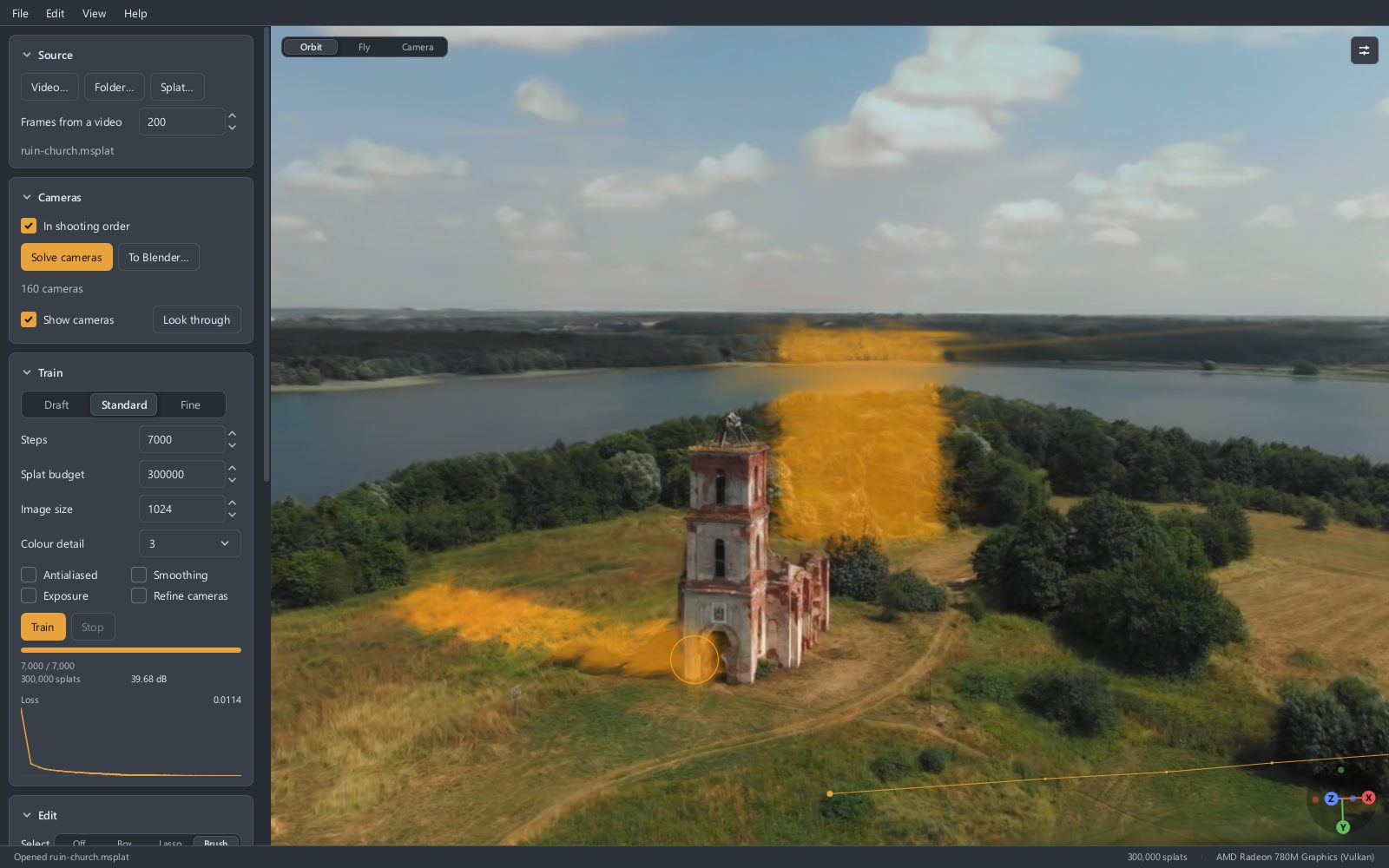
Selecting
Choose a tool beside Select:
| Tool | Draw with the left button |
|---|---|
| Box | A rectangle |
| Lasso | An outline round what you want, freehand; it closes itself when you let go |
| Brush | Paint over what you want. Brush size sets how large it is, and [ and ] change it |
What you select turns amber.
- Without a key held, a stroke replaces the selection. Shift adds to it and Ctrl takes away from it. The brush always adds unless Ctrl is held.
- A click on nothing clears the selection.
- All, None and Invert are beside the count of what is selected, and in the Edit menu (Ctrl+A, Ctrl+I).
- While a tool is chosen, the right button still turns the view and the wheel still zooms. Esc, or Off, puts the tool down.
A stroke reaches through the whole scene: a box drawn over a statue also selects the hill behind it. That is what you want for a smudge hanging in front of something, which comes out without touching what is behind it. Tick Only what is seen to reach only the splats in front.
A good way to keep one thing and lose the rest: draw round the thing, press Invert, and press Delete. Or select the thing and press Keep only these.
Deleting
- Delete, the key or the button, takes the selected splats out.
- Keep only these takes out everything that is not selected.
- Undo (Ctrl+Z) goes back through your last ten edits.
Tidying the whole scene
Below the selection are three tools that work on everything at once:
- Remove faint takes out splats fainter than the number beside it: most of the haze.
- Crop to view keeps what is inside the sphere the view is framed on, and takes out the rest. Press F first to frame everything, or zoom in on what you want.
- Reduce to keeps the given number of splats, the ones that matter most, for a smaller file.
What to know
- A scene that moves has no Edit section: its motion belongs to every splat it has, and taking some out would lose it.
- What is taken out is gone from the scene and from what you export. Save the project under a new name first if you want to keep the original.