
Dependencies
In a large workbook it is often hard to say what depends on what. Methodox Office shows it two ways: Tools ▸ Dependencies draws a map of the whole document, from the top down or the bottom up, and Formula's Detective draws arrows on the grid from the cells a formula reads.
Both are drawn from what the application itself keeps to recalculate, so they cannot disagree with what a recalculation or a refresh does.
Tools ▸ Dependencies
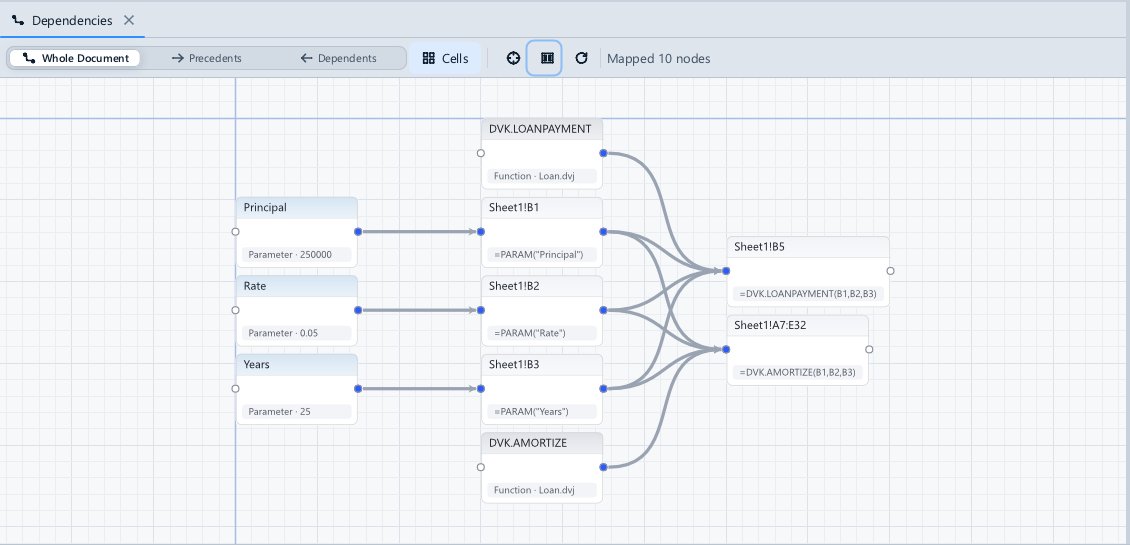
Tools ▸ Dependencies, in Formula, Impulse and Expo, opens a map of the document in the bottom tray: a box for each thing that holds or computes data, and an arrow from each one to what reads it, laid out in columns so data flows from left to right. However many references join two boxes, they are joined by one arrow.
- In Formula, the boxes are the workbook's sheets, tables, defined names, Data Sources, Document Parameters and script Functions.
- In Impulse and Expo, they are the document's smart objects, and the parameters, Data Sources, graphs and linked workbooks they read.
The map is for reading: nothing on it can be wired, cut or deleted.
- Whole Document, Precedents and Dependents choose what is drawn: everything, what the selected cells or object read, directly or through others, or everything that reads them. Each is worked out cell by cell before it is grouped into boxes, so it is exact.
- Cells opens each sheet up into its blocks of cells: a formula filled down or across is one block, and the values formulas read are merged into runs; press it again to fold them back. A workbook with too many blocks to draw is shown whole, and says so.
- Go To, or double-clicking a box, goes to it in the document. Fit (
F) fits the map to the tab, a drag with the middle button pans it, and the wheel zooms. Refresh draws it again after you have changed the document.
Formula's Detective
Tools ▸ Detective draws arrows on the grid, as LibreOffice Calc's Detective and Excel's formula auditing do:
| Command | Key | What it does |
|---|---|---|
| Trace Precedents | Shift+F9 |
Arrows into the active cell from the cells its formula reads; again, from the cells those read |
| Trace Dependents | Shift+F5 |
Arrows from the active cell to the formulas that read it; again, a level further |
| Trace Error | Arrows back from an error to the cells it came from | |
| Remove Precedents, Remove Dependents | Take one level of arrows away | |
| Remove All Traces | Clear every arrow | |
| Select Precedents, Select Dependents | Select the cells instead of drawing arrows |
A range a formula reads is drawn as a box with one arrow from it. A reference to another sheet is drawn as a dashed arrow from a small sheet mark. The arrows are drawn again after every edit, so they follow the formulas as you change them.