
Graphs and Members
A document holds one or more graphs, listed in the document outline on the left: the document's own graph, Document, and the others under it. Each graph has a kind, which decides how it is drawn, which nodes it offers and what running it means. The kind is named above the canvas with the family it belongs to - Flows · dataflow, Routine · procedural - where dataflow means values flow along wires and a node runs when its result is needed, procedural means steps run one after another, and definition describes a type rather than running.
The kinds
| Kind | Family | What it is |
|---|---|---|
| Flows | dataflow | A free-form canvas. Values travel along wires, and a run executes the nodes marked active and everything they depend on. It is the everyday surface for exploring and assembling. |
| Function | dataflow | A graph other graphs call like a node: one Input node, one Output node, and every node in between runs. |
| Events | procedural | Callbacks an application framework calls - Start, an update on every frame, and the rest of what the framework offers. |
| Routine | procedural | Steps in order: one Begin, statements along execution wires, and Return. Loops and branches live here. |
| Type | definition | A data structure of your own: data members, and Function or Routine graphs as its methods. It is not run on its own; other graphs make instances of it. |
Adding a graph
Press Ctrl+T, or Add graph… in the document outline. The Add a graph card offers the kinds under Dataflow, Procedural and Definition, each with a sentence on what it is for. Choose one, type a Name and press Add graph; the graph is added to the document and opens.
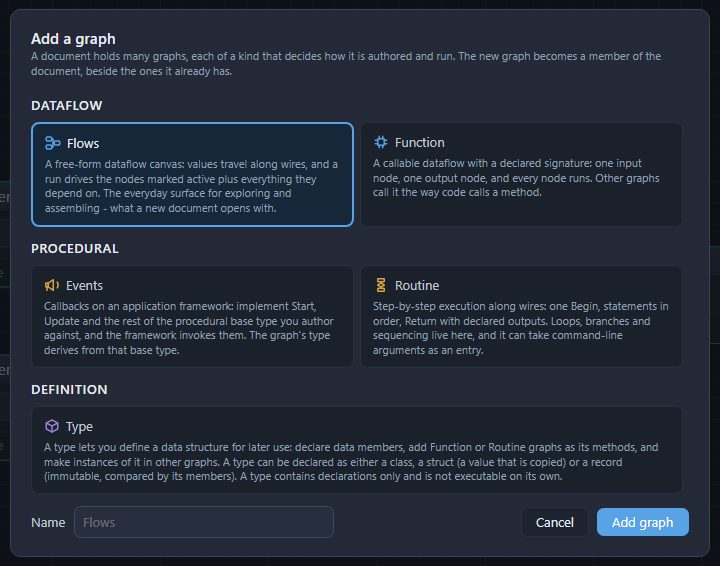
In the outline, click a graph to show it, or right-click it for Rename…, Set as entry and Delete…. F2 asks for a new name for the graph on screen.
The entry graph
The entry graph is where a run of the document starts, and the outline marks it entry. A new document's entry graph is called Graph, of the kind chosen on the New document card. Right-click another graph and choose Set as entry to move the mark - to a Flows, Function, Events or Routine graph; a Type is never an entry. When the graph on screen is a Routine or an Events graph, Run runs that graph instead, which is how one part of a document is tried on its own.
Functions
A Function is a graph with a signature, called from other graphs the way a node is.
Ctrl+T, choose Function, name itTwiceand press Add graph. Its canvas holds an Input and an Output node.- With nothing selected, the Properties panel lists the Function's Inputs and Outputs. Under Inputs press Add entry: an entry called Input, a Number, appears. Type
Valueinto its Name and pressEnter. Under Outputs do the same, naming itResult. An entry starts as a Number; for another type, click its Type and choose from the list - the common types first, then the types the document's nodes use. - Place an Add - the one under Number Routines in the tray - and wire the Input node's Value into both of its inputs, then its output into Result on the Output node.
- Go back to a Flows graph, press
Ctrl+Spaceand typeTwice: your Function is offered under the heading named after your document, Document Modules (Hello). Place it, and it takes a Value and gives a Result like any other node.
Renaming, retyping or reordering an entry keeps its wires, and every node calling the Function follows the change.
Routines
A Routine runs one statement after another, following the execution wires from Begin. Its statements are nodes with execution pins - Print Line, Branch, the loops - drawn as arrows, and the nodes without them, such as Add, run when a statement needs their value.
A loop's body hangs off its Next pin and runs once a pass; what comes after the loop hangs off Completed. This Routine prints 0, 1 and 2:
- Create a document whose entry is a Routine - or
Ctrl+Tand Routine - and it starts with Begin and Return. - Press
Ctrl+Spaceand typeFor: the first offer is the loop, under Procedural Programming. Place it. It counts from Start to End, both included, by Step -0,10and1unless you change them. Set End to2. - Place a Print Line. Wire Begin's Next into For's Previous, For's Next into Print Line's Previous, and For's Current Value into Print Line's Message.
- Wire For's Completed into Return's Previous, and press
F5.
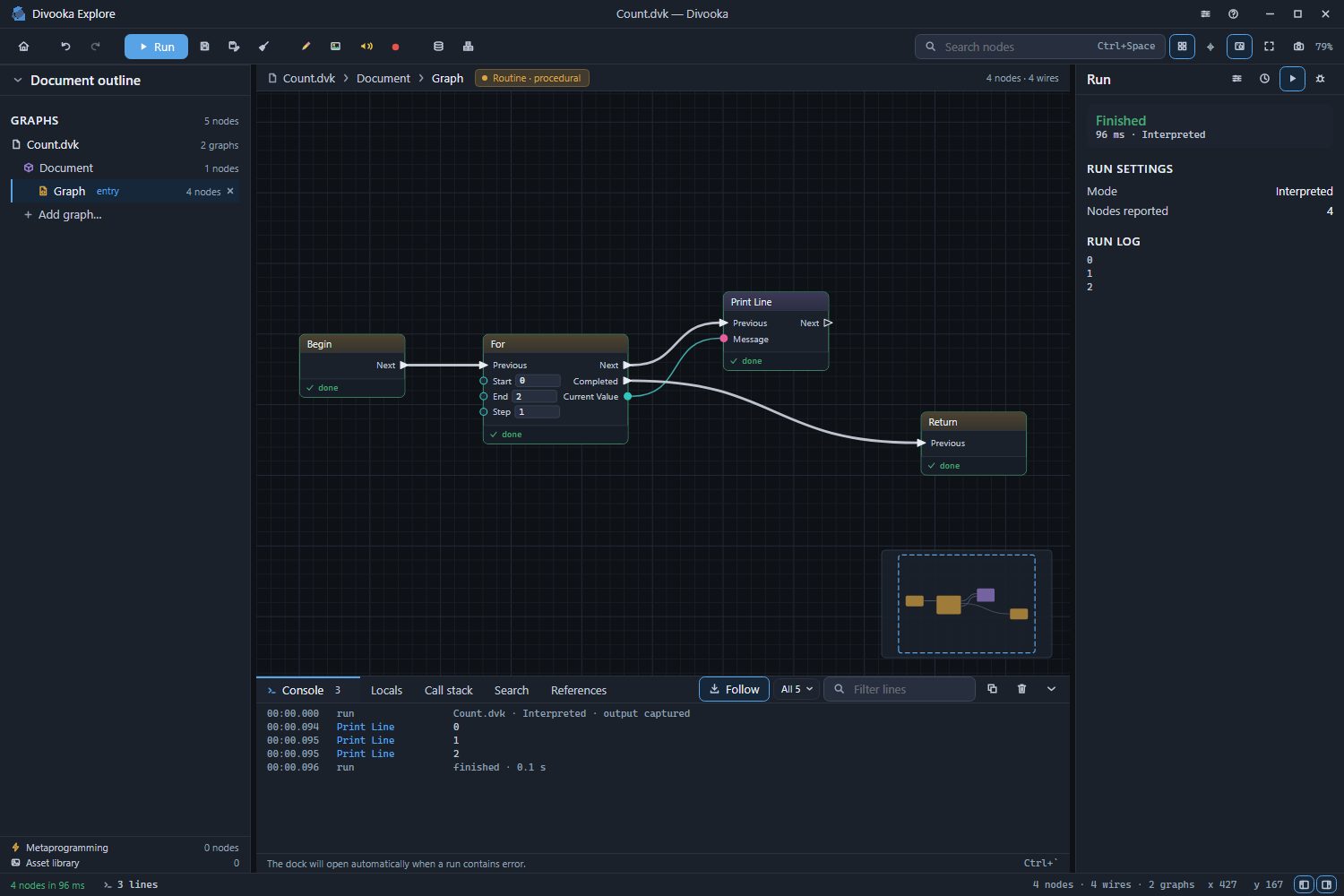
Return ends the Routine wherever it is reached: wired after Print Line inside the body instead, it would print 0 and stop. A Routine can have several Returns.
Local variables
A Routine can keep values of its own while it runs. With nothing selected, press Define local variable… in the Properties panel (or find Define Local Variable in the tray), name it and choose its type. The tray then offers a Get and a Set node for it. Each call of the Routine starts the variable at its starting value, or at its type's default.
Events
An Events graph is a set of callbacks on an application framework: you place the framework's events - Start, and the others it offers - and hang statements off them, and the framework decides when each runs. Which framework it is, is the graph's Procedural base type, shown in the Properties panel with nothing selected - BasicApplication for a new one. Click it to choose another, such as one for a window with buttons or a game with a frame loop. An Events graph can hold Functions and Routines of its own, for its callbacks to call: with nothing selected, press Define behavior member… in its Properties. The examples in the GUI and Glaze categories are good ones to open - see Examples.
Types
A Type defines a data structure: its data members, and Function or Routine graphs inside it as its methods. Other graphs make one with its Make node - Make Point for a Type called Point - and read and set its members. With nothing selected on its canvas, Type kind in the Properties panel chooses between a Class, shared by everything that holds it; a Struct, a value that is copied; and a Record, which is built once from its members and not changed afterwards.
Data members and starting values
A data member is a value that belongs to a type and lasts between calls - a running total, a score, a setting. The document itself is a type, so its own graph, Document, can hold data members for every graph in it to share, and so can a Type.
Click Document in the outline to show the document's own graph. With nothing selected, press Define data member… in the Properties panel. (It is also in the tray, as Define Data Member.)
The Define a data member card asks for a Name and a Type. The list starts with Number, Integer, Text and Truth, then a list and an array of each - List of Number, Number Array and so on - then the rest of Divooka's common types and the types the document's nodes give or take. Name it
Total, choose Number and press Define. A node for the member is placed, and the tray now offers Get Total and Set Total in every graph of the document.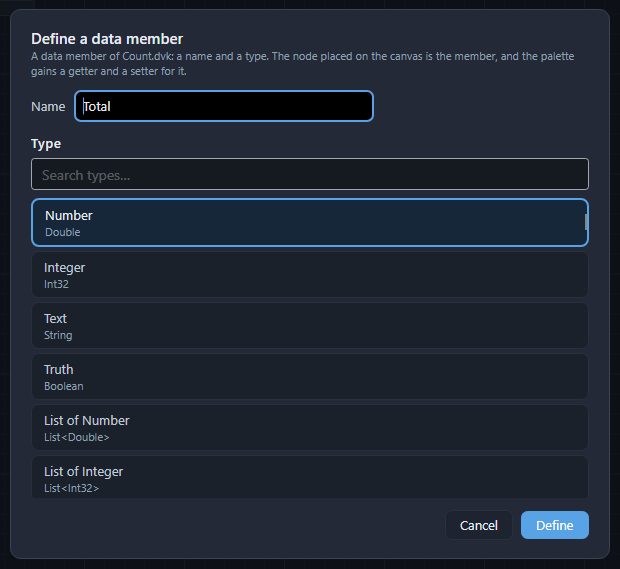
Select the member's node. Its Properties list its Name, its Type and its Starting value. Type
2into Starting value and pressEnter: the status bar reads Set starting value, and the node shows it.
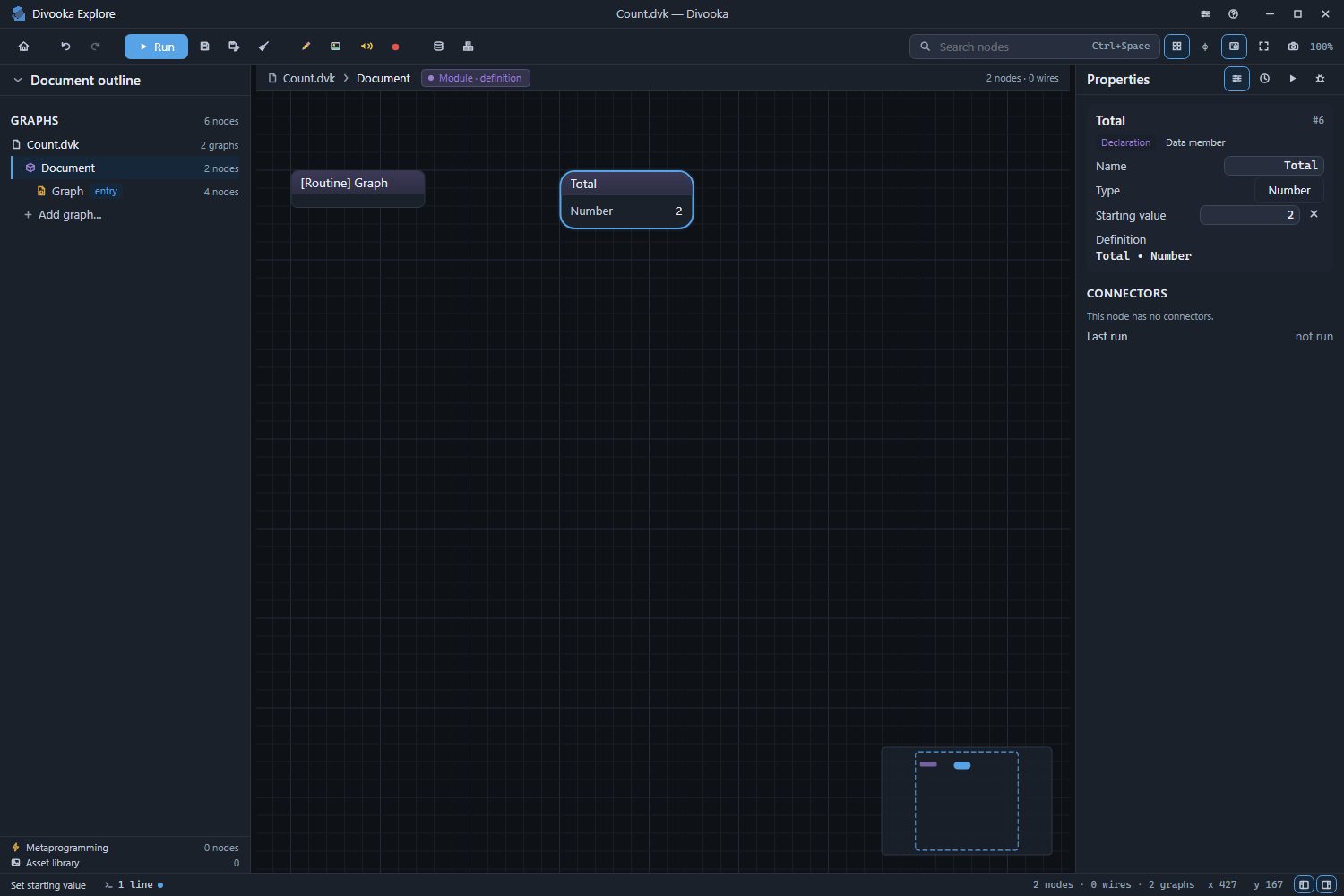
Every run starts with Total at 2; a Routine that prints Get Total prints 2. The cross beside the box resets it to the type's default. A list or an array takes a starting value too, element by element, and a struct part by part - a Point starting at X 1 and Y 2. A Flows graph takes no data members of its own; define them on the document's graph or on a Type.
To rename a member, double-click its node's header, or select it and press F2: every node that reads or sets it follows.