
Your First Program
This page makes a document that adds 2 and 5 and prints the answer. It takes five minutes, and on the way you will create a document, place nodes from the keyboard and from a wire, connect them, run the program and read what it printed.
Create the document
- On the start screen press New document, or press
Ctrl+Nanywhere. - A save dialog asks where the new document should live. Every document is a file from the moment it exists, so choose a folder, name it
Helloand save. Divooka documents end in.dvk. - The New document card asks for the Entry graph - the kind of graph a run of the document starts: Flows, Function, Events or Routine, with a line under them describing the one chosen. Keep Flows and press Create document.
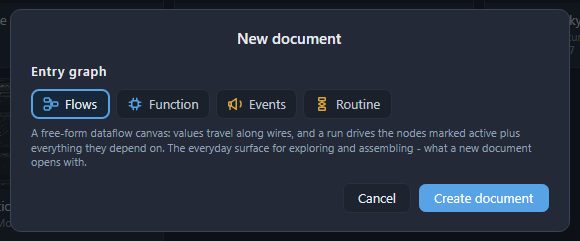
The status bar reads Created Hello.dvk, and the canvas is empty. A Flows graph is a free-form canvas where values travel along wires; Graphs and members describes the other kinds.
Two numbers
- Point at the left of the canvas and press
Ctrl+1. A Number node appears under the pointer. Click the box in it, type2and pressEnter. - Point a little further down and press
Ctrl+1again; give this one5.
A node's inputs are on its left and its outputs on its right: each Number has one output, the dot on its right edge.
Add them
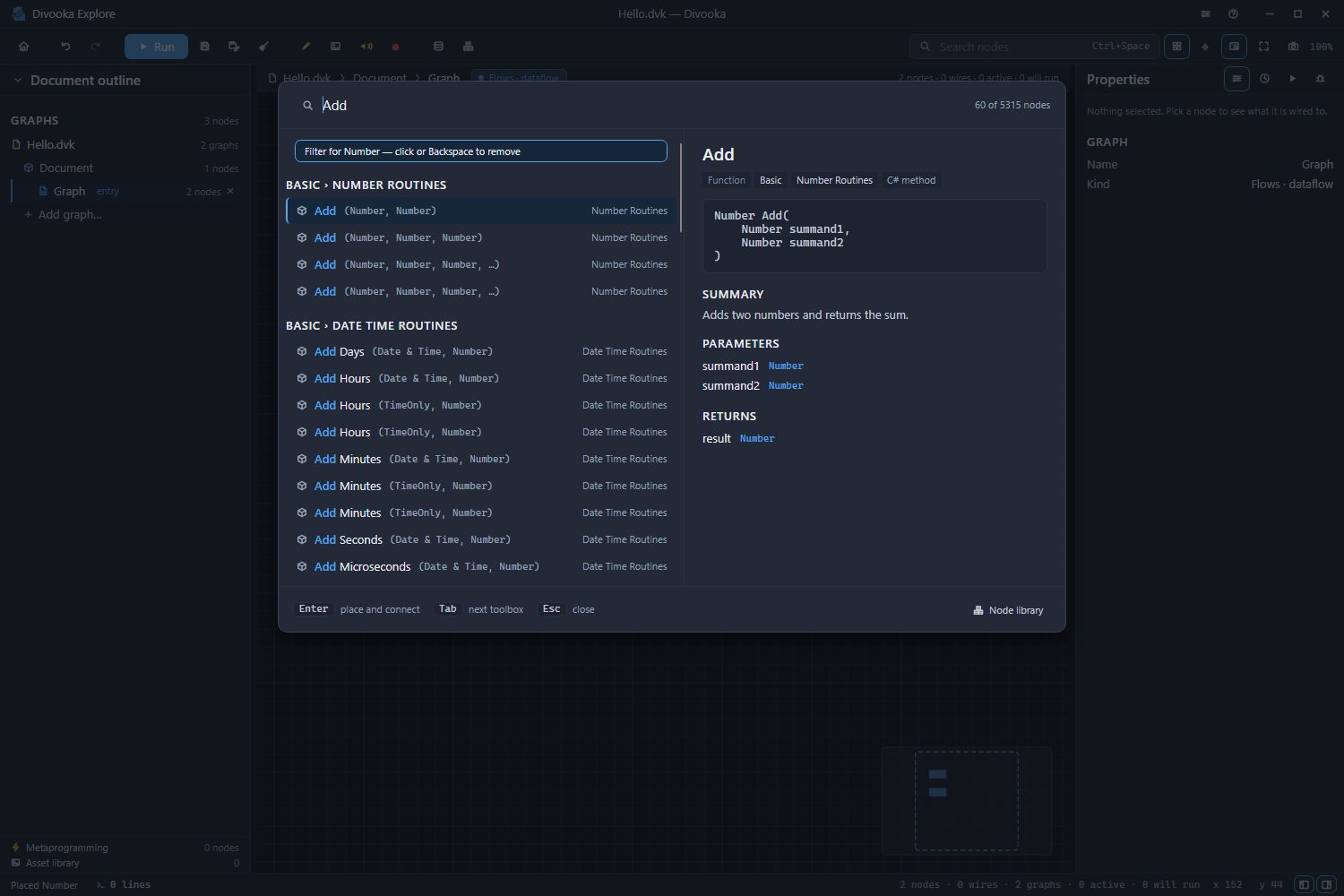
Several nodes are called Add - for dates, times, vectors and lists as well as numbers. Typed into the tray, Add offers the Add of two numbers first; starting from the Number's wire also places it already wired:
- Drag from the first Number's output dot and let go on an empty spot to its right. The toolbox tray opens with a chip reading Filter for Number: it offers only the nodes that can take a number.
- Type
Add. The first offer is the Add under Number Routines, and the right half of the tray says what it does: Adds two numbers and returns the sum. - Press
Enter. The Add is placed with the first Number already wired into its first input, Summand1. - Drag from the second Number's output dot to Add's second input, Summand2.
Print the sum
- Point to the right of Add, press
Ctrl+Space, typePrint Lineand pressEnter. - Drag from Add's output dot to Print Line's input, Message.
Dropping Add's wire on an empty spot and choosing Print Line there does both at once: the tray offers Print Line from a number's wire, and wires it in.
A wire only lands where its value can go. Wiring into an input hides that input's own value box: the wire's value wins.
Run it
A Flows graph runs the nodes marked Active, and everything they need. Nothing is active yet, so:
- Click Print Line to select it, and press
Space. It is marked active, and the line above the canvas reads 4 nodes · 3 wires · 1 active · 4 will run. - Press Run on the toolbar, or
F5.
The status bar says how many nodes ran and how long they took - 4 nodes in a few milliseconds - and every node that ran shows done under it. The Properties panel turns to its Run face, which reads Finished. Print Line printed a line, so the status bar's console count reads 1 line with a dot beside it. Click it, or press Ctrl+`, to open the console: it reads 7.
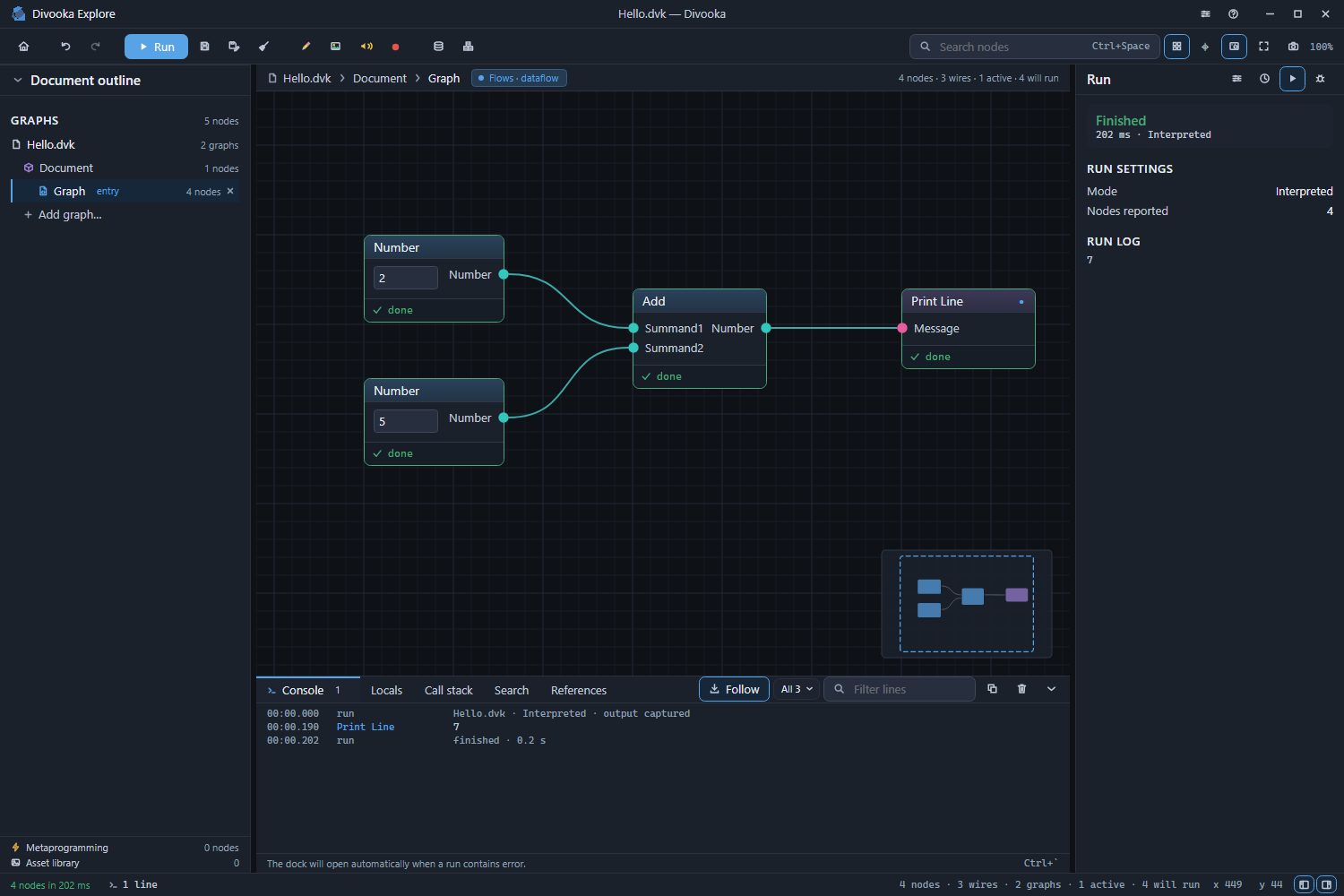
Change the first Number to 40 and press F5 again: the console reads 45.
Save it
Press Ctrl+S, or Save on the toolbar. The status bar reads Saved Hello.dvk. Next time, the document is on the start screen under Recent.
Where next
- Nodes, pins and wires - selecting, deleting, copying, labelling and tidying.
- Graphs and members - a Routine, which runs step by step, and the other kinds of graph.
- Examples - larger programs to open, run and take apart.