
Nodes, Pins and Wires
A program is a graph of nodes. Each node does one thing - add two numbers, load an image, print a line - and its pins are what it takes in (on its left) and gives out (on its right). A wire carries a value from one node's output pin to another's input pin.
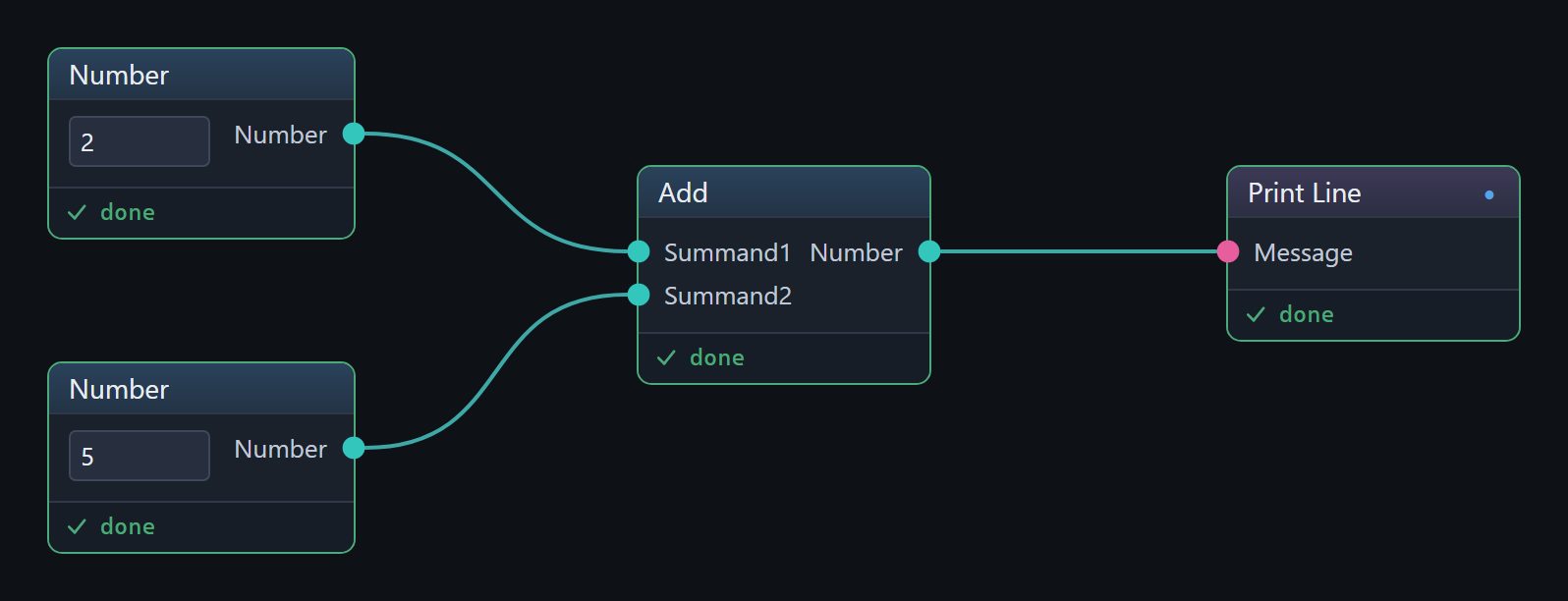
Each node has a title, its input pins down its left side with a box for the value where nothing is wired, its output pins down its right, and a footer that says how its last interpreted run went. Appearance and settings ▸ Node previews turns off the pictures and values under the nodes, and Level of detail draws less of every node - its header and pins only, its title alone, or an empty shape with its pins - or, on Auto, less as you zoom out; nothing moves or changes size, and every node can still be selected, dragged and wired. A pin's colour is its type: numbers are teal here, and text pink.
Placing nodes
- The toolbox tray -
Ctrl+Space, or double-click an empty spot of the canvas - finds a node by name. See The window. - The node library -
Ctrl+Shift+Space- browses every toolbox. - The quick keys place a value at the pointer:
Ctrl+1a Number,Ctrl+2a Boolean,Ctrl+3a Text Line,Ctrl+4a multi-line Text,Ctrl+5a file or folder Path, andCtrl+6a Preview, which shows whatever is wired into it. Ctrl+Rplaces the node you placed last once more.
The tray and the library offer the nodes of the packages the document references, besides the language's own - values, loops, branches, Return - and the document's own graphs. See References.
Hover over a node to see what it is: the function it calls, the toolbox and the package it came from, and its description. Select it and press F1 to open the node library at that node.
Nodes with an editor
Some nodes hold something you make by hand rather than wire in, and a double-click anywhere on one opens its editor: Draw Shapes, Draw Shape and Draw Curve open a drawing board, Create Image and Annotate Image a painting one, the nine Create … Arrays nodes, such as Create Boolean Arrays, a list to type the values into, and Record Audio a recorder. What you make is kept in the node, inside the document. A node whose package the document does not reference still works, and its tooltip says Not declared by this document.
Values
An input pin with no wire into it has a box beside it for its value: a number, a piece of text, a tick box, a list of choices. Click it, type, and press Enter. The same values are listed in the Properties panel when the node is selected, which is easier for long text. Wiring into a pin hides its box: the wire's value wins.
Numbers and dates are typed one way, whatever your computer's region: a number with a dot for the decimal point and no thousands separators - 1.5, 2500 - and a date and time as 2026-10-16 14:30:00. A value spelled another way is not taken; the status bar says so - '1,5' is not a Number - and the box goes back to what the node holds.
Wiring
- Connect - drag from an output pin to an input pin. A wire only lands where the value can go; one that cannot turns red in the air and is not made.
- Connect to something new - drag a wire from a pin and let go on an empty spot. The toolbox tray opens, offering only nodes that can take that wire, and the node you choose is placed and wired. On a Routine or an Events graph, a statement placed from another statement's value is joined to it on the flow as well, its Previous wired from that statement's Next.
- Replace - drag a new wire into an input that already has one; an input takes one wire.
- Several into a list - an input that takes a list of values - an array, such as Format's Text Values - takes a wire from each value, and the node receives them in order. The canvas numbers those wires 1, 2, 3, and the input's row in the Properties panel lists them with buttons to move one earlier or later. A wire carrying a whole list replaces them.
- Disconnect - hold
Altand click a wire to remove it, orAlt+click a pin to remove every wire on it. - Cut several - hold
Altand drag with the right mouse button across the wires to cut.
Every edit, wiring included, is one step of the document's undo history: Ctrl+Z takes it back and Ctrl+Y puts it back. Each tab has a history of its own.
Selecting and moving
| To do this | Do this |
|---|---|
| Select a node | Click it |
| Add to the selection | Shift+click |
| Add or remove one node | Ctrl+click |
| Select an area | Drag a box on an empty spot of the canvas |
| Select everything | Ctrl+A |
| Move | Drag a node by its title; every selected node moves with it |
| Nudge | The arrow keys |
| Line up on one edge | Alt+Shift and an arrow key: the selected nodes' left, right, top or bottom edges |
| Delete | Delete |
| Copy and paste | Ctrl+C and Ctrl+V; the wires between the copied nodes come too |
A Routine's Begin and its last Return, and a Function's Input and Output, stay when you delete them, because the graph needs them.
Arranging
- Tidy layout -
Ctrl+L, or the broom on the toolbar - lays the graph out in neat columns. With two or more nodes selected, it tidies only those and leaves the rest where it is. Right-click the broom to set the spacing and the direction it uses. - Comments -
Ctrl+0places a comment at the pointer; double-click it to edit its text. - Groups - select some nodes and press
Ctrl+Gto frame them in a group. Double-click its header to rename it; dragging the group moves everything inside it. - Labels - double-click a node's title to give it a label of your own. The node still does the same thing, and its tooltip still names the function. Commit the original title, or an empty box, to take the label off.
- Names - a node's Name, in its Properties, is what the program calls the value it gives: a C# name such as
radiusormy_radius- letters, digits and underscores, not starting with a digit - not a word C# keeps for itself, and not one another node of the graph already has. The status bar reads Set name; a name that will not do is not taken, and the line under the box says why - 'class' is a C# keyword. - Drawing -
Ctrl+D, or the pen on the toolbar, draws freehand on the canvas. While drawing,1to7choose the ink (white, red, orange, green, blue, violet and a rainbow),8the brush, whose line follows the speed of your hand, and9the eraser.EscorCtrl+Dagain stops drawing. - Pictures and sound -
Ctrl+Shift+Iplaces a reference image,Ctrl+Shift+Man audio note from a file, andCtrl+Shift+Rrecords one through the microphone. They are kept inside the document, in its asset library (Ctrl+Shift+A).
Pins on step-by-step graphs
On a Routine or an Events graph, which run one step after another, a node that does something has execution pins as well, drawn as arrows ahead of its other pins: Previous in, and Next out - or True and False on a Branch, Completed on a loop. Their wires, the heaviest lines on the canvas, are the order the steps run in. Wires are curved unless Appearance and settings ▸ Wires chooses Straight, Step or Circuit. Nodes without execution pins, such as Add, run when a step needs their value. See Graphs and members.
A node that cannot be found
A document can hold a node that nothing here provides - a document written for a package this distribution does not have, or one that references a document that has moved. It opens as an unresolved node, keeping its wires and values. Select it and press Resolve… in the Properties panel to choose a node to stand in for it: its wires and values move onto the new node where they fit, and the status bar says what did not.