Keyboard Shortcuts
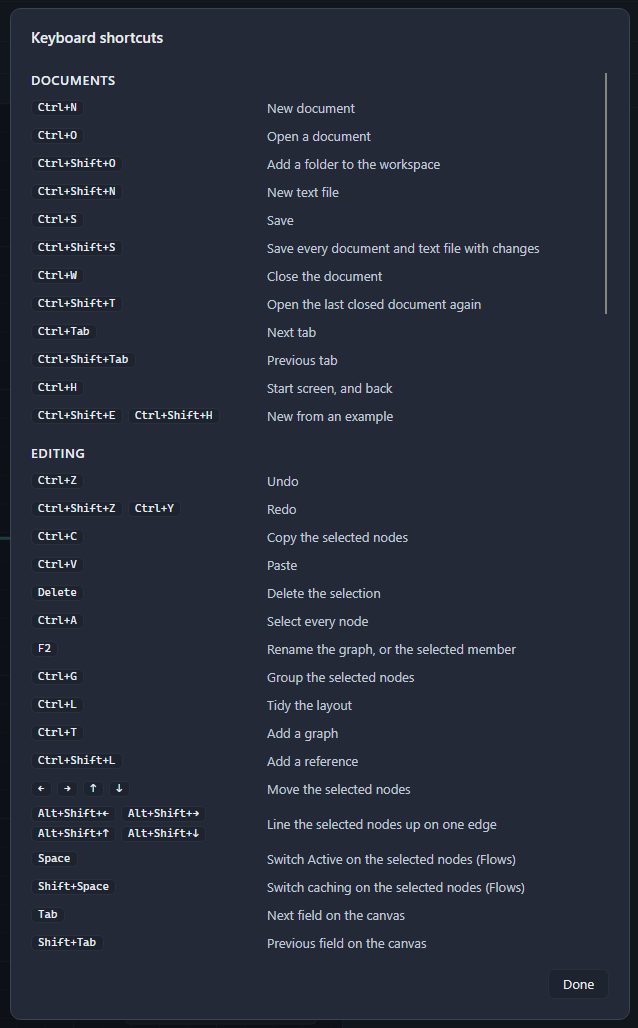
Divooka Compute lists every key, mouse button and touchpad gesture it answers on its own Keyboard shortcuts card: open About and help (the question mark in the title bar) and choose Keyboard shortcuts. The tables below are that list, in its order. Hovering over a button also shows its key. While the terminal has the keyboard, every key goes to it except Ctrl+` and Ctrl+Shift+`; click the canvas to give the keyboard back.
Documents
| Key |
What it does |
Ctrl+N |
New document |
Ctrl+O |
Open a document |
Ctrl+Shift+O |
Add a folder to the workspace |
Ctrl+Shift+N |
New text file |
Ctrl+S |
Save |
Ctrl+Shift+S |
Save every document and text file with changes |
Ctrl+W |
Close the document |
Ctrl+Shift+T |
Open the last closed document again |
Ctrl+Tab |
Next tab |
Ctrl+Shift+Tab |
Previous tab |
Ctrl+H |
Start screen, and back |
Ctrl+Shift+E Ctrl+Shift+H |
New from an example |
Editing
| Key |
What it does |
Ctrl+Z |
Undo |
Ctrl+Shift+Z Ctrl+Y |
Redo |
Ctrl+C |
Copy the selected nodes |
Ctrl+V |
Paste |
Delete |
Delete the selection |
Ctrl+A |
Select every node |
F2 |
Rename the graph, or the selected member |
Ctrl+G |
Group the selected nodes |
Ctrl+L |
Tidy the layout |
Ctrl+T |
Add a graph |
Ctrl+Shift+L |
Add a reference |
← → ↑ ↓ |
Move the selected nodes |
Alt+Shift+← Alt+Shift+→ Alt+Shift+↑ Alt+Shift+↓ |
Line the selected nodes up on one edge |
Space |
Switch Active on the selected nodes (Flows) |
Shift+Space |
Switch caching on the selected nodes (Flows) |
Tab |
Next field on the canvas |
Shift+Tab |
Previous field on the canvas |
Esc |
Close what is on top; on the canvas, clear the selection |
Placing nodes
| Key |
What it does |
Ctrl+Space |
Toolbox tray |
Ctrl+Shift+Space |
Node library |
Ctrl+R |
Place the last node again, at the pointer |
Ctrl+1 |
Place a Number at the pointer |
Ctrl+2 |
Place a Boolean at the pointer |
Ctrl+3 |
Place a Text Line at the pointer |
Ctrl+4 |
Place a Text at the pointer |
Ctrl+5 |
Place a Path at the pointer |
Ctrl+6 |
Place a Preview at the pointer |
Ctrl+0 |
Place a comment at the pointer |
Ctrl+Shift+A |
Asset library |
Ctrl+Shift+I |
Place a picture from a file |
Ctrl+Shift+M |
Place an audio note from a file |
Ctrl+Shift+R |
Record an audio note |
| Key |
What it does |
Enter |
Place the highlighted node; opened from a wire, connect it too |
Ctrl+Enter |
Place it as a functional node (procedural graphs) |
↑ ↓ |
Move the highlight |
Tab |
Next toolbox |
Backspace |
In an empty search box, stop filtering by the wire |
Esc |
Close the tray |
Running and debugging
| Key |
What it does |
F5 |
Run; while paused, continue |
Ctrl+E |
Run |
Shift+F5 |
Stop the run |
F9 |
Set or clear a breakpoint on the selected nodes |
F10 |
Step over |
F11 |
Step into |
Shift+F11 |
Step out |
View
| Key |
What it does |
Ctrl+Shift+F |
Fit the graph |
F |
Fit the graph, on the canvas |
Home |
Back to the origin at actual size, on the canvas |
F3 |
Show or hide the left panel |
F4 |
Show or hide the right panel |
F12 |
Hide every bar and both side panels, or show them again |
Ctrl+` |
Show or hide the bottom dock |
Ctrl+Shift+` |
Terminal |
Ctrl+= Ctrl+- |
Larger or smaller interface |
Ctrl+F |
Search |
Ctrl+P |
Snapshot of the graph or the window |
Ctrl+D |
Draw on the canvas, and stop |
1 2 3 4 5 6 7 |
Choose an ink, while drawing |
8 |
Brush on or off, while drawing |
9 |
Eraser on or off, while drawing |
Moving around
| Key |
What it does |
Alt+Left |
Back to the view before |
Alt+Right |
Forward to the view after |
F1 |
The selected node in the node library; with nothing selected, About Divooka |
Alt+Enter |
Open the selected node's preview in a window |
Mouse and touchpad
| Gesture |
What it does |
| Click a node |
Select it |
| Shift+click |
Add the node to the selection |
| Ctrl+click |
Add the node to the selection, or take it out |
| Drag on empty canvas |
Select what the box covers |
| Drag a node |
Move it |
| Drag from a pin |
Draw a wire |
| Drop a wire on empty canvas |
The toolbox tray, offering what the wire fits |
| Double-click empty canvas |
The toolbox tray, placing where you clicked |
| Double-click a row in the tray or the library |
Place that node |
| Ctrl+double-click a row in the tray |
Place it as a functional node (procedural graphs) |
| Double-click a node's title |
Give the node a label of your own |
| Double-click below a node's header |
Go to where the node is defined |
| Double-click a node with an editor |
Open the editor for what it holds: draw shapes, paint a picture, enter values, record audio |
| Right-click a node |
The node's menu |
| Middle-drag |
Pan the view |
| Alt+drag |
Pan the view, from anywhere on the canvas |
| Space+drag |
Pan the view, with nothing selected |
| Right-drag on empty canvas |
Pan the view, where a right-click opens nothing |
| Alt+click a wire |
Remove the wire |
| Alt+right-drag |
Cut every wire the line crosses |
| Mouse back button |
Back to the view before |
| Mouse forward button |
Forward to the view after |
| Wheel |
Zoom about the pointer; with Mouse wheel set to Pan, pan the view |
| Tilt the wheel |
Pan the view sideways |
| Pinch, or Ctrl+wheel |
Zoom about the pointer |
| Two fingers on a touchpad |
Pan the view |
| Drop files on the window |
Open them, as Open does |
