
Your First Program
This page makes a document that adds 2 and 5 and prints the answer. It takes five minutes, and on the way you will create a document from a workload, place nodes from the keyboard and from a wire, connect them, run the program in both of Divooka Compute's modes and read what it printed.
Create the document
- On the start screen press New document, or press
Ctrl+Nanywhere. - A save dialog asks where the new document should live. Every document is a file from the moment it exists - a document refers to other files by where they are beside it, so it has to have a place of its own first. Choose a folder, name it
Helloand save. Divooka documents end in.dvk. - The Choose a workload card asks what the document starts with. A workload is a starting set of packages: the document will reference them, and the toolbox tray offers their nodes. Blank - the essentials and nothing else - and General Purpose come first, then the rest in alphabetical order, with Blank highlighted. Choose General Purpose, which adds the platform package: files, processes, and printing to the console. Click it, or press
↓; typing narrows the list to the workloads whose names hold what you type. - Under Entry graph - the kind of graph a run of the document starts - keep Flows, and press Create document.
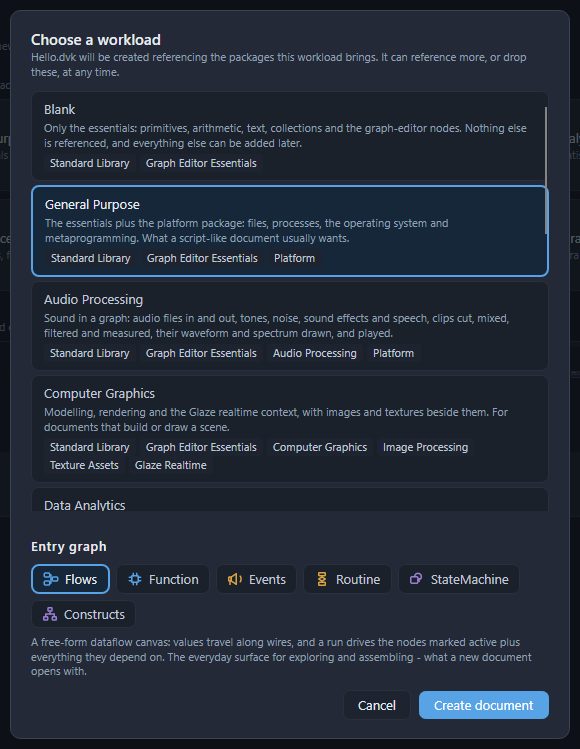
The status bar reads Created Hello.dvk from General Purpose - 3 packages referenced. The document opens in a tab of its own, its canvas empty, and the document outline lists the three packages under References. A Flows graph is a free-form canvas where values travel along wires; Graphs and members describes the other kinds.
Two numbers
- Point at the left of the canvas and press
Ctrl+1. A Number node appears under the pointer. Click the box in it, type2and pressEnter. - Point a little further down and press
Ctrl+1again; give this one5.
A node's inputs are on its left and its outputs on its right: each Number has one output, the dot on its right edge.
Add them
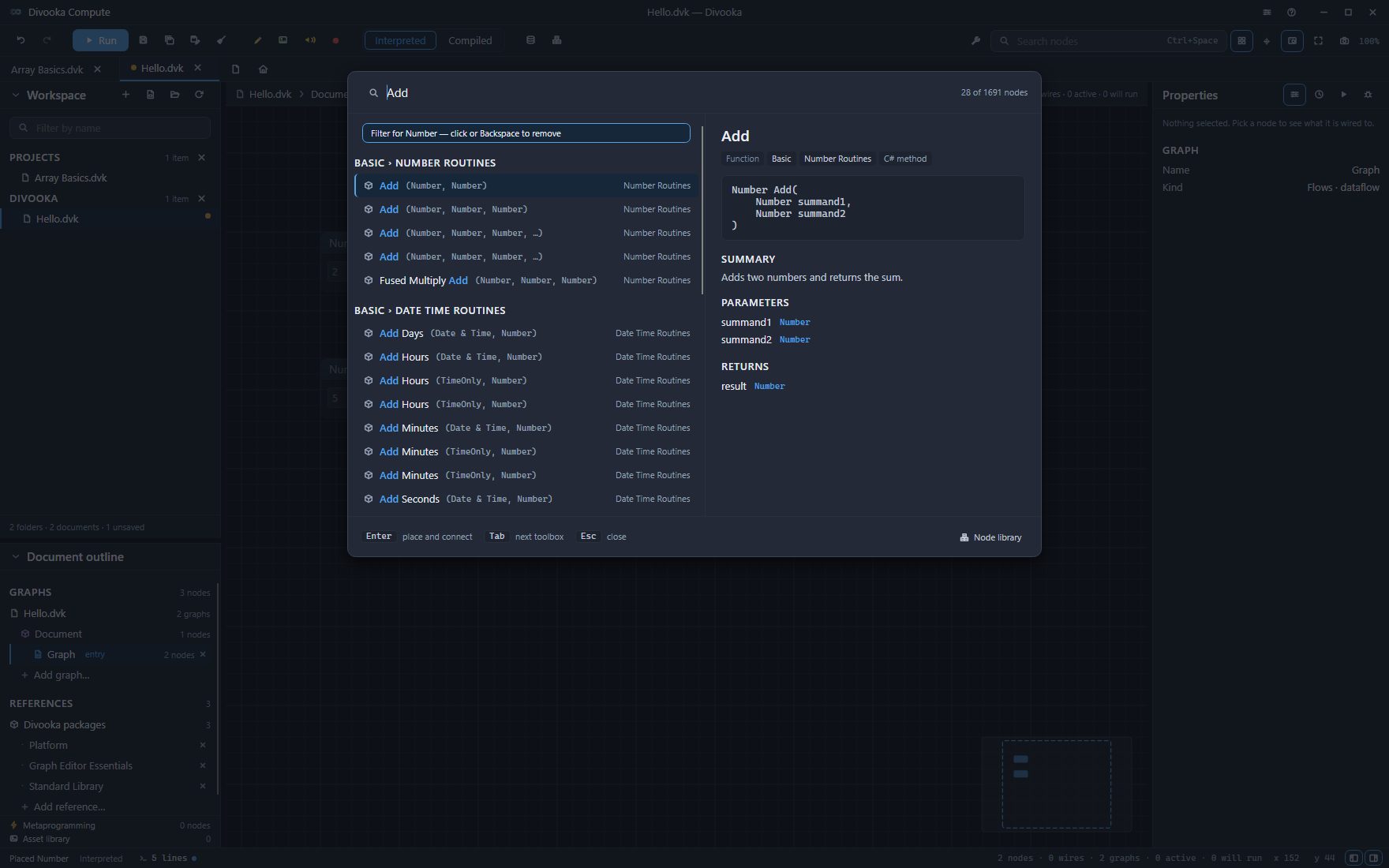
Several nodes are called Add - for dates, times, vectors and lists as well as numbers. Typed into the tray, Add offers the Add of two numbers first; starting from the Number's wire also places it already wired:
- Drag from the first Number's output dot and let go on an empty spot to its right. The toolbox tray opens with a chip reading Filter for Number: it offers only the nodes that can take a number.
- Type
Add. The first offer is the Add under Number Routines, and the right half of the tray says what it does: Adds two numbers and returns the sum. - Press
Enter. The Add is placed with the first Number already wired into its first input, Summand1. - Drag from the second Number's output dot to Add's second input, Summand2.
Print the sum
- Point to the right of Add, press
Ctrl+Space, typePrint Lineand pressEnter. - Drag from Add's output dot to Print Line's input, Message.
Dropping Add's wire on an empty spot and choosing Print Line there does both at once: the tray offers Print Line from a number's wire, and wires it in.
A wire only lands where its value can go. Wiring into an input hides that input's own value box: the wire's value wins.
Run it
A Flows graph runs the nodes marked Active, and everything they need. Nothing is active yet, so:
- Click Print Line to select it, and press
Space. It is marked active, and the line above the canvas reads 4 nodes · 3 wires · 1 active · 4 will run. - Press Run on the toolbar, or
F5.
The toolbar's Interpreted / Compiled switch is on Interpreted, the mode a document opens in: the run goes node by node. The status bar says how many nodes ran and how long they took - 4 nodes in a few milliseconds - and every node that ran shows done under it. The Properties panel turns to its Run face, which reads Finished. Print Line printed a line, so the status bar's console count reads 1 line with a dot beside it. Click it, or press Ctrl+`, to open the console: Print Line's row reads 7.
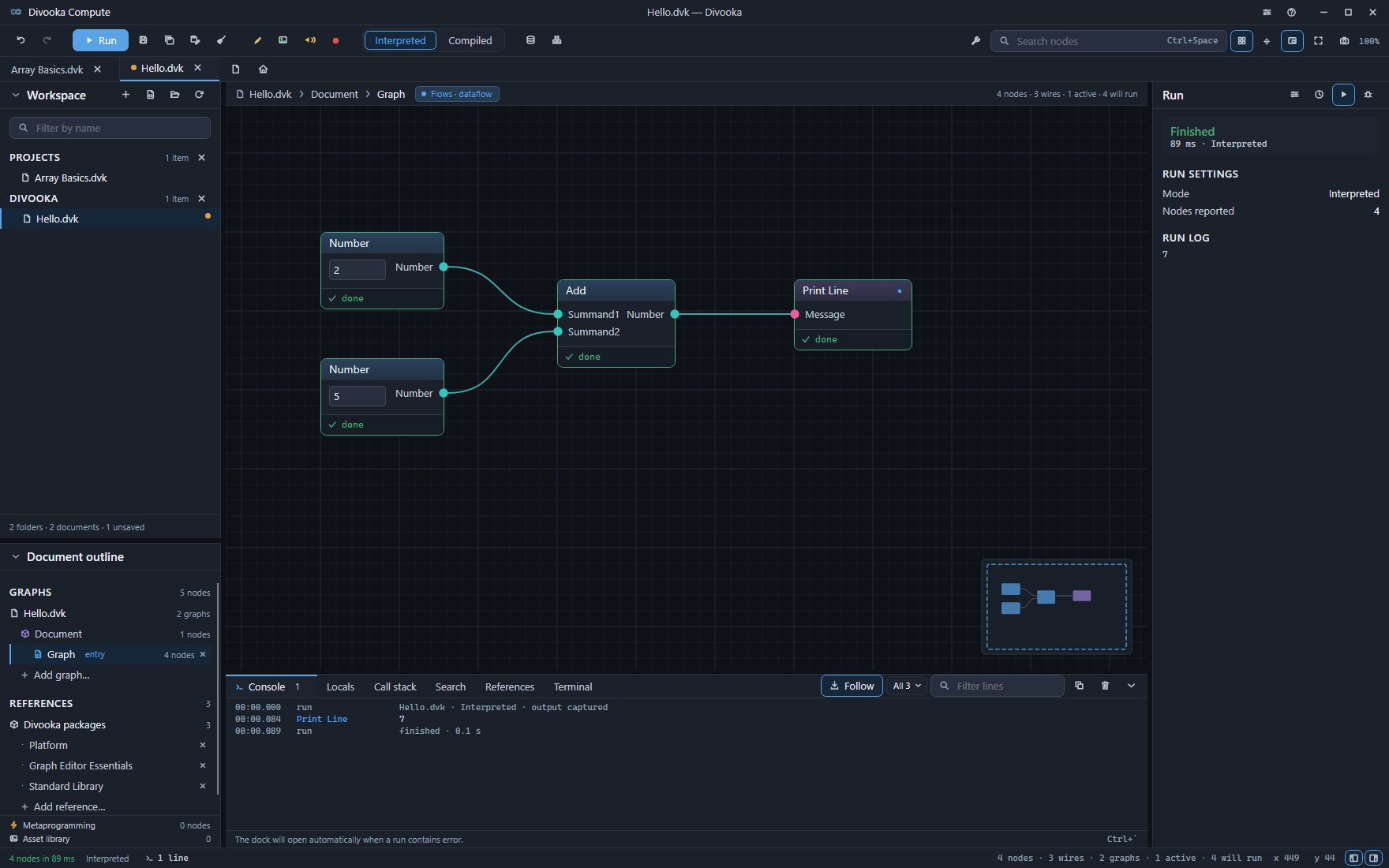
Change the first Number to 40 and press F5 again: the console reads 45.
Run it compiled
Press Compiled on the toolbar's switch, then F5. This time Divooka Compute builds the document into a program first and runs that: the status bar reads Ran compiled in and the time, and the console reads 7 again. The nodes show nothing under them, because a compiled program reports only what it printed and returned. Press Interpreted to go back. Running and the console says when each mode is the one to use.
Save it
Press Ctrl+S, or Save on the toolbar. The status bar reads Saved Hello.dvk. Next time, the document is on the start screen under Recent.
The workspace panel lists the document under its folder when that folder is in the workspace, and under Ungrouped otherwise. Press Ctrl+Shift+O and choose the folder to work from it: its documents are then one click away.
Where next
- Nodes, pins and wires - selecting, deleting, copying, labelling and tidying.
- Graphs and members - a Routine, which runs step by step, and the other kinds of graph.
- References - the packages a document uses, and using one document from another.
- Examples - larger programs to open, run and take apart.