
Exporting a Program
A document you have written in Divooka Compute is a program: it can run without the editor, from a command line, a script, a scheduled task or a server. The tool for that is stew, which ships in Divooka Compute's folder as stew.exe.
Running a document with stew
Open the dock's Terminal tab with Ctrl+Shift+`: it starts in the workspace folder holding the document on screen, and stew answers there by name. From any other command line, use the full path to stew.exe in Divooka Compute's folder, or add that folder to your PATH.
stew Hello.dvk
stew opens the document as the editor does and runs it as the editor's Run does, printing what the document prints as it runs - here, 7. It runs compiled unless told otherwise; --mode interpreted runs it node by node instead:
stew --mode interpreted Hello.dvk
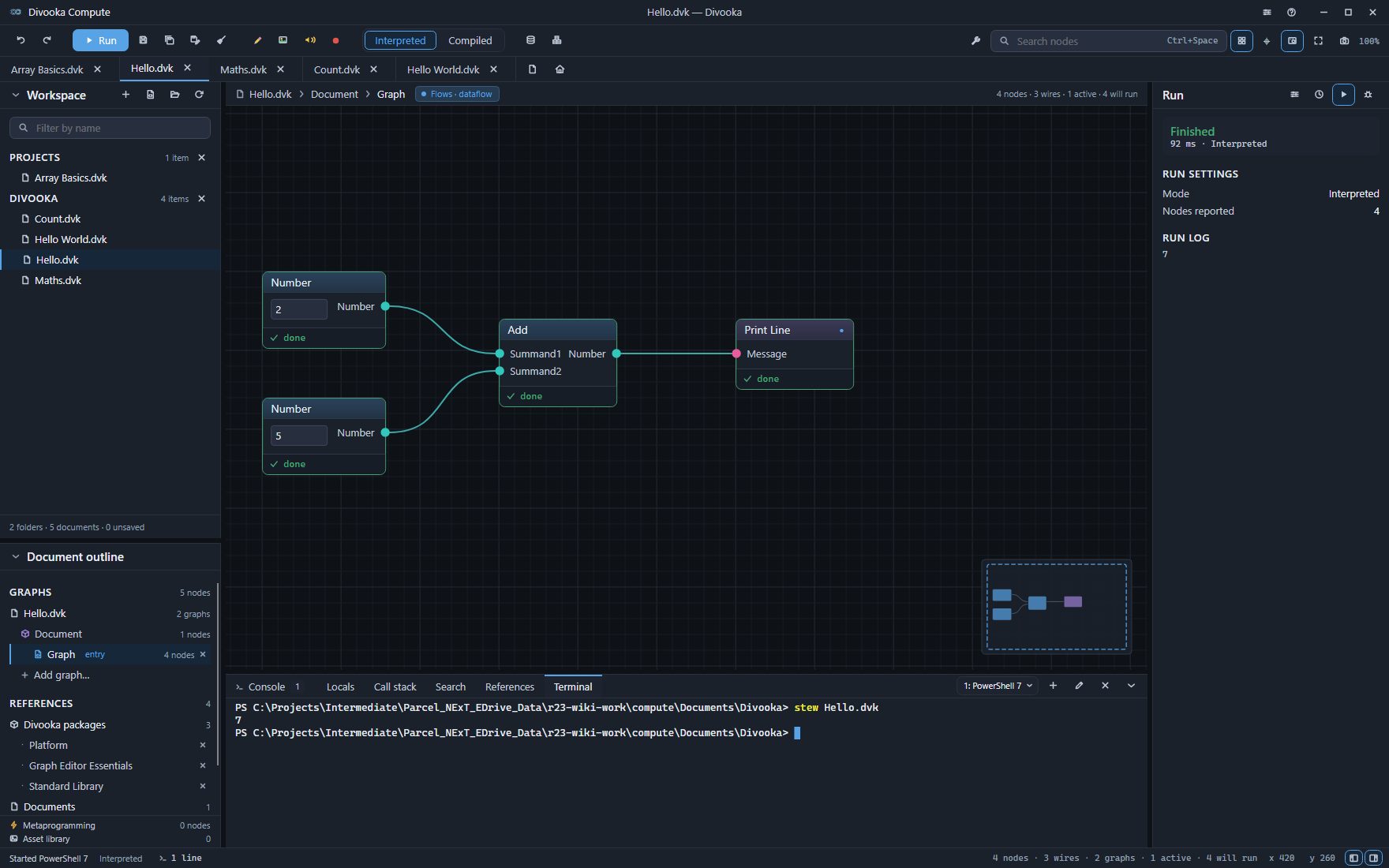
A Flows entry graph runs its active nodes, as in the editor, so mark the nodes that produce the program's output active before you save it.
Inputs
What a run takes in is what the entry graph declares: a Function's inputs, or the values a Routine's Begin declares. stew --help followed by a document says which graph a run starts from, what it takes in order, and how to run it:
> stew --help Examples/Benchmarks/Mandelbrot.dvk
Mandelbrot.dvk runs 'Graph' (Routine).
Inputs (in declaration order):
  Width: Number (Double), default 80
  Height: Number (Double), default 80
  MaxIteration: Number (Double), default 80
To run it:
  stew Examples/Benchmarks/Mandelbrot.dvk
  stew Examples/Benchmarks/Mandelbrot.dvk 80 80 80
  stew --mode interpreted Examples/Benchmarks/Mandelbrot.dvk
Values given after the document bind to the inputs in that order, and any left out take their defaults; quote a value that contains spaces. A Flows or Events entry declares no inputs, and what follows the document reaches it as the program's arguments.
When it ends
A finished run exits with 0 and lists what the entry graph returned; a failed one prints the failure and exits with 1. The other codes are 2 for a command line stew could not read, and 130 for a run stopped with Ctrl+C - the first Ctrl+C stops the run as the editor's Stop does, and a second ends stew at once. A script calling stew can test the code to know whether the program worked.
stew --measure followed by the document runs it as usual and then reports how long each stage took - opening, preparing, compiling, running - and what it used, on standard error, leaving the program's own output untouched. stew --help alone lists every option, and the environment variables that run a document with a window - a game, a GUI - without one.
Packing a document to hand on
A document that reads files beside it - an image, a table, another document it references - needs them with it. stew --pack puts a document and everything in its folder into one Divooka app bundle, a single .dvb file:
stew --pack Hello.dvk Hello.dvb
stew says how many files it packed and where. The document becomes the bundle's entry and every other file in its folder keeps its place beside it. With no bundle named, stew writes one named after the folder, beside the folder. A bundle runs like a document - stew Hello.dvb - unpacked for the length of the run and removed afterwards, so it can be copied to another machine that has Divooka Compute and run there as it ran here.
Serving a notebook
A Divooka Notebook document - a web page laid out by an Events graph, its cells answered by the document's Functions - is shared with dvn, which also ships in the folder: dvn "My Notebook.dvk" 0.0.0.0:5080 serves it to your local network until Ctrl+C. See Divooka Notebook.
A picture of the graph
To put a graph in a slide, a document or a message, press Ctrl+P or the camera on the toolbar. The Snapshot card offers the whole graph, fitted, at twice the screen's resolution - Graph on the grid, Graph on a plain background, Graph transparent and Graph transparent with grid - or The whole window as it stands. Choose one and press Save PNG….