
Debugging
An interpreted run of a Routine or an Events graph can be stopped before any statement, read, and walked one statement at a time. This works on the graphs that run step by step; a Flows or Function graph has no steps to stop between, and its run is never paused.
Debugging needs the toolbar's switch on Interpreted. A compiled program has no statements to stop between: with the switch on Compiled, the Debug face says so - The document is set to run compiled, and a compiled program has no statements to stop between. Switch the toolbar to Interpreted to debug. - and a run goes straight past every breakpoint.
Set a breakpoint
Select a statement - a node with execution pins, such as Print Line - and press F9. A red dot appears at the left of its title, and the status bar reads Set breakpoint on Print Line. F9 again clears it. The Breakpoint switch in the node's Properties does the same. Breakpoints are saved with the document, and setting one is a step of the undo history like any edit.
Run to it
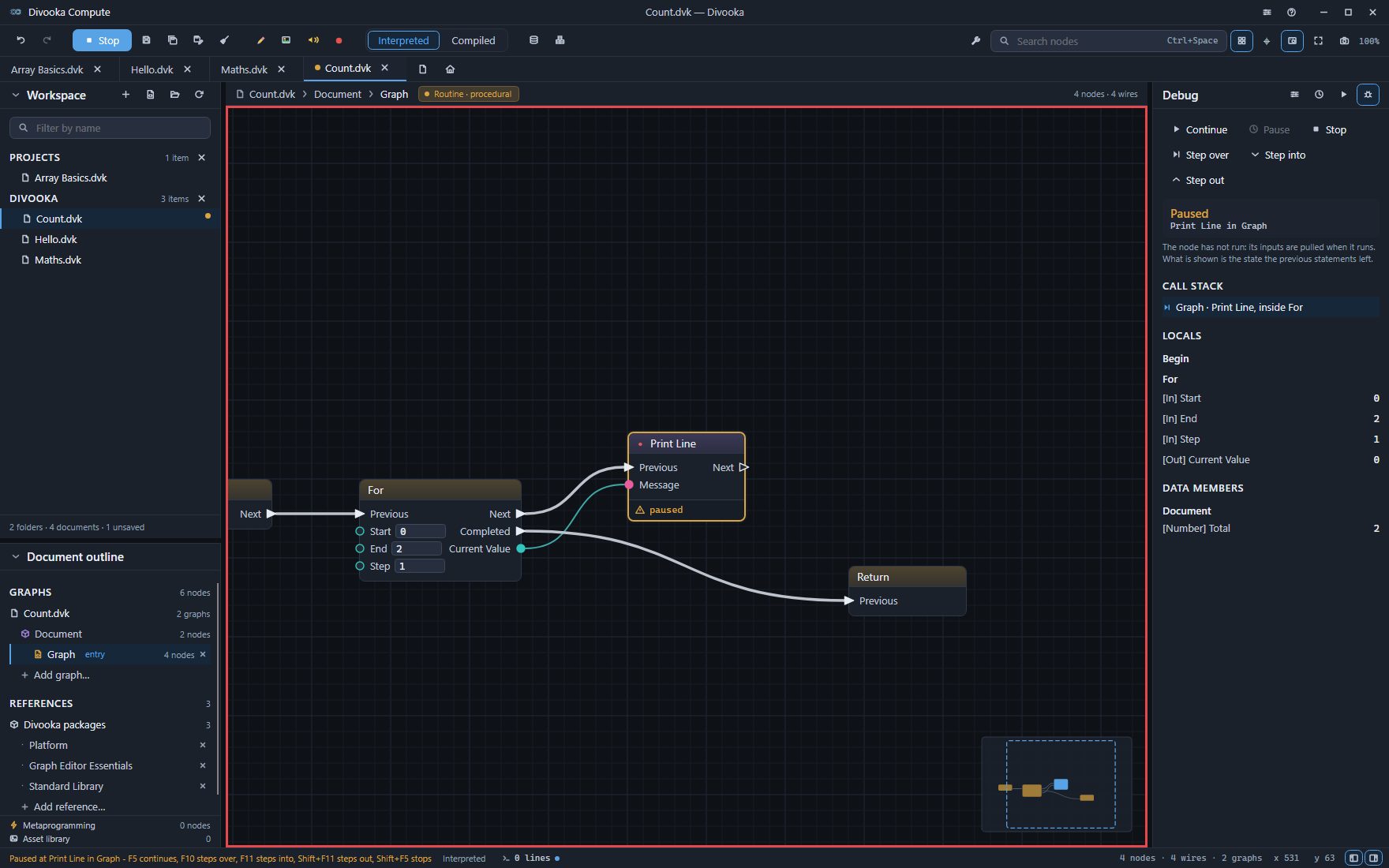
Press F5. While a run can be paused, a red frame lies round the canvas. The run stops before the node with the breakpoint - the node has not run yet - and:
- the node wears a thick amber border and reads paused, and is brought to the middle of the view and selected;
- Run on the toolbar reads Stop, and the Properties panel turns to its Debug face;
- the status bar names the node and the graph it is in - Paused at Print Line in Graph - F5 continues, F10 steps over, F11 steps into, Shift+F11 steps out, Shift+F5 stops.
When the statement is in another document - a Routine or Function of a document this one references - that document's tab comes forward, and the run goes on in front of you when you continue: its lines stay on the console whichever tab is showing.
Read where it is
The Debug face, from the top:
- Continue, Pause, Stop, Step over, Step into and Step out.
- Paused, with the node and the graph, and a reminder that the node has not run yet.
- Call stack - one row per graph the run is inside, the innermost first, such as Graph · Print Line, inside For. Click a row to see that graph, with the statement it is at marked.
- Locals - every node that has run in this pass, one row per pin: [In] what came in and [Out] what went out - a For's [In] End 2 and [Out] Current Value 0. A pin whose value has not been worked out yet reads no value yet. Click a row to see its value in full - an image as an image, a table as a table.
- Data members - the current value of every data member the graph can reach, such as [Number] Total 2.
The console dock's Locals and Call stack tabs list the same, and what the run has printed so far is already on its Console tab.
Move on
| Key | What it does |
|---|---|
F5 |
Continue to the next breakpoint, or to the end |
F10 |
Step over: run this statement, and stop before the next one in the same graph - a call to another Routine or Function runs whole |
F11 |
Step into: stop before the next statement anywhere, going into a Routine the statement calls |
Shift+F11 |
Step out: finish this graph, and stop back in the one that called it |
Shift+F5 |
Stop the run |
Pause, on the Debug face, stops a run that is going before its next statement - the way into a long loop with no breakpoint. F9 while paused sets or clears a breakpoint for the rest of the run.
When a statement fails
A statement that fails - a file that is not there, text cut past its end - pauses an interpreted run there, breakpoint or not. The Debug face and the status bar say what failed: Paused at Print Line in Graph, which failed: … - F5 ends the run. Read the values that led to it, then press F5 to end the run - the console opens on the failure, its last line - or Shift+F5 to stop it. A compiled run that fails is not paused: it ends, and the console opens on the failure.