
Opening and saving
The editor registers 31 format families: 30 can be opened and 18 can be written. PDF is write-only. Several extensions can name the same format; camera raw support is described separately. This page covers how to get a picture in, which format to put it back out in, and what the options in the export dialog actually change.
Opening
Any of these work:
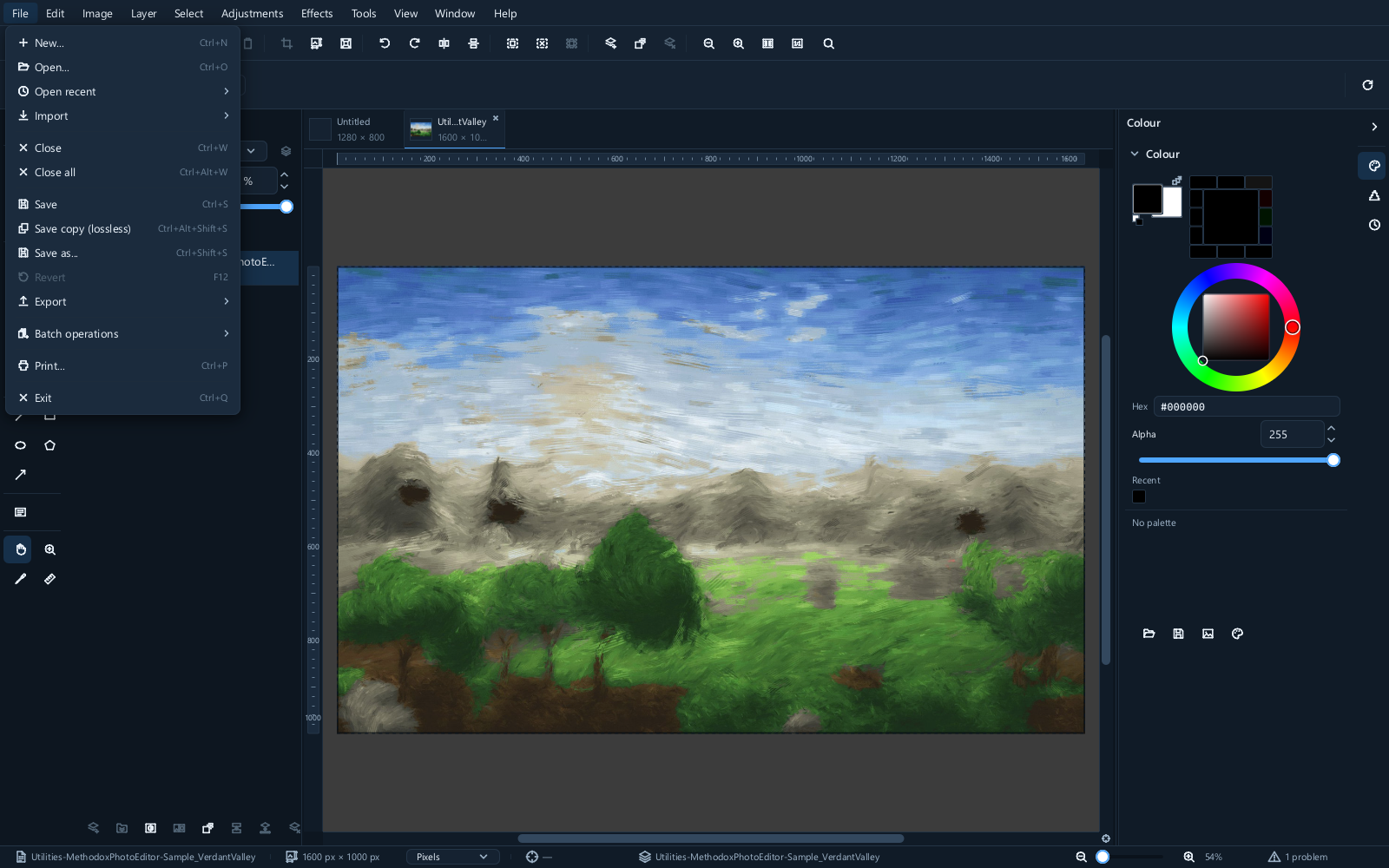
- File ▸ Open... — Ctrl+O
- Drag a file onto the window — usually the quickest
- File ▸ Open recent for something you had open before
- Paste from the clipboard as a new image
- Drop several files at once, and each opens in its own tab
You do not choose a format when opening. The file is identified by what is inside it, so a JPEG
named .png still opens correctly.
Check the status bar afterwards
The right-hand end of the status bar says either Nothing lost or how many problems there were.
Opening a file is not always lossless. A format may not be able to carry something the file contained, or the file may say something the editor cannot honour. The status bar is where that is recorded — click it for the detail.
Typical messages are worth reading rather than dismissing. "The file carries no colour profile, so its numbers are read as sRGB" tells you something real about what you are looking at, and Colour management explains why it matters.
Which format to save in
The short version:
| If you want to | Use |
|---|---|
| Carry on working on this later | .mie |
| Send a photograph to somebody | JPEG |
| Keep every pixel exactly, or keep transparency | PNG |
| Hand layered work to Photoshop | PSD |
| Put it on a web page and care about size | WebP |
| Print it, or send it to somebody who will not install anything |
Keep a .mie working copy. It preserves this editor’s layers, masks, editable text, live
adjustments, selection and metadata. Other export formats preserve different subsets. Undo
history is not restored on reopening: save separate versions when you need earlier editing states.
The formats it can save
| Format | Extensions | Keeps | Good for |
|---|---|---|---|
| MIE | .mie |
Layers, masks, text, adjustments, selection, metadata | The editor's working format; reopening starts a new undo history. |
| JPG | .jpg .jpeg .jpe .jif .jfif |
Colour profile | Lossy, opaque, and the format most photographs already are. |
| PNG | .png |
Alpha, colour profile | Lossless with full alpha. The safe answer when the format does not matter. |
| WEBP | .webp |
Alpha | Written losslessly. Usually smaller than PNG for the same pixels. |
| TIFF | .tif .tiff |
Pages, colour profile | Baseline TIFF with four compressions. What scanners and print shops expect. |
| PSD | .psd .psb |
Layers, masks, groups, blend modes | For handing work to Photoshop. |
| ORA | .ora |
Layers | A zip of PNGs with a stack description. The interchange format Krita and MyPaint agree on. |
.pdf |
Pages | One page per image, for printing and for sending on. | |
| GIF | .gif .agif |
Animation | 256 colours and one bit of alpha, still or animated. |
| APNG | .apng .png |
Animation, alpha | PNG with a frame sequence. Lossless, full alpha, understood by every modern browser. |
| BMP | .bmp .dib .rle |
— | Uncompressed Windows bitmap. Large, universal, and the clipboard's native shape. |
| ICO | .ico .cur |
Several sizes | A set of sizes in one file. Nothing above 256 pixels fits. |
| TGA | .tga .targa .vda .icb .vst |
Alpha | Uncompressed or run-length encoded. Still the lingua franca of game texture pipelines. |
| QOI | .qoi |
Alpha | Lossless, full alpha, and encodes about as fast as memory can be read. |
| EXR | .exr |
Floating-point file encoding | For compositing exchange; encoding as float does not by itself preserve HDR values through every edit. |
| HDR | .hdr .rgbe .xyze .pic |
RGBE encoding, no alpha | Radiance exchange; verify highlight range in the receiving application. |
| PFM | .pfm |
Floating-point file encoding | Simple float raster exchange; does not guarantee an HDR editing round trip. |
| PNM | .pnm .pbm .pgm .ppm .pam |
— | The Netpbm family. Trivially parseable, which is the entire point of it. |
The formats it can only open
These come in and cannot go back out. Save your work as something from the table above.
| Format | Extensions | Notes |
|---|---|---|
| HEIC / AVIF | .heic .heif .avif .avifs .hif |
What a modern phone camera writes, in both codings. Ten bits where the camera offered them, with an alpha plane and the maker's EXIF. A file holding several pictures opens its primary one. |
| PSP | .psp .pspimage .tub .msk and others |
Raster layers are imported; vector and text layers are not. |
| XCF | .xcf .xcfgz |
GIMP's own format, imported with its layer stack intact. |
| PDI | .pdi |
Another editor's layered document. Raster layers, blend modes and animation timings are imported. |
| JP2 | .jp2 .j2k .jpf .jpx .j2c .jpc |
Wavelet-coded, reversible or not, in the box container or as a bare codestream. |
| JLS | .jls |
The lossless member of the JPEG family, used where a medical or satellite image may not be approximated. |
| SVG | .svg .svgz |
Rasterized at the size the file declares; the drawing itself is not editable afterwards. |
| EMF / WMF | .emf .wmf |
Rasterized at the size the file declares; the drawing itself is not editable afterwards. |
| DDS | .dds |
Block-compressed textures; cube faces and array slices arrive as layers, mip levels are skipped. |
| PCX | .pcx |
What a decade of DOS art was saved as, at every bit depth and plane count the format defines. |
| DCX | .dcx |
A sequence of PCX images behind one index, imported as one layer per page. |
| CBZ | .cbz .cb7 .cbt |
An archive of one image per page, imported as one layer per page. CBR is a RAR and is not read. |
Camera raw files are handled separately — see Camera raw.
Saving versus exporting
Two commands, and the difference is worth getting right.
File ▸ Save as... writes your document. Choose .mie to preserve the editable document. Choose anything
else and the editor tells you, in the status bar, what could not be carried.
File ▸ Export ▸ Image to file... produces a finished picture. For JPEG or ordinary PNG, the visible result is flattened into one image. The export dialog offers the options that particular format has; layered and animation formats differ.
Your document is not changed by exporting. Export a JPEG, carry on editing, export again — the
.mie is still the full document.
The export options
The preview compares the original and encoded pixels. Drag the split divider to inspect compression and palette changes. Its estimated size helps compare choices; scroll the options area for controls below the visible portion. Cancel leaves the working document unchanged.
JPEG
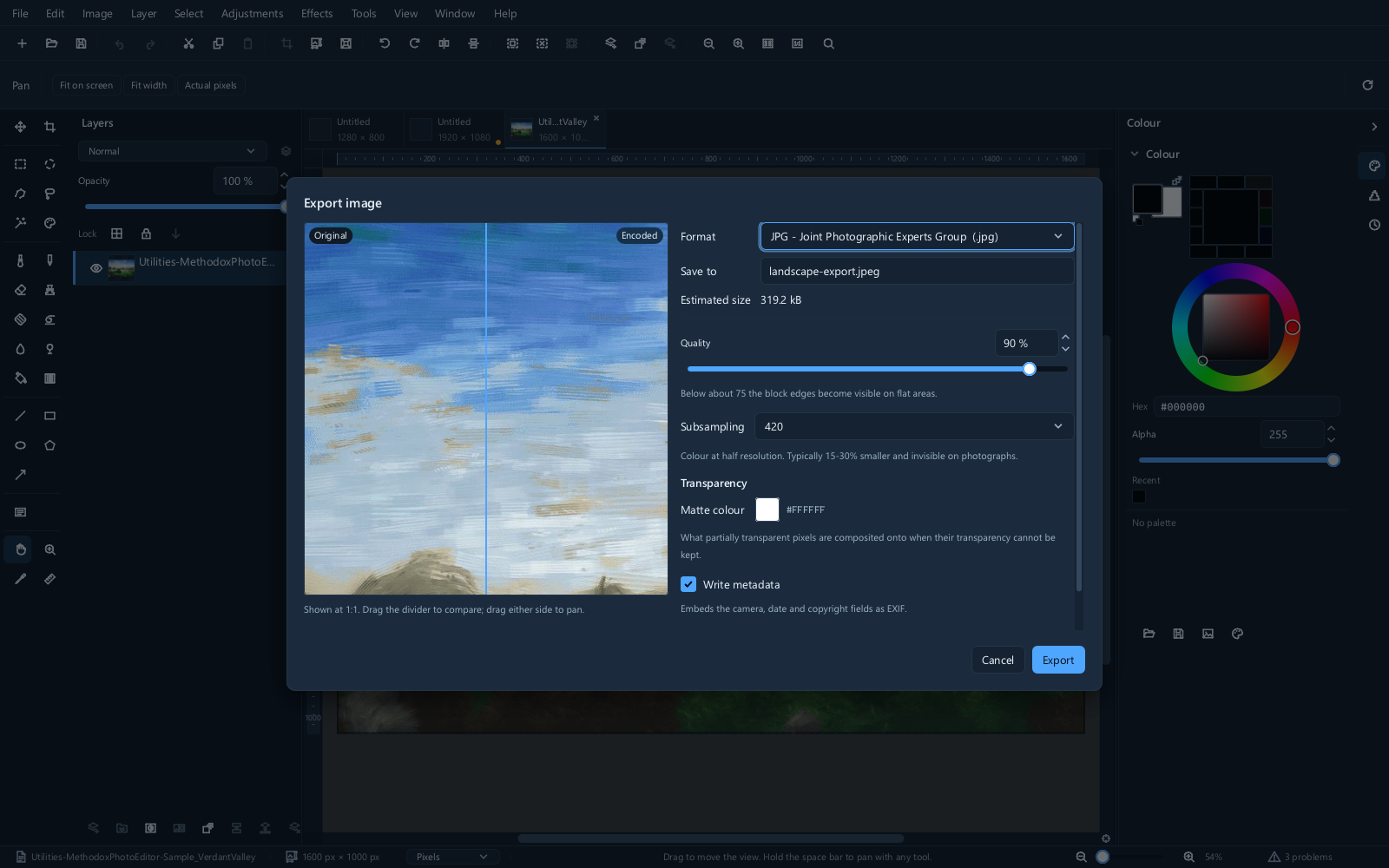
Quality controls the compression tradeoff and runs from 1 to 100. Dimensions, transparency handling and colour profile also affect whether the exported picture suits its destination.
- 85 to 95 — photographs. The default is a sensible place to start.
- 60 to 80 — the web, where size matters more than the last few per cent.
- Below 50 — visibly damaged. Use it only deliberately.
JPEG is lossy every time it is written. Opening a JPEG, making one small change and saving it again loses quality across the whole picture, not just the part you changed. Do that a dozen times and the damage is obvious.
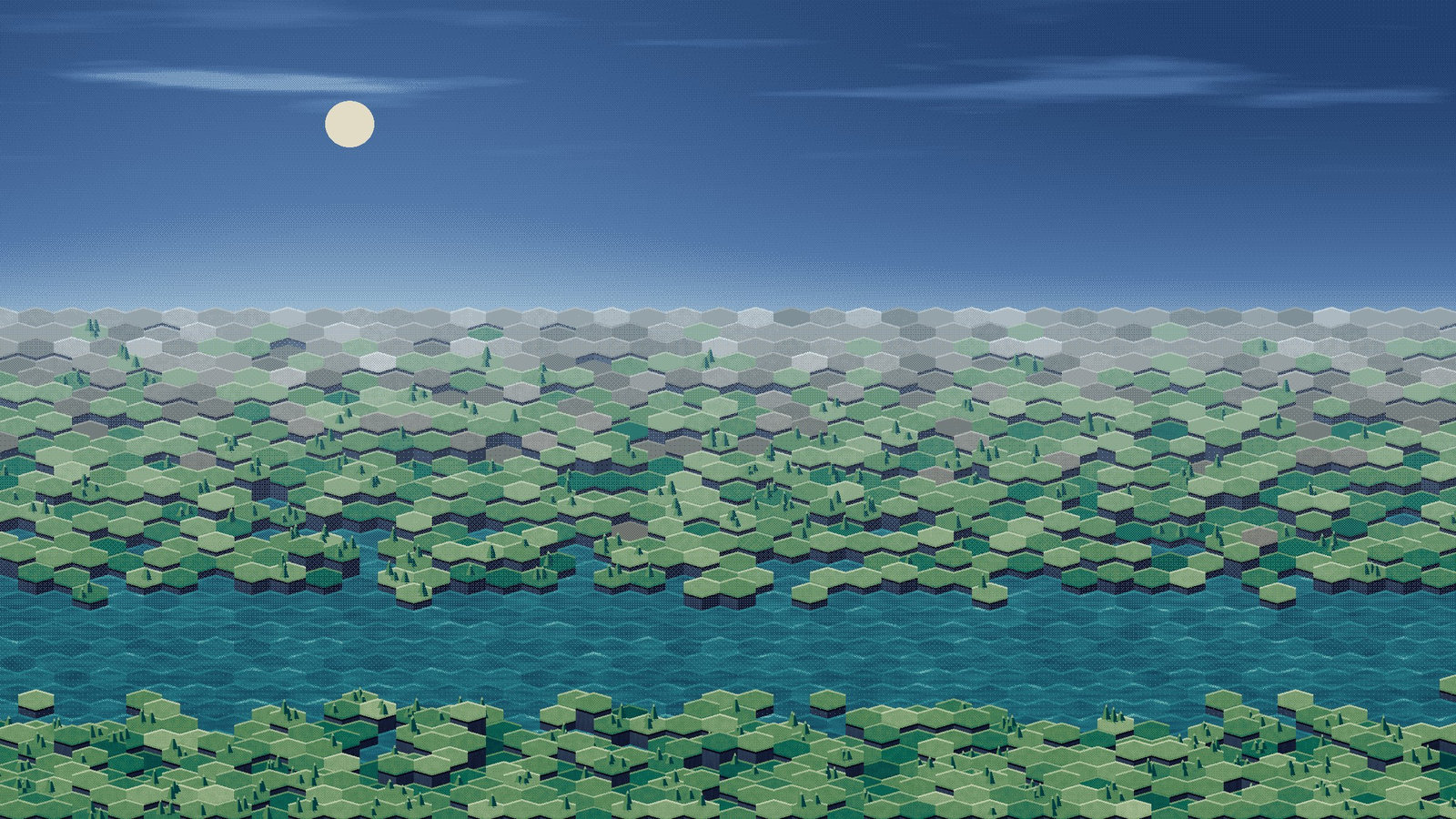
| Quality 85 | Quality 25 |
|---|---|
 |
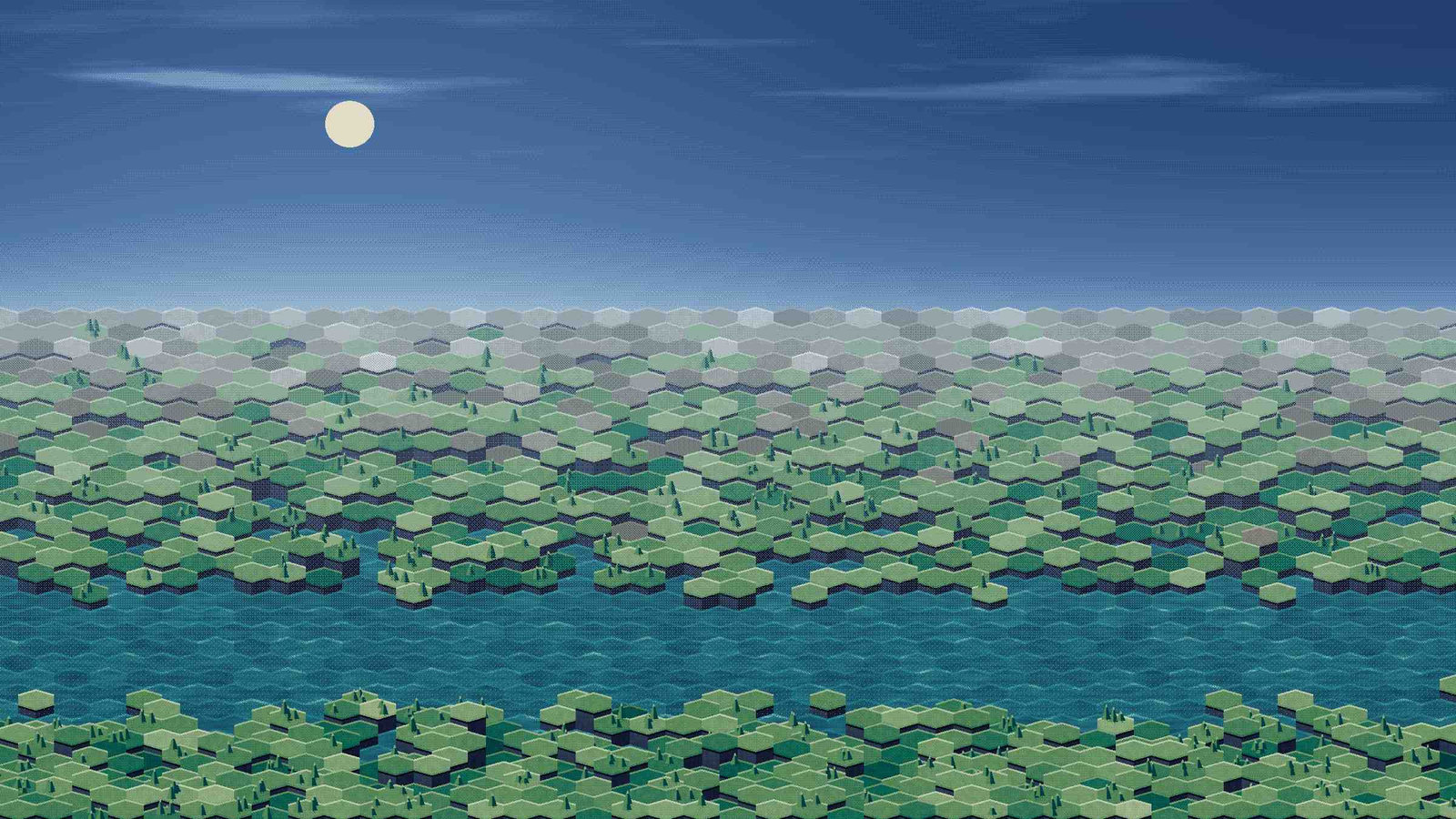 |
Look at the flat colour areas and the hard edges — that is where JPEG gives up first.
JPEG also cannot store transparency. Anything transparent becomes a solid colour on the way out. If your picture has a transparent background, you want PNG or WebP.
PNG
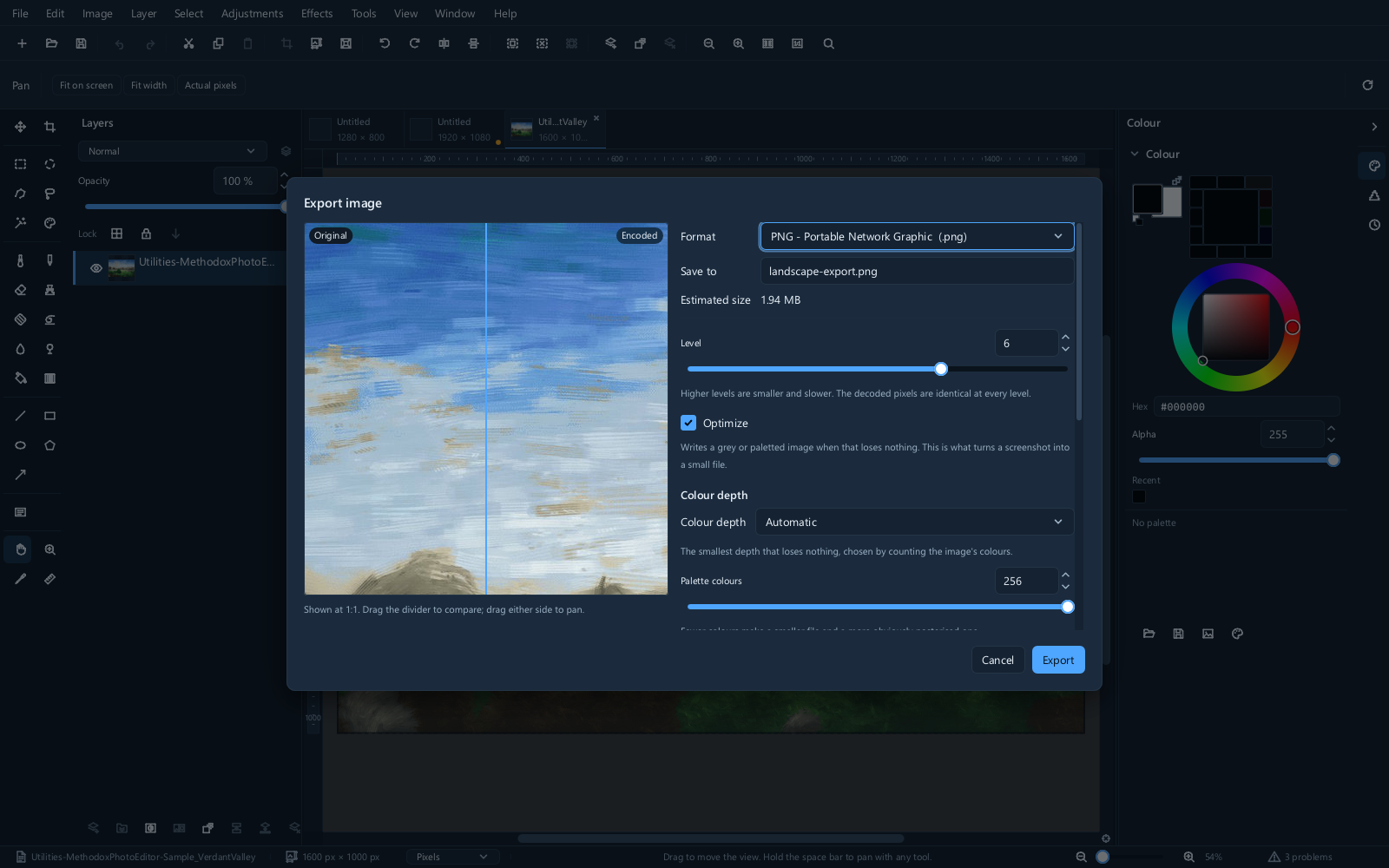
PNG is lossless, so there is no quality setting. What it offers instead is colour depth, and that changes the file size a great deal.
| Choice | What it does |
|---|---|
| Full colour | Every colour, and a full alpha channel. The safe default. |
| Indexed | Up to 256 colours from a palette. Much smaller, good for flat graphics, poor for photographs. |
| Alpha handling | Full transparency, a single transparent colour, or a hard cutoff at a threshold |
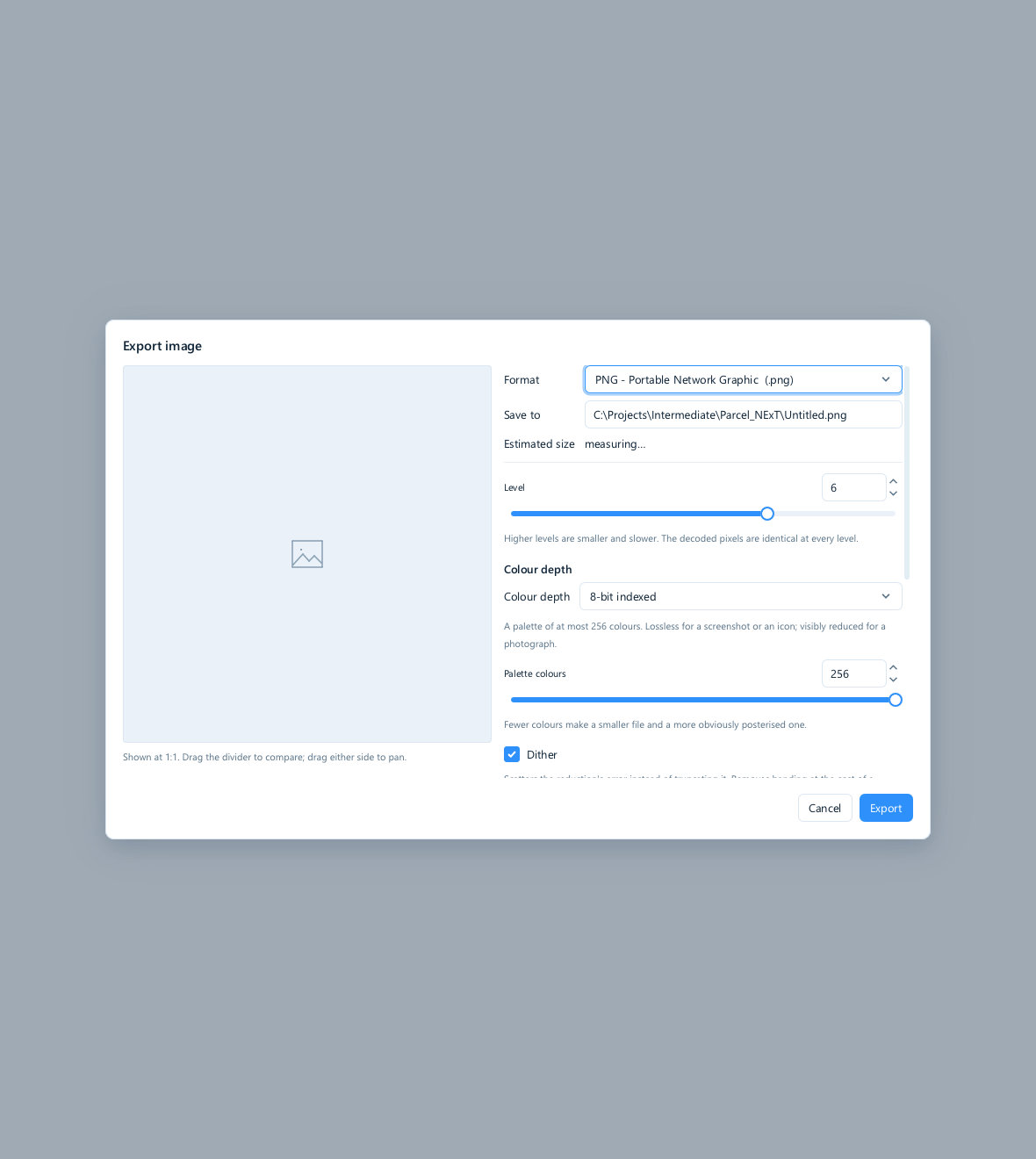
For a screenshot or a logo, indexed PNG is often a quarter of the size with no visible difference. For a photograph, it is a poor trade.
GIF
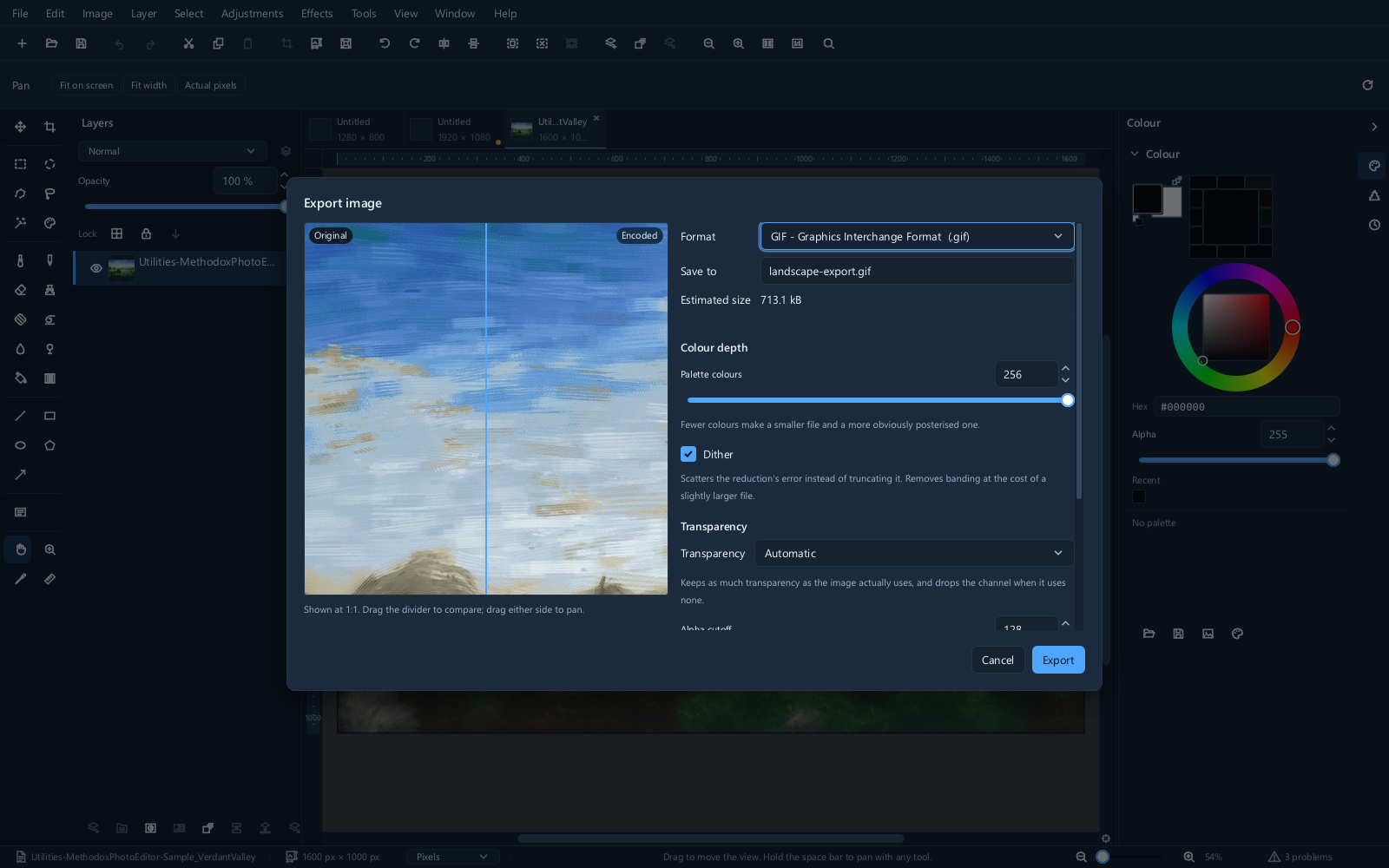
GIF is limited to 256 colours and to transparency that is either fully on or fully off — there is no partial transparency, so soft edges against a transparent background will look ragged.
The palette and dithering choices decide how a full-colour picture is reduced to those 256. Dithering trades a fine speckle for smoother gradients; without it you get banding.
TIFF
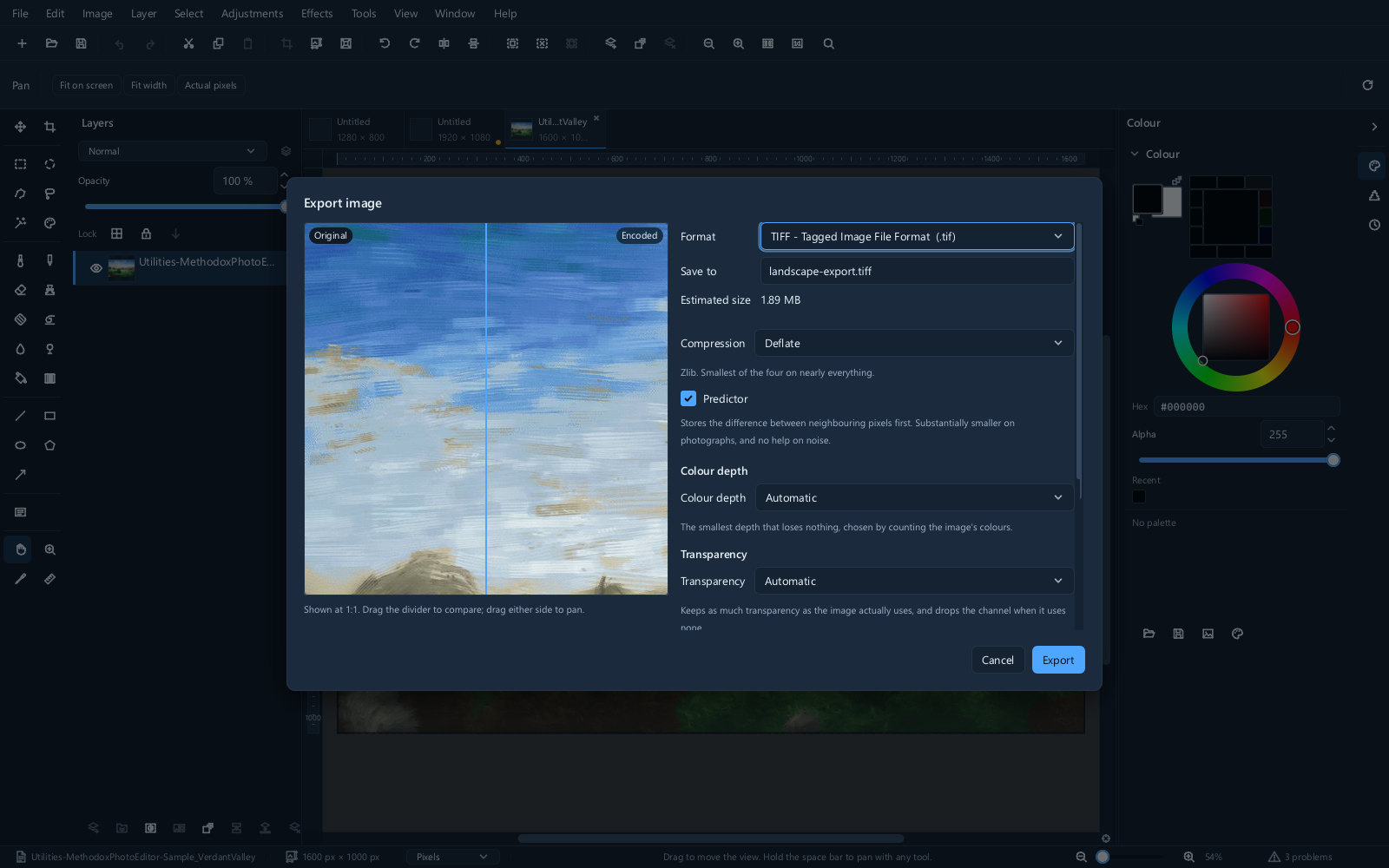
TIFF offers four compressions, all lossless, and can hold multiple pages. It is what print shops and scanners expect. Files are large.
Metadata
EXIF, IPTC and XMP travel with the picture where the format can carry them: camera settings, dates, captions, copyright, and possibly the location the photograph was taken.
Use Image ▸ Metadata ▸ Edit metadata... to inspect and edit the fields. Image ▸ Metadata ▸ Remove all metadata removes them from the working document; do this on a copy if you want to retain camera information in your master. Map photo location... uses stored location information when available. Reopen your exported copy to check what its format retained.
Save, copies and clipboard choices
File ▸ Save updates the working file. Save as... adopts a new path; use it to create a version before major changes. Save copy (lossless) creates a native working copy. Revert returns to the saved file and discards unsaved edits, so preserve a separate version first if needed. See Troubleshooting and recovery for autosave recovery.
| Clipboard command | What you are asking for |
|---|---|
| Edit ▸ Copy | Pixels from the active layer, restricted by the selection |
| Edit ▸ Copy merged | The visible composite within the selected area |
| Edit ▸ Paste | Clipboard content as a layer in the current document |
| Edit ▸ Paste to new image | A separate document from the clipboard |
| Edit ▸ Paste in place | Retain placement when the clipboard provides it |
| Edit ▸ Paste to cursor | Place pasted content at the cursor |
| Edit ▸ Special ▸ Paste special... | Inspect the available paste choices |
For a photograph already in a file, opening the original usually preserves more file information than copying it through another program's clipboard. Clipboard formats and native paste support depend on the host and the application that supplied the content.
For separate layers, frames, pages, scanners and printing, see Animation and output.
Next
- Camera raw — files straight from a camera sensor
- Colour management — why a picture can change colour between programs
- Automation — converting a folder of files at once