
Methodox Everywhere
Methodox Everywhere lists every file on every drive and searches all of them while you type. Not the folder you happen to be in, and not only the places something decided to index — everywhere.
- Version: v0.4
- Platforms: Windows (NTFS drives)
- Download: Methodox.itch.io
- Website: everywhere.methodox.app
What it is for
Two questions, mostly.
Where did I put that file? Type part of its name and it is on screen before you have finished the word. There is no waiting for a scan and no progress bar; the whole catalogue is ready, so every search is complete the moment you stop typing.
Where has my disk gone? Every folder carries the size of everything inside it, and you can sort by that. Ask for folders over a gigabyte, sort largest first, and the answer is in front of you.
The first run
Start it and it reads your drives. On a machine with administrator rights this takes seconds; the window is usable as soon as the first drive is ready.
Without administrator rights it still finds everything, but it has to walk the drives itself, which takes minutes rather than seconds and cannot keep itself up to date afterwards. It says so in a band across the top of the window, with a button to restart with the rights it wants. Granting them is worth it — this is the difference between a tool you leave open and one you avoid opening.
After the first run, Everywhere keeps itself current as files are created, renamed and deleted. It does not rescan.
Files that are not really there
This is the part worth knowing about even if you never use anything else.
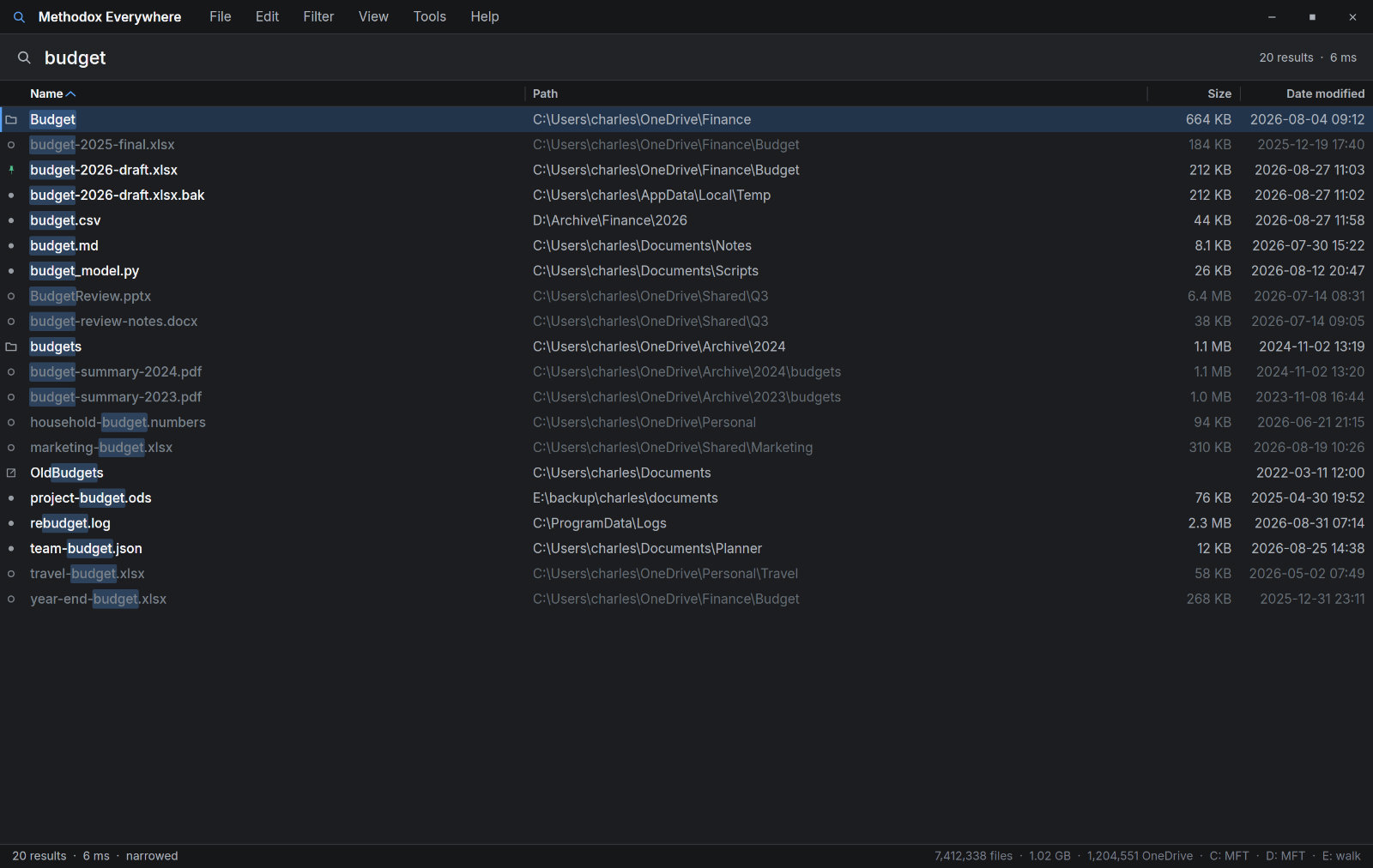
A cloud folder — OneDrive and the like — lists files whose contents are not on your machine. They have names, sizes and dates like any other file, and opening one costs a download. On a slow connection, a metered one, or a plane, that is not a small thing.
Everywhere tells the difference, in two ways at once:
| In the list | Means |
|---|---|
| A solid dot | An ordinary file. It is on your disk. |
| A green dot | A cloud file that has been downloaded and is being kept. |
| A green pin | A cloud file you marked to always keep on this device. |
| A hollow ring | A cloud file whose contents are not here. Opening it will download it. |
| A folder mark | A folder. |
| An arrow | A shortcut, junction or link to somewhere else. |
A file whose contents are elsewhere is also drawn a step back from the rest of the list, so you can see which results you can actually open without reading a single mark.
If you would rather not see them at all, Filter ▸ Skip OneDrive entries removes them from every search. A small removable tag appears under the search box while it is on, so you always know why the list is shorter than you expected.
Filters
The Filter menu holds everything that changes what is in the list, as opposed to how it looks:
| Everything | No restriction |
| Files only | Folders are still indexed, just not listed |
| Folders only | The fastest way to find a folder by name |
| Skip OneDrive entries | Every cloud file, downloaded or not |
| Skip online-only files | Keeps the cloud files whose contents are here |
| Clear all filters |
Each filter that is on shows as a removable tag under the search box, and they are remembered between runs.
Searching for more than a word
Most searches are a word or two. A space means and, so budget report finds anything whose path contains both, in any order.
When a word is not enough:
| Type this | To find |
|---|---|
*.psd |
Every Photoshop file on the machine |
"my notes" |
That exact phrase, spaces included |
name:readme |
Matches on the file name rather than the whole path |
ext:cs,fs |
Files with either extension |
size:>1gb |
Anything over a gigabyte, folders included |
size:>1gb type:folder |
The folders filling the disk |
mt:lastweek |
Changed in the last seven days |
dir:downloads |
Anywhere with "downloads" in the folder path |
under:"C:\Users\me\Projects" |
That folder and everything beneath it |
cloud:online |
Files that would have to download first |
local:yes |
Only what is on this machine |
a \| b, !a, ( ) |
Or, not, grouping |
Press F1 at any time for the whole list without leaving the window.
Quote anything containing a space, and quote a path if you are typing one out: dir:"C:\Program Files".
Searching inside a folder
You rarely need to type under: yourself. Right-click any result and choose Search in this folder — or Search in containing folder when the result is a file — and the search box is rewritten for you, with the cursor after it, ready for whatever you are looking for. Ctrl+D does the same thing without the menu.
While the disk is busy
Building software, installing something, or unpacking a large archive creates thousands of files a second. Everywhere keeps up, and the list you are reading stays where you left it: the row you selected stays selected and the list does not scroll back to the top.
If you would rather it stopped moving altogether — while you work through a long list of results, say — Tools ▸ Follow file system changes (Ctrl+L) freezes what is on screen until you turn it back on or type something new. The catalogue itself keeps up to date in the background either way, so nothing has to be rebuilt when you resume.
Keyboard
| Key | Does |
|---|---|
Ctrl+F |
Jump to the search box |
Enter |
Open the selected result |
Ctrl+Enter |
Open the folder containing it |
Ctrl+C |
Copy the selected paths |
Ctrl+D |
Search inside the selected folder |
Ctrl+Shift+O |
Skip cloud files |
Ctrl+Shift+F / Ctrl+Shift+D |
Files only / folders only |
Ctrl+L |
Stop following file system changes |
Ctrl+= / Ctrl+- / Ctrl+0 |
Larger text, smaller text, back to normal |
F1 |
The search language |
F5 |
Read the drives again from scratch |
Appearance
A dark theme and a light one, under View. The whole interface scales between 80% and 200% with Ctrl+= and Ctrl+-, which is a change of size rather than a magnifier — the text is rendered at the larger size, not blown up. Your choice of theme, text size, sort order and filters are all remembered.
What it needs, and what it cannot do
Everywhere is fast because it uses capabilities that belong to Windows and to the NTFS file system. That buys the speed and it sets the limits.
- Windows only. There is no macOS or Linux version, and there cannot be a like-for-like one.
- NTFS drives only. Drives formatted another way — many USB sticks and memory cards, for instance — will not appear. Network drives are not listed either.
- Administrator rights, to be quick. Without them it works but starts slowly and cannot follow changes.
- Memory in proportion to your disks. The catalogue is held in memory so that searching is instant, so a very large drive means a correspondingly large catalogue.
- It searches names and paths, not contents. There is a
content:term for looking inside files, but it reads them as it goes and is much slower than everything else. Narrow the search first.
If something looks wrong
A drive is missing. It is probably not NTFS, or it is a network drive. Both are outside what Everywhere can list.
Results look out of date. Check whether Tools ▸ Follow file system changes is off — a tag under the search box says so when it is. F5 reads the drives again from scratch.
Everything is slower than described. Check for the band across the top of the window saying it is not running as administrator. Restarting with those rights is the fix.
A folder shows no size. Folder sizes are worked out shortly after the drives are read; give it a moment. A drive that had to be walked rather than read properly may not have sizes at all, and says so.